
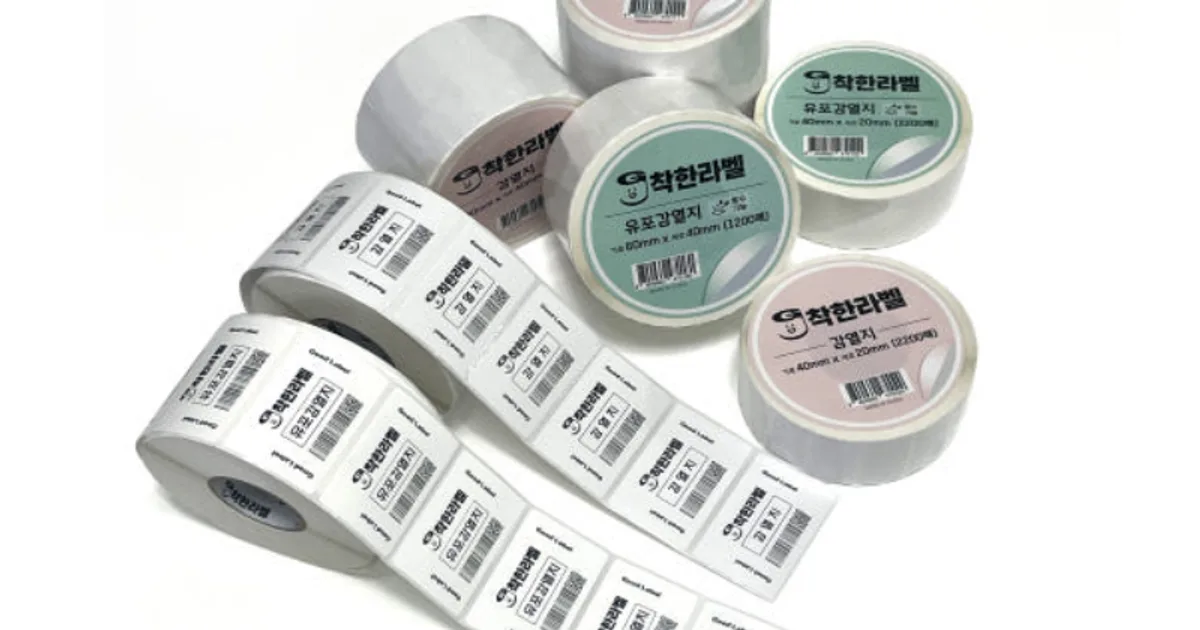
A store shelf price tag carries the price customers read and the barcode staff scan on a single label 40–60mm wide. The tags are small and many get changed at once for every promotion, so in GoodLabel Designer the basic setup is a price tag layout made once and linked to a price list in Excel, printing only the rows that changed.
Dividing up 40×20 to 60×40mm price tags
Adding a barcode requires a label at least 30mm tall. Even printed with the smallest bar allowed for thermal printing (2 dots at 203dpi), an EAN-13 needs 28.3mm of width including quiet zones and a bar height of 18.28mm or more, so on labels under 25mm tall it's hard to fit the price text and a barcode together.
| Label | Layout | Barcode |
|---|---|---|
| 40×20mm | One 7pt line of product name on top, 24pt price below | None |
| 40×25mm | Two 8pt lines of product name on top, 28pt price below | None |
| 60×30mm | EAN-13 on the left (about 30mm wide), 8pt product name at top right, 20pt price at bottom right | Same 13 digits as the product |
| 60×40mm | Two 9pt lines of product name on top, EAN-13 at bottom left, 20pt price at bottom right | Same 13 digits as the product |
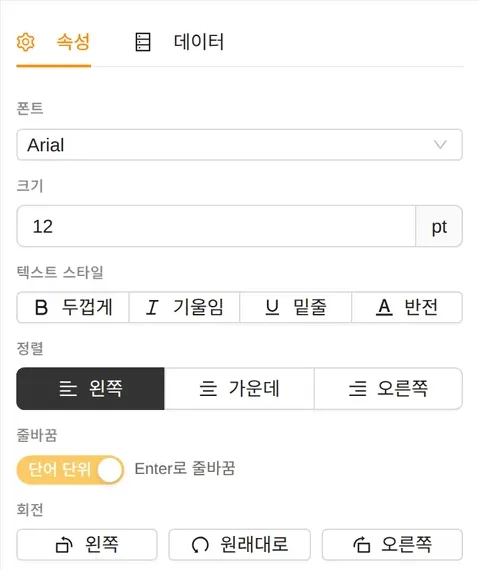
Set the text object's Alignment to right for the price digits, and both 3-digit and 6-digit prices sit against the right edge of the object box, so the last digits line up when tags are placed side by side on the shelf. If a 6-digit price overflows its field, narrow it with Narrow text in the ribbon's Paragraph group, 0.1 at a time down to 0.7×, and leave the font size as is.
Bar width and height calculations for the barcode field and EAN13(NEW) settings are in Making product barcode labels. EAN-13 bars can't be cut below GS1's minimum of 18.28mm, so if the label isn't tall enough, drop the barcode or enlarge the label to 60×30mm.
The 13-digit number for the barcode
Put the 13-digit GTIN printed on the displayed product into the shelf tag's barcode as is. If the two numbers differ by even one digit, a different product comes up when staff scan the shelf to place orders or check prices. If the packaging changes and the product gets a new GTIN, change the shelf price tag to the new number when the new product goes on display.
Printing the same 13 digits as CODE128 packs 12 of the digits in pairs with 1 left over, making 143X including quiet zones, or 35.8mm with 0.25mm bars. At the same bar width an EAN-13 is 28.3mm, so on a narrow label like a price tag, EAN13(NEW) is more than 7mm shorter.
Commas and units in prices
The designer's text objects have no format that groups numbers by thousands. Instead, .xlsx and .xls files are read as the cells appear, so if you change the selling price column's cell format to a number with a thousands separator, the price goes onto the label with the comma. CSV files are read exactly as the text written in them, so if you've received a CSV with prices written like 1500, without commas, apply the format in Excel and save it again as .xlsx.
Put the one-character currency unit in the Suffix of the price field's link settings, so you keep only numbers in Excel and still add the unit to every row. To make the unit smaller than the price, put the unit alone in a separate text object, shrink it to around 12pt and place it at the bottom right of the price.
4 steps to print only changed rows for promotions and price changes
In the price list in Excel, have 4 columns (product name, barcode, selling price and shelf location) plus one change flag column, and write Y in the rows whose price changed.
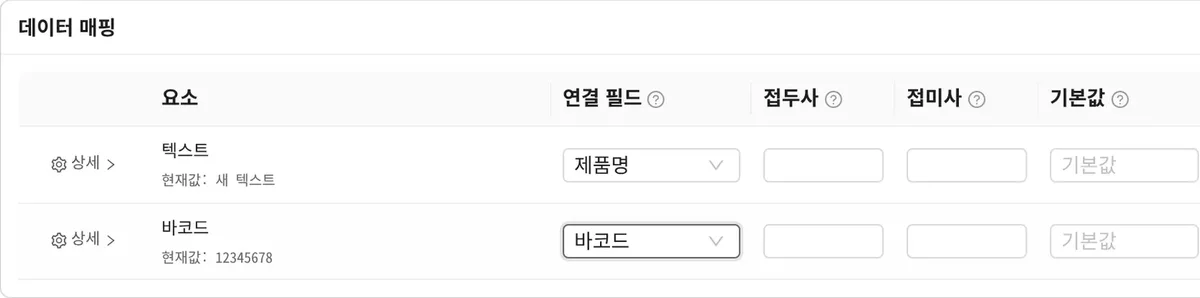
- Load the Excel file with Connect data in the tool panel, and link the product name, price and barcode objects to their columns.
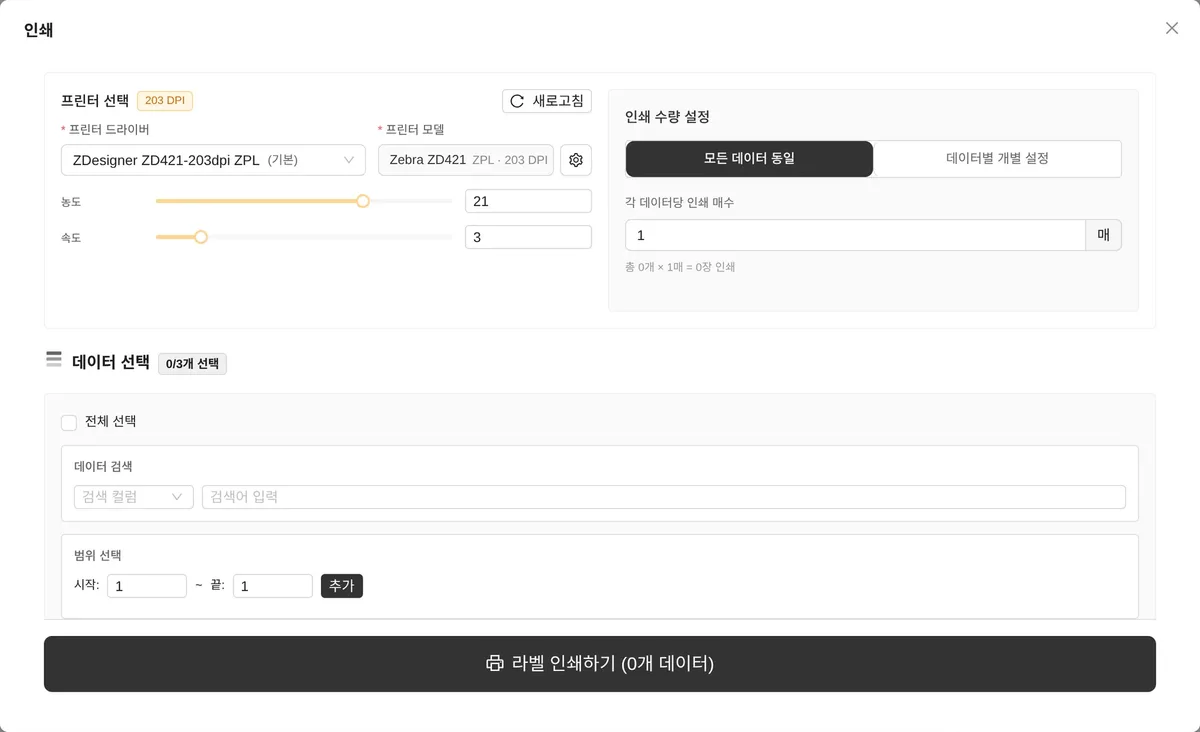
- In Search data in the Print window, set the search column to the change flag column and the search term to the single letter Y. It's a case-insensitive contains search, so rows with a lowercase y are found too.
- Tick the select-all checkbox, which now selects all search results, and only the Y rows are checked; under the search box you see the number of rows found and the total, such as "Search results: 35 / total 120 items". With 1 copy, only 35 labels print.
- If one product spans 2 or more shelf positions, change Print quantity settings to Set per record and specify the position count column as the quantity.
If you sort the Excel sheet in shelf location order, labels come out in aisle order, so you don't need to sort them separately as you peel them off the roll. Why the quantity column must contain only digits is explained in the file preparation table of Bulk printing from Excel or CSV.
Price tag label material and sizes
Direct thermal labels printed without a ribbon suit price tags that are replaced every promotion cycle. Direct thermal printing suits short-term labels that don't need to last, and price tags printed fresh with every price change are exactly that case. Direct thermal roll labels come in all of the 40×20, 40×25, 60×30 and 60×40mm sizes.
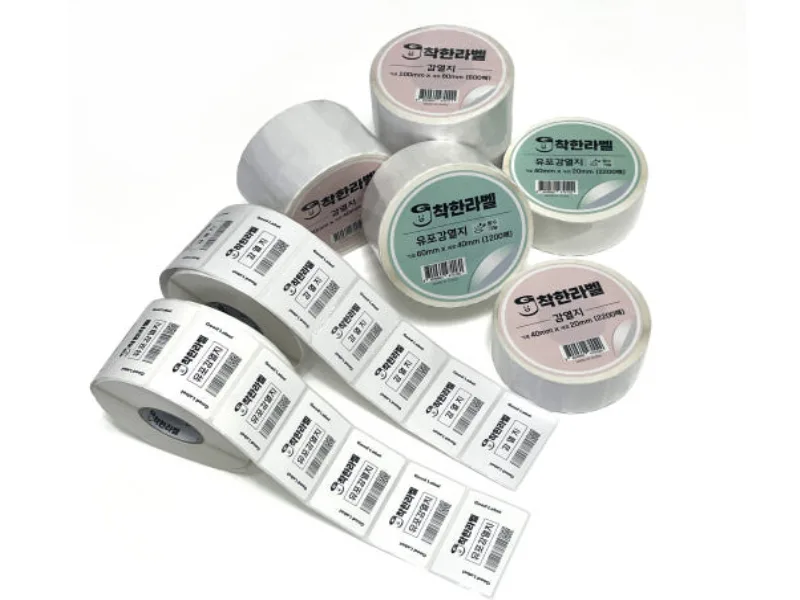
On shelves where moisture forms, such as refrigerated cases or produce displays, use YUPO direct thermal labels, a waterproof synthetic paper. It's the same direct thermal method, so you don't need to change the designer settings. The 50×25mm size, available only in YUPO direct thermal, is the same height as 40×25mm and just 10mm wider, so change the document width to 50mm in Printer settings and give the extra 10mm to the price field. Print method settings for direct thermal rolls are in designer print method settings.