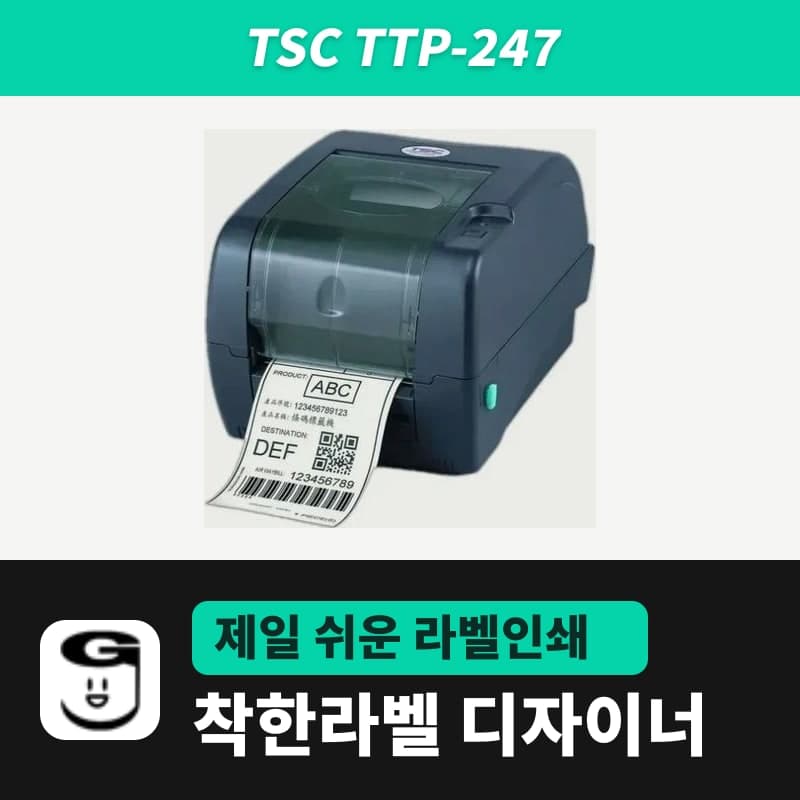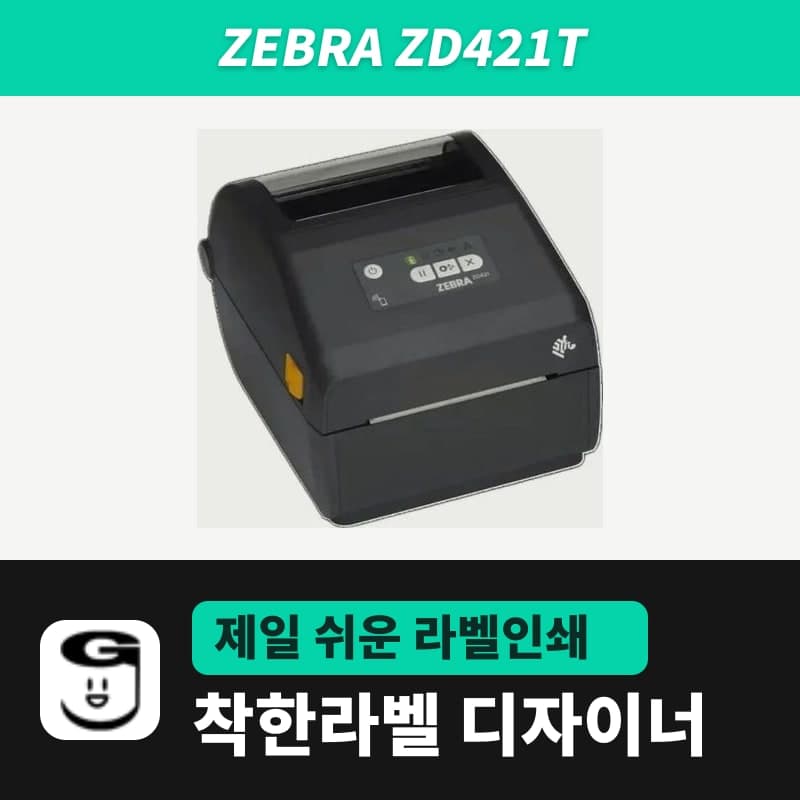
If you alternate direct thermal rolls and ribbon-printed thermal transfer labels on one printer, there is 1 place to change in GoodLabel Designer each time you swap rolls: Printer settings → Print options → Print method. Match the label size and media type to the new roll as well, print 1 test label, and the switch is done.
If you first need to decide which labels to print by direct thermal and which by thermal transfer based on lifespan, heat and light, start with the direct thermal vs. thermal transfer comparison (info.woojuoa.co.kr).
The 3 print method buttons and the commands sent to the printer
On dual-mode printers that can take a ribbon (for example the TSC TTP-247 or Zebra ZD421T), the print method appears as 3 buttons: Printer settings, Direct thermal and Thermal transfer. The button you press adds the command below to the head of the print job, depending on the command language.
| Button | ZPL (Zebra and others) | TSPL (TSC and others) | EZPL (Godex and others) |
|---|---|---|---|
| Printer settings | Not sent | Not sent | Not sent |
| Direct thermal | ^MTD | SET RIBBON OFF | ^AD |
| Thermal transfer | ^MTT | SET RIBBON ON | ^AT |
When you choose Printer settings, the command is left out and the method stored in the printer is used as is. The print method buttons appear only for printers using the 3 command languages ZPL, TSPL and EZPL, and if you check Print as image, the print method and media type fields are covered semi-transparently and the printer driver's settings apply instead. Models such as Toshiba, which the designer prints only through the driver, don't have these fields at all, so direct thermal or thermal transfer is set in the properties of the Toshiba driver.
Designer settings, in order, when you swap rolls
- Change the label size in Printer settings to the new roll's width and height in mm. Going from a 100×150mm direct thermal shipping label to a 70×40mm YUPO label changes both fields.
- Match the print method to the new roll: Direct thermal for a direct thermal roll, Thermal transfer when a label and ribbon are loaded together.
- Set the media type to the one that matches the new roll: gap labels, continuous media or black mark. The gap length field (3mm at first) is sent only to TSPL and EZPL printers; ZPL printers measure the gap with auto detect (~JC).
- Set copies to 1 and print. If the first label after switching to thermal transfer comes out faint, raise the density in the Print window one step at a time (starting values: ZPL 21, TSPL 11, EZPL 13).
If you take out the ribbon and go back to a direct thermal roll but leave the print method on Thermal transfer, a Godex EZPL printer stops with a Print Mode Error saying there is no ribbon. On a day you swap rolls, check step 2 first.
Print method for 3 GoodLabel label types
| Product | Designer print method | Ribbon | Suitable use |
|---|---|---|---|
| Direct thermal roll labels | Direct thermal | Not needed | Short-term labels, from small 30×10mm markings to 100×150mm shipping labels |
| YUPO direct thermal labels | Direct thermal | Not needed | Short-term labels in wet conditions |
| YUPO labels | Thermal transfer | Needed (sets are 5 label rolls + 1 ribbon roll) | Long-term storage, asset management with water or abrasion |
The 300M ribbon used with YUPO labels goes up in grade from wax to wax/resin to resin depending on how much chemical exposure there is. Changing the grade leaves the designer print method on Thermal transfer, and the ribbon pairing for each label is in the table in ribbon pairings for GoodLabel labels.
Density and speed ranges and the conditions for switching to driver printing are in the Printing chapter of the user guide.