
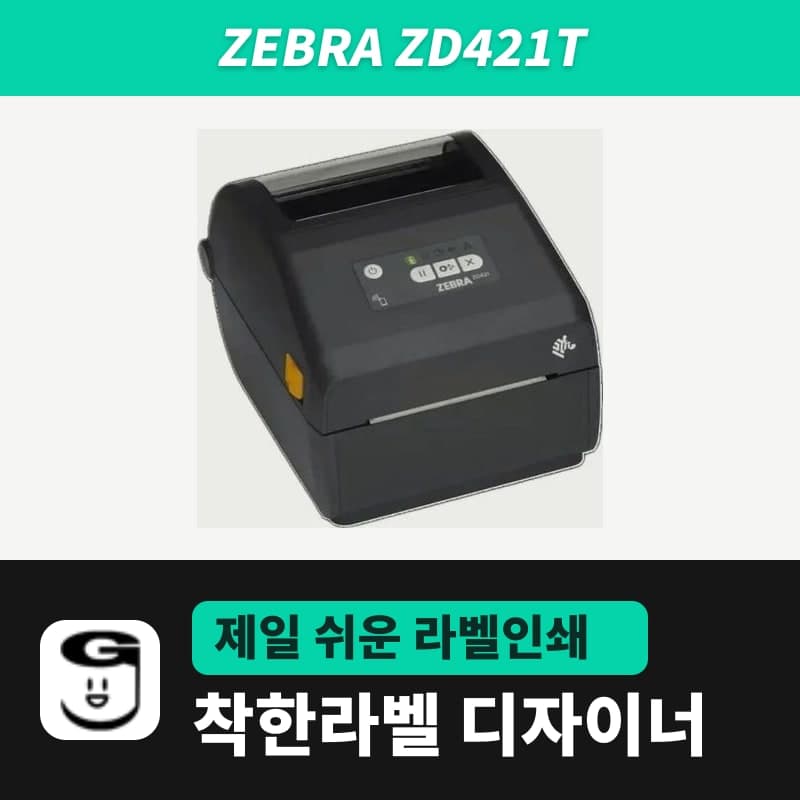
Zebra · Label printers
Zebra ZD421T label printer
The ZD421T is a Zebra 4-inch thermal transfer printer for ribbon rolls, in 203 dpi and 300 dpi variants. In GoodLabel Designer, select ZD421 in the model list and set Thermal transfer or Direct thermal and gap or black mark in Printer settings; they are sent together as ZPL commands.
- Print method
- Thermal transfer and direct thermal
- Resolution
- 203 dpi (8 dots/mm) variant, 300 dpi (12 dots/mm) variant
- Dot size
- 0.13 mm (203 dpi), 0.085 mm (300 dpi)
- Print speed
- 203 dpi 51–152 mm/s (2–6 ips), 300 dpi 51–102 mm/s (2–4 ips)
- Max print width
- 104 mm (203 dpi), 108 mm (300 dpi)
- Max print length
- 991 mm
Specifications
| Print method | Thermal transfer and direct thermal |
|---|---|
| Resolution | 203 dpi (8 dots/mm) variant, 300 dpi (12 dots/mm) variant |
| Dot size | 0.13 mm (203 dpi), 0.085 mm (300 dpi) |
| Print speed | 203 dpi 51–152 mm/s (2–6 ips), 300 dpi 51–102 mm/s (2–4 ips) |
| Max print width | 104 mm (203 dpi), 108 mm (300 dpi) |
| Max print length | 991 mm |
| Media width | 15–112 mm |
| Media thickness | 0.08–0.1905 mm |
| Label length | 6.4–991 mm (tear-off; min 12.7 mm with cutter or peeler) |
| Media roll | Outer diameter up to 127 mm, core 12.7 mm / 25 mm (1.5, 2 and 3-inch cores with optional adapters) |
| Media sensing | Gap, black line (black mark), notch |
| Ribbon | 300 m (core 25.4 mm, OD 66 mm) · 74 m (core 12.7 mm, OD 34 mm), width 33.8–109.2 mm |
| Non-Zebra 300 m ribbon requirements | 25.4 mm ID cardboard core, width 33–110 mm, OD 66 mm or less (use the included adapter) |
| Command language | ZPL II, EPL2 |
| Standard interfaces | USB 2.0, USB Host, BLE for setup |
| Interface variants | USB (standard), serial module added, Ethernet module added |
| GoodLabel Designer model | ZD421 (ZPL, 203 / 300 dpi) |
| Operating temperature | 4.4–41°C |
| Dimensions and weight | 267 × 202 × 189 mm, 2.05 kg (thermal transfer model) |
Where art paper or Yupo labels must be printed with a ribbon, the Zebra 4-inch desktop ZD421T fits, and the same unit also prints direct thermal paper labels without a ribbon. It is a ZPL printer, so GoodLabel Designer does not hand print jobs to the driver but sends them directly as ZPL commands (RAW).
Differences between the 203 dpi and 300 dpi variants
| Item | 203 dpi variant | 300 dpi variant |
|---|---|---|
| Dot size | 0.13 mm | 0.085 mm |
| Max print speed | 152 mm/s (6 ips) | 102 mm/s (4 ips) |
| Max print width | 104 mm | 108 mm |
| Designer resolution field | 203 | 300 |
| Interface variants | USB standard, serial module added, Ethernet module added | USB standard, serial module added, Ethernet module added |
Where many shipping or box labels are printed at once, the 203 dpi variant, which goes up to 152 mm per second, is faster. To fit small text and QR codes together on a small label such as 30×10 mm, the 300 dpi variant, with dense 0.085 mm dots, fits.
The 203 dpi listing also offers the ZD230TA (203 dpi), a separate USB-only entry-level model. In the Designer model list, the ZD230 is a ZPL printer with only 203 dpi.
Steps to connect GoodLabel Designer
The Designer model list has only the single line ZD421, without the T. Thermal transfer and direct thermal are distinguished not by the model but by the print method in Printer settings.
- First install the Zebra universal driver v10 from Downloads to register the ZD421T as a Windows printer.
- In the Printer field of the Designer's Printer settings window, select that printer, choose ZD421 in the Printer model field, and in Printer resolution (DPI) choose 203 DPI or 300 DPI to match your unit. If the printer name includes ZD421 and a resolution such as 203dpi, the model and resolution are set automatically.
- In Printer settings, enter the label width and height in mm; then, if a ribbon is loaded, set the print method to Thermal transfer, and if only direct thermal paper is loaded, set it to Direct thermal. The Designer sends this choice with the job as the ^MTT or ^MTD command.
- The media type is Gap labels (^MNY) for rolls with space between labels, Black mark (^MNM) for rolls with black bars printed on the back, and Continuous media (^MNN) for continuous rolls. The Gap length field in Printer settings is for TSPL and EZPL printers, so it is not included in the ZPL commands sent to the ZD421T, and the label gap is picked up by the auto detect below.
- After changing rolls, run Auto detect once in the Troubleshoot window. For the ZD421T, the ~JC command is sent to set the sensor reference to the new media and measure the label length and gap again.
- If a test print is faint, raise the density in the Print window. The density range for ZPL printers is 0–30, and the default is 21.
For black mark rolls, move the arrow of the movable sensor inside the unit to the center of the black mark, then run auto detect. If "Print as image" is checked in Print options, the driver's media settings apply instead of the options above. Screen-by-screen explanations are in the Printing chapter of the guide.
Ribbons and labels for the ZD421T
It takes ribbon rolls of 300 m (core 25.4 mm, OD 66 mm) and 74 m (core 12.7 mm, OD 34 mm), with a width range of 33.8–109.2 mm. Non-Zebra 300 m ribbons are mounted on the 300 m ribbon adapter packed in the thermal transfer model's box; the core must be 25.4 mm ID cardboard and the roll OD 66 mm or less.
Choosing a ribbon wider than the media reduces head wear. The GoodLabel wax ribbon 300M variants cover 40–110 mm in 10 mm steps, so choose the width one step wider than the roll width including the liner.
Media fits at 15–112 mm width, 0.08–0.1905 mm thickness and up to 127 mm roll OD. When you switch to GoodLabel thermal roll labels, which are used without a ribbon, remove the ribbon and change the Designer print method back to Direct thermal.
Where to check the resolution setting
The status bar at the very bottom of the Designer screen always shows the driver, printer model (resolution) and print options. If the resolution differs from your unit, print quality drops, so check this bar first when the first label looks wrong.
A .glb file stores the printer and DPI at the time it was saved, so when you open a file made with 203 dpi settings, the resolution also returns to 203. To use it on the 300 dpi variant, open the file and change to 300 DPI in Printer settings; the barcode bar width and QR module size are then recalculated for the new resolution.
Compatible with GoodLabel Designer
You can design and print labels for this model with GoodLabel Designer, our free label software. GoodLabel Designer · User Guide
FAQ
- I don't see the ZD421T in the GoodLabel Designer model list.
- The list name is ZD421. Thermal transfer and direct thermal models are not separated by model name; whether a ribbon is used is chosen in the print method (Thermal transfer / Direct thermal) in Printer settings. For Printer resolution (DPI), choose 203 DPI or 300 DPI to match your unit.
- Should I get the 203 dpi or the 300 dpi variant?
- To print shipping and box labels within 104 mm width quickly, it is the 203 dpi variant, at up to 6 ips (152 mm/s). To fit text and QR codes densely on small labels, the 300 dpi variant with a 0.085 mm dot size fits, and its max speed is 4 ips (102 mm/s).
- Which applies, the driver's media settings or the Designer's Printer settings?
- The ZD421T is a ZPL printer, so the Designer sends commands directly, and the print method (^MTT / ^MTD) and media type (^MNY / ^MNM / ^MNN) in the Designer's Printer settings apply. The Gap length field is not included in ZPL commands, and the driver settings are followed only when "Print as image" is checked.
- How do I set up black mark labels?
- Move the arrow of the movable sensor inside the unit to the center of the black mark, and change the media type to Black mark in the Designer's Printer settings. Then click the Detect black mark button, and the ~JC command is sent so the sensor measures the mark spacing again.
- Can I load non-Zebra 300 m ribbons?
- Load them with the 300 m ribbon adapter in the thermal transfer model's box. The requirements are a ribbon core of 25.4 mm ID cardboard, a width of 33–110 mm and a roll OD of 66 mm or less.
Drivers & manuals
How to buy
- In Korea, this product is sold through our Korean online store. Korean product page →
- Outside Korea, contact us by email. Email: Contact →
- Or buy from an authorized dealer in your country.
Other models in this category
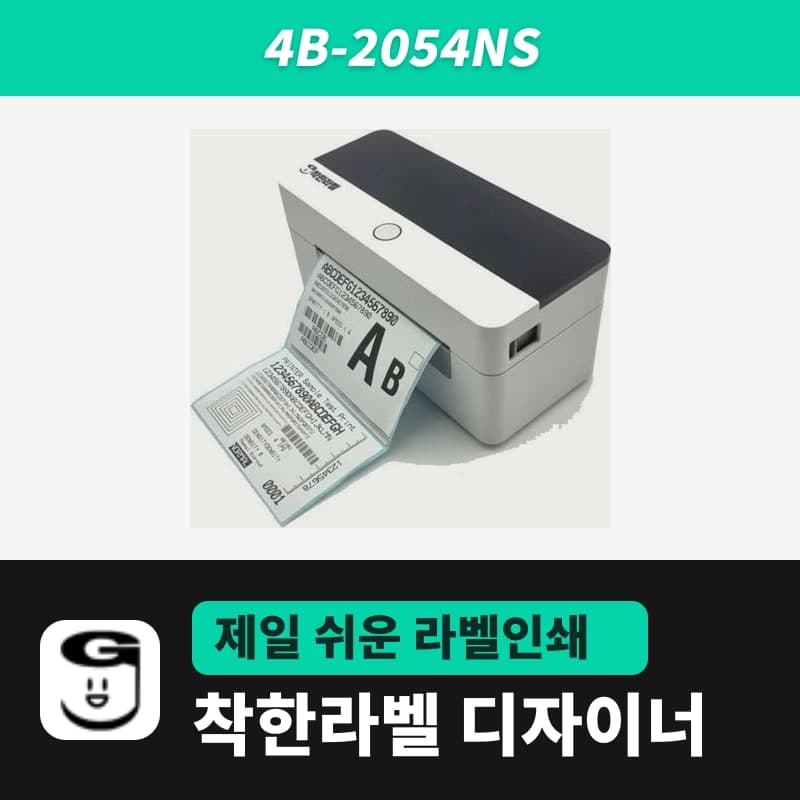 Good LabelGoodLabel 4B-2054NS direct thermal label printerThe GoodLabel 4B-2054NS is a direct thermal only 4-inch printer driven by GoodLabel Designer in TSPL; the Gap length field value goes into the GAP command as is. GoodLabel 4B-2054NS, W-4B-2054NS and Xprinter 4B-2054N in the model list are all TSPL at 203 dpi, so each sends the same commands.
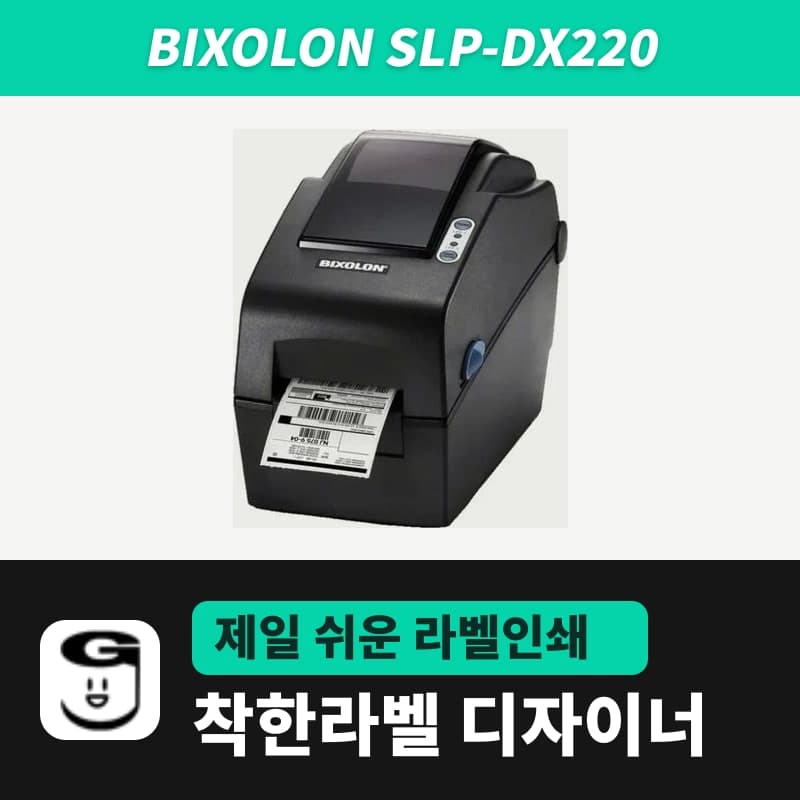 BixolonBixolon SLP-DX220 label printerThe SLP-DX220 is a Bixolon 2-inch direct thermal printer, 54mm print width, 203dpi, up to 6ips, rolls 15–60mm wide. Select SLP-DX220 (ZPL, 203dpi) in the GoodLabel Designer model list, and the Troubleshoot window skips the print method step and guides only saving the label type and Detect media.
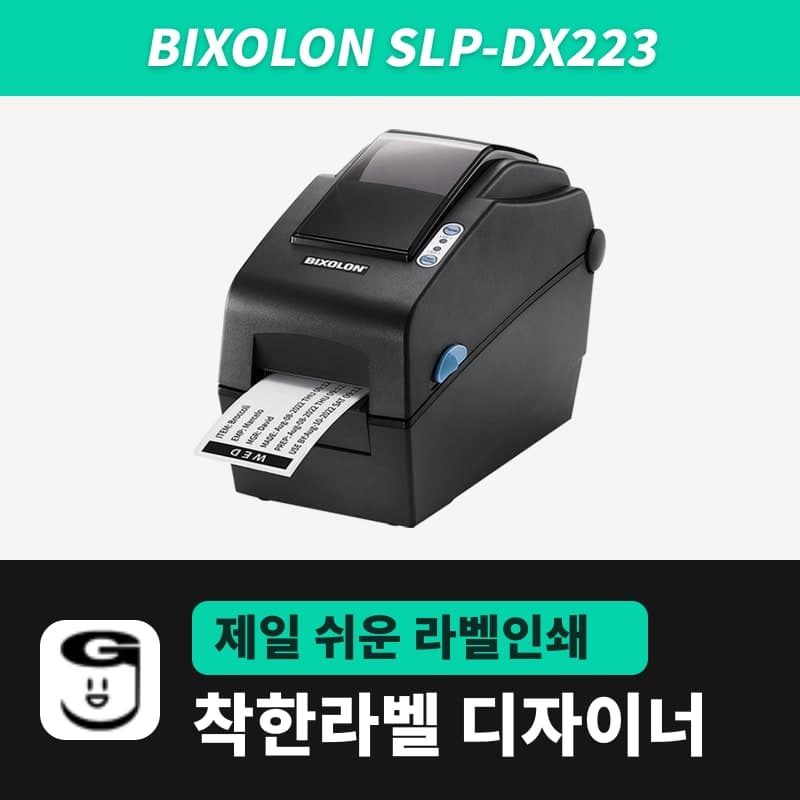 BixolonBixolon SLP-DX223 label printerA 2-inch direct thermal printer for dense text and QR codes on small labels 10–20mm tall, using the SLP-DX220 body with a head of about 11.8 dots per mm (print width 56.9mm, max 4ips). In the Designer model list it appears under its sales name, SLP-DX223, with a single ZPL, 300dpi setting.
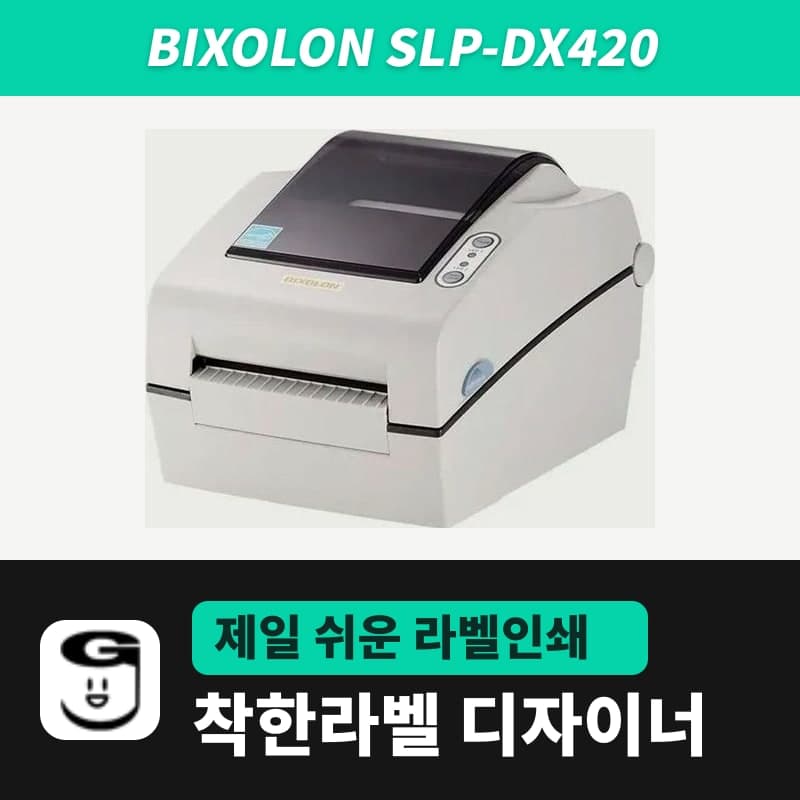 BixolonBixolon SLP-DX420 label printerThe SLP-DX420 is a Bixolon 4-inch direct thermal only printer, 108mm wide at 203dpi and up to 7ips, suited to printing many thermal labels such as 100×150mm shipping labels. In GoodLabel Designer, select SLP-DX420 (ZPL, 203dpi); copies of the same label go as one ^PQ quantity command.
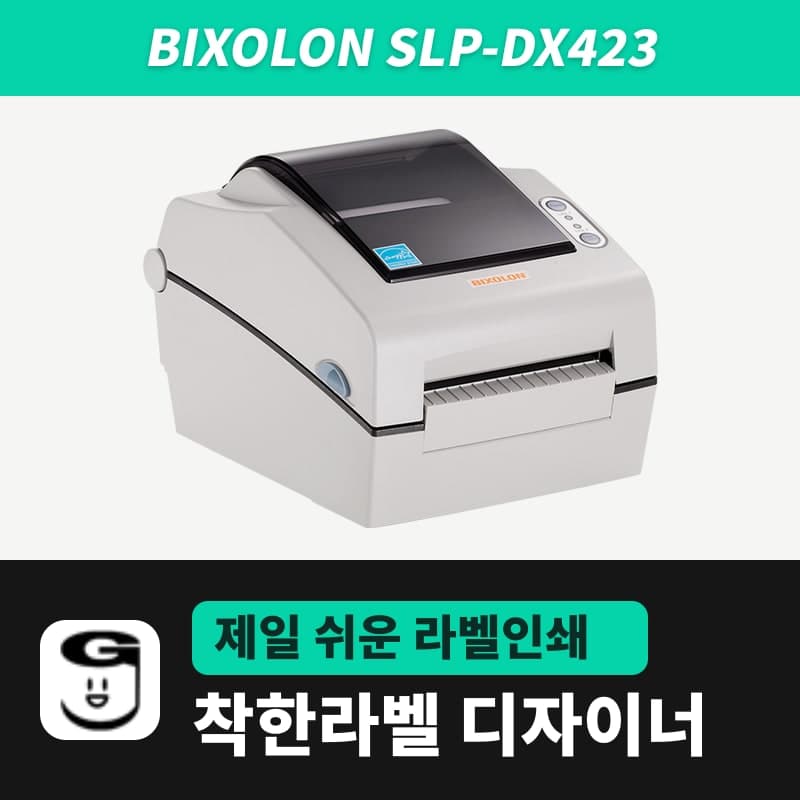 BixolonBixolon SLP-DX423 label printerFor the SLP-DX423, you must select the SLP-DX423 (ZPL, 300dpi) entry in GoodLabel Designer; if you send to the 203dpi SLP-DX420 entry, labels come out shrunk to about 68% of their size. The printer is a Bixolon 4-inch direct thermal only model with a 105.7mm print width and a max speed of 5ips.
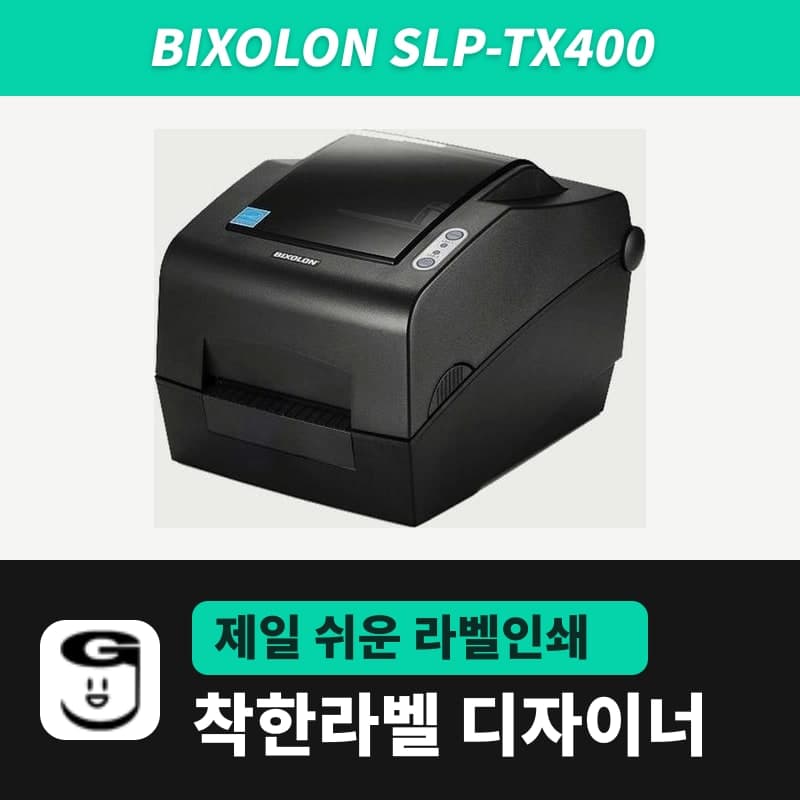 BixolonBixolon SLP-TX400 label printerIn the GoodLabel Designer Troubleshoot window, the print method step (thermal transfer or direct thermal) appears only when the Printer model field shows SLP-TX400. It is a Bixolon 4-inch thermal transfer and direct thermal printer (203dpi, 108mm, max 7ips); Designer entry: SLP-TX400 (ZPL, 203dpi).