The program prints through the Windows driver, or with raster printing on supported printers. ZPL · TSPL · EPL · EZPL and SATO presets are supported. Choose 203 · 300 · 600 DPI to match your model, and check the media and ribbon as well.
Serial port printing is not available in the current release. Use standard driver/raster printing.
Click the Print button in the ribbon or the black Print button at the bottom right of the canvas.
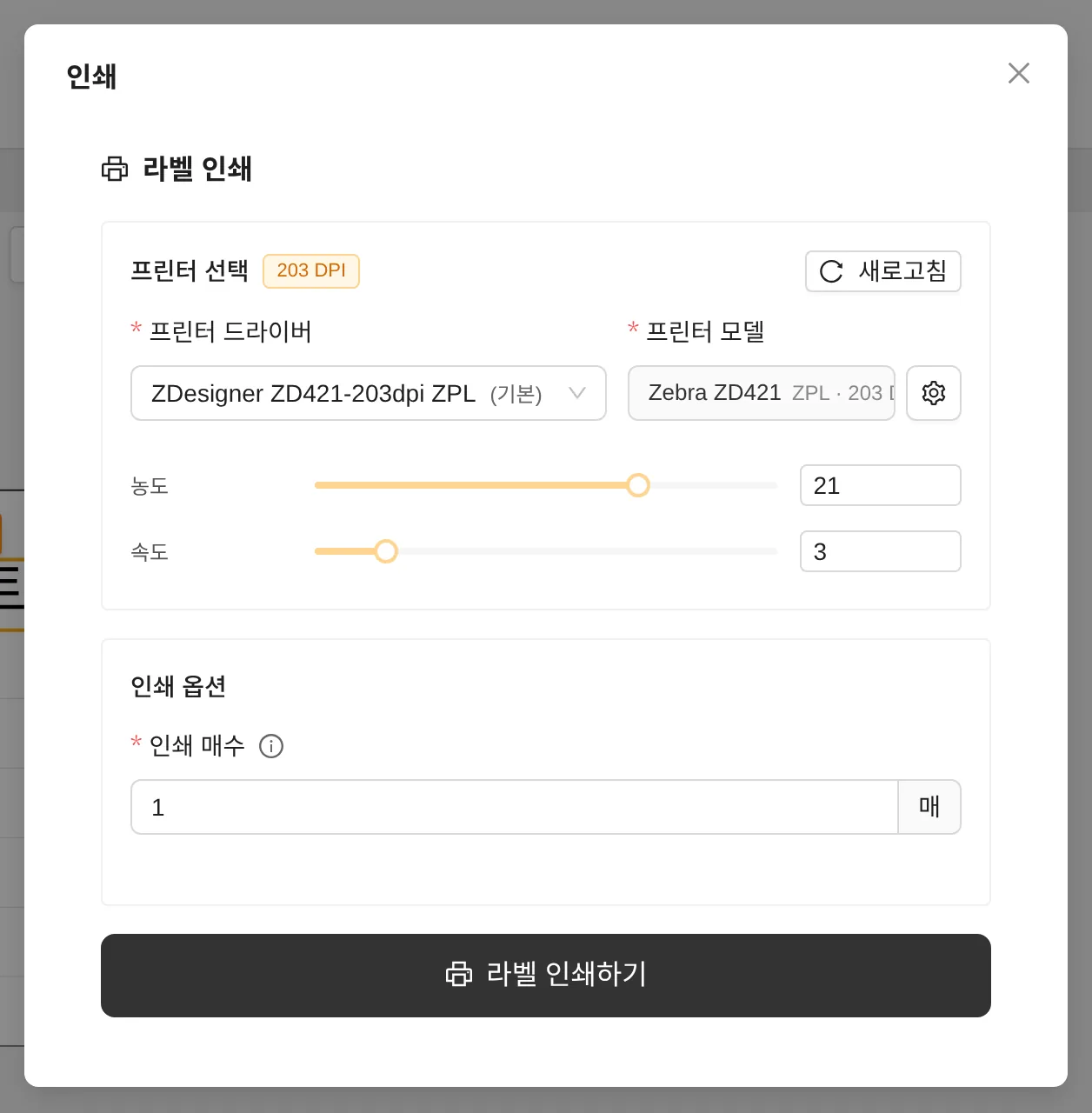
- Printer driver / model — Check the status, and use the gear button to change the model and resolution.
- Density — Print darkness / Speed — Print speed. The range that fits the printer command language is applied automatically.
- Copies — How many copies of the same label to print
- Print quantity — When there are serial number or date elements, the number of labels to print in sequence while the number increments
| Printer command language | Density range (default) | Speed range (default) |
|---|---|---|
| ZPL (Zebra, etc.) | 0–30 (21) | 1–14 (3) |
| TSPL (TSC, etc.) | 0–15 (11) | 1–10 (3) |
| EZPL (Godex, etc.) | 0–19 (13) | 1–7 (3) |
ZPL · TSPL · EZPL printers use high-speed RAW printing that bypasses the driver. Other printers, or jobs with Print as image checked, print through the Windows driver. If the quality looks wrong, check the driver's dithering setting.
Printer settings
Manage the label size, resolution and media options in Printer settings in the ribbon (or by clicking the label info bar).
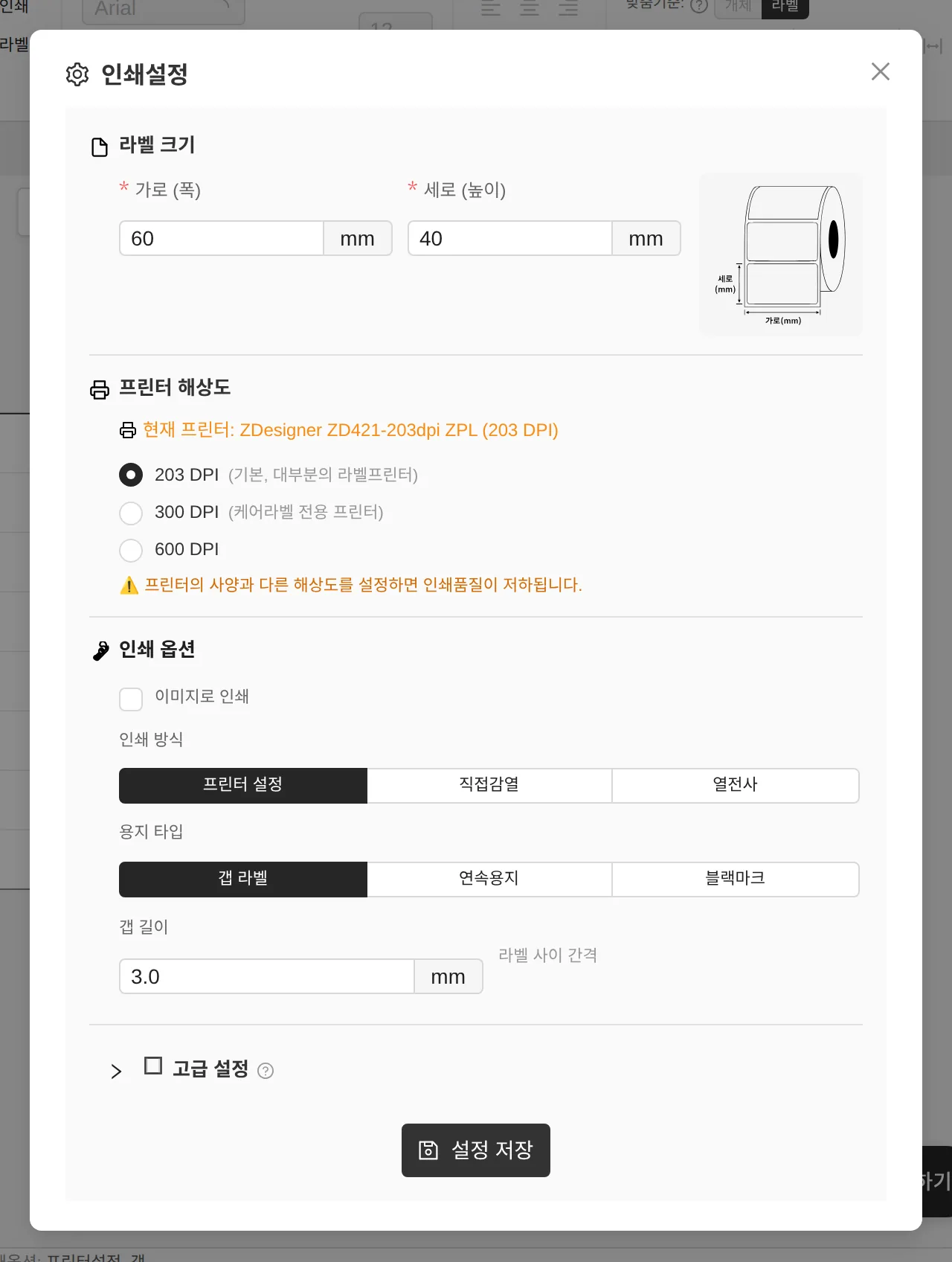
- Label size — Change the width/height (mm)
- Printer resolution — 203/300/600 DPI. Quality drops if it differs from the printer's specifications.
- Print options — Print as image, print method (Printer settings / Direct thermal / Thermal transfer), media type (Gap labels / Continuous media / Black mark), gap length
Advanced settings — fine-tuning the print position

- Left/right margin — 0–3.5 mm
- Vertical offset — If the print is shifted down, use a negative (-) value to pull it up. (−20 to 20 mm)
- Tear-off position — Adjusts the tear-off position in dots on ZPL printers
Batch print
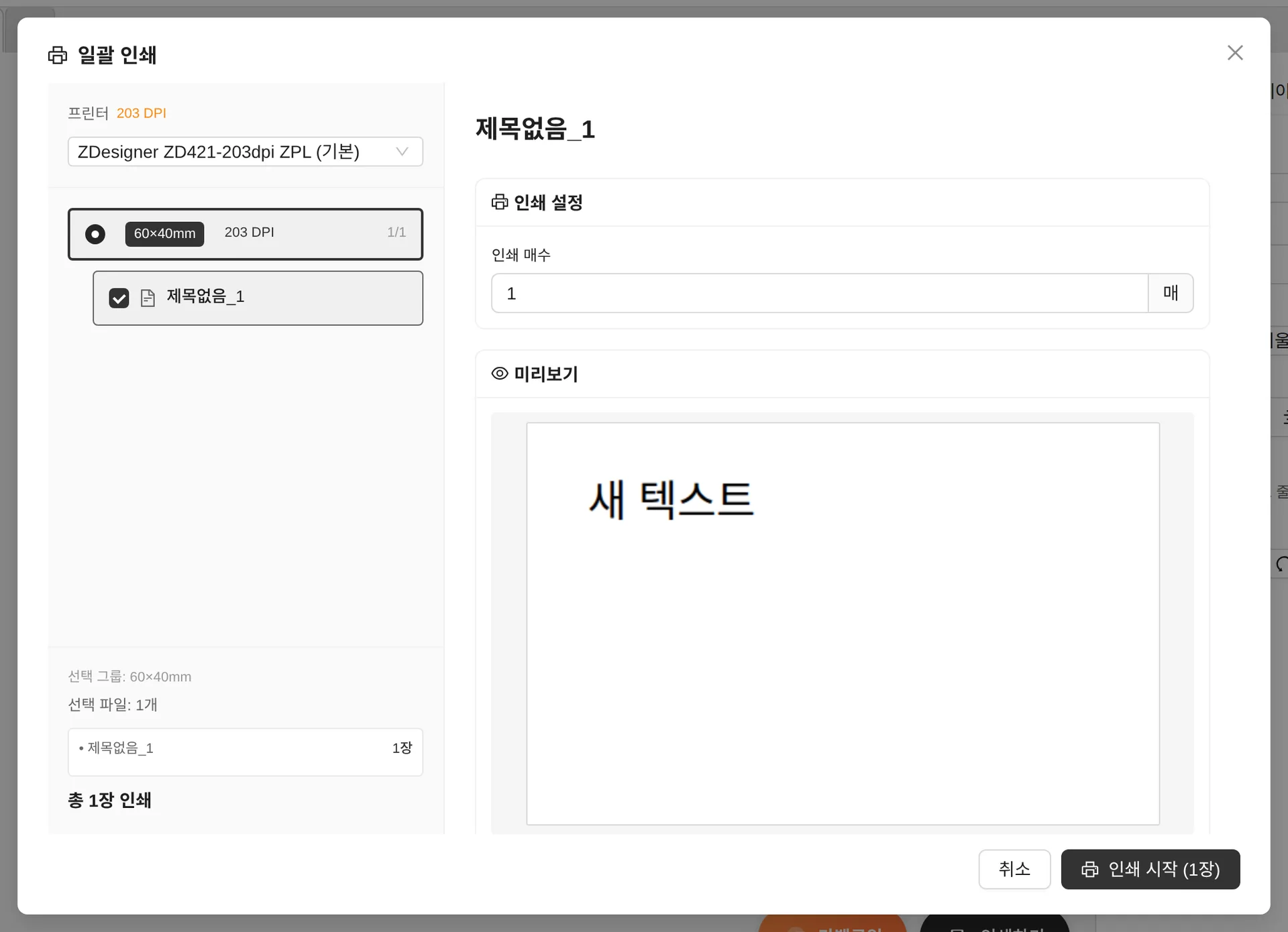
Collects the documents open in multiple tabs into groups by size and prints them at once. Set the number of copies for each document, check them with Preview, then start printing. (Print multi-label documents directly from their own tab.)
Printer troubleshooting
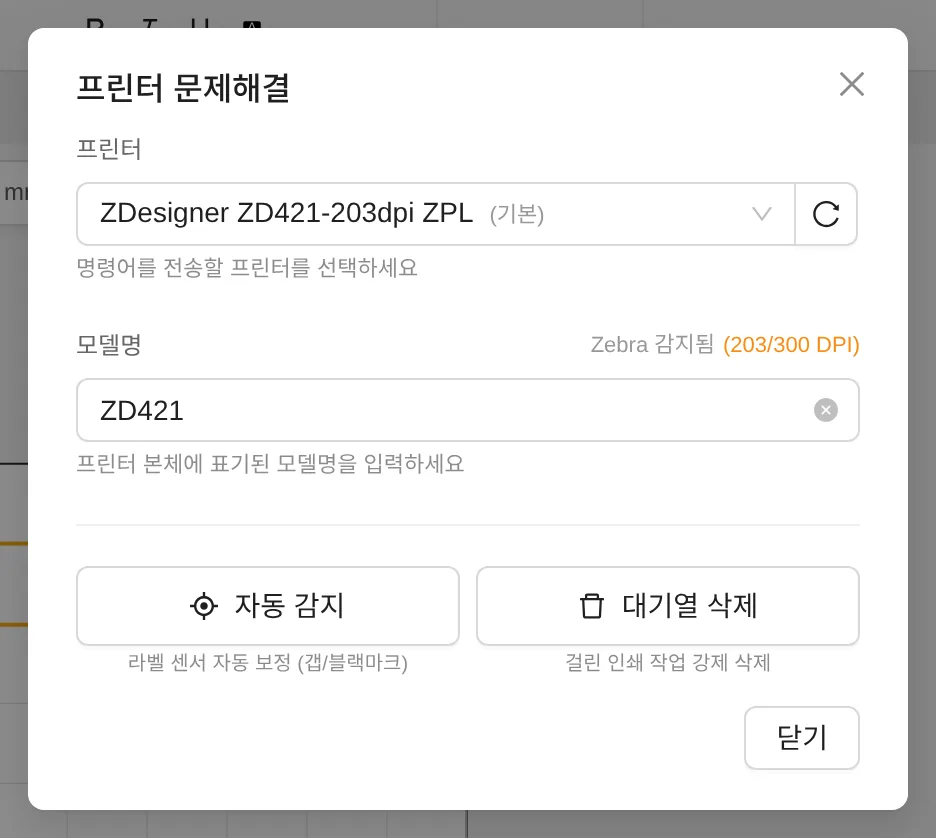
- If labels feed out misaligned or blank labels come out, run Detect media (automatic label sensor calibration).
- If printing is stuck, use Clear queue to force-delete the stuck jobs. (Windows only)
- Location: ≫ → Troubleshoot at the top right