Connect Excel/CSV data to print a different label for each row. When you save as GLB, you can reopen the document together with its embedded data, multi-label settings and linked product information.
Saving and opening
- Save (Ctrl+S) — Saves as a GoodLabel .glb file. Save as is also in the ribbon's [File] group.
- Open (Ctrl+O) — Opens .glb files (including older .lbl files).
- Double-click a saved .glb file to launch the program and open the file in a new tab.
- The recent files list remembers up to 10 files, and 5 of them are shown on the start screen.
When printing finishes, the serial number progress and print settings are saved automatically to the open .glb file. The next time you open the file, you can continue printing where you left off.
Multiple document tabs

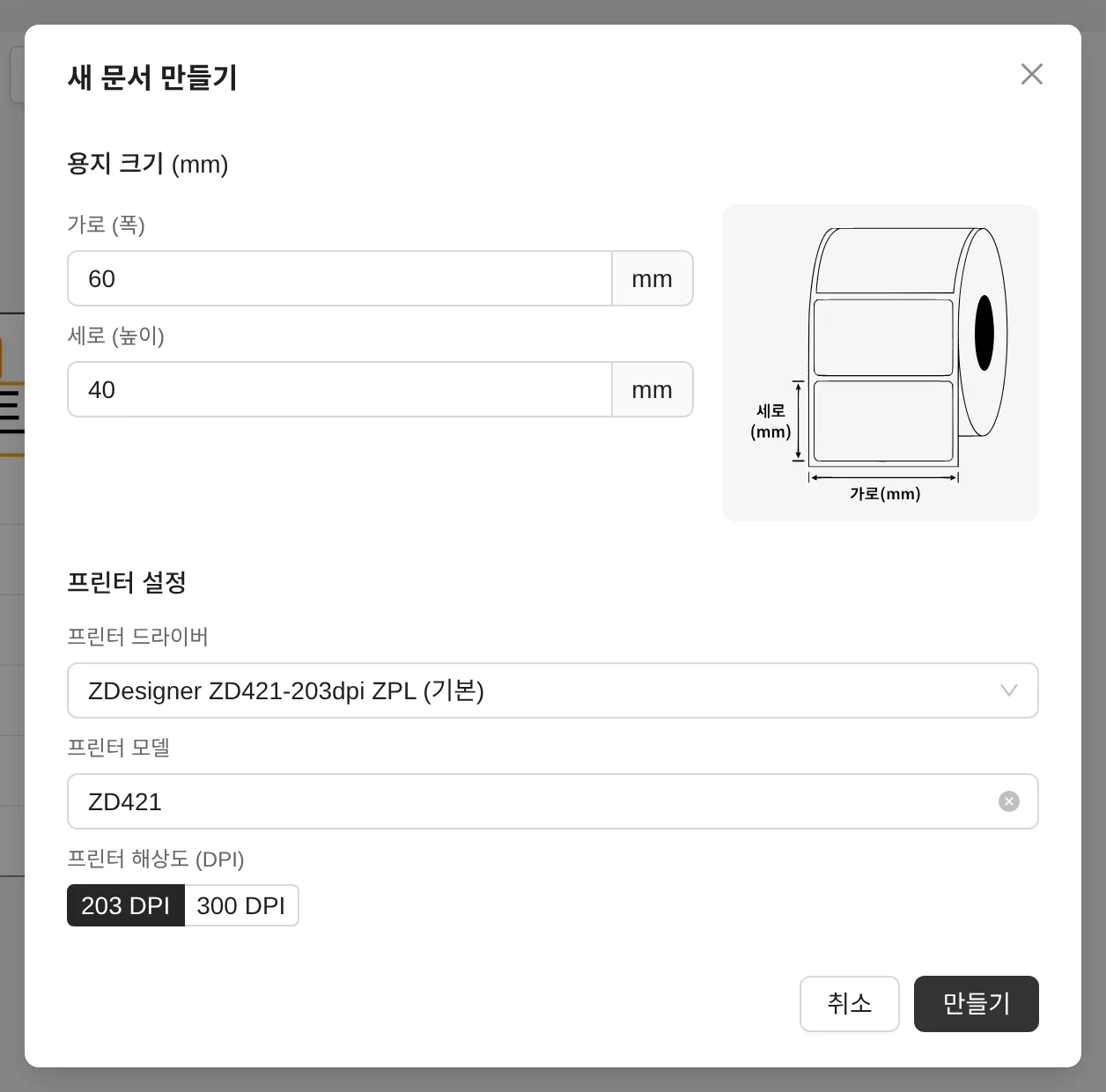
- Use the + button to the right of the tabs to add a new document, so you can work on several labels at the same time.
- A red dot (•) after a tab name means the document has changes you haven't saved yet.
- If there are changes when you click a tab's × to close it, a "Save changes to this document?" confirmation appears, and you can choose Save / Don’t save / Cancel.
Checking the version and updating
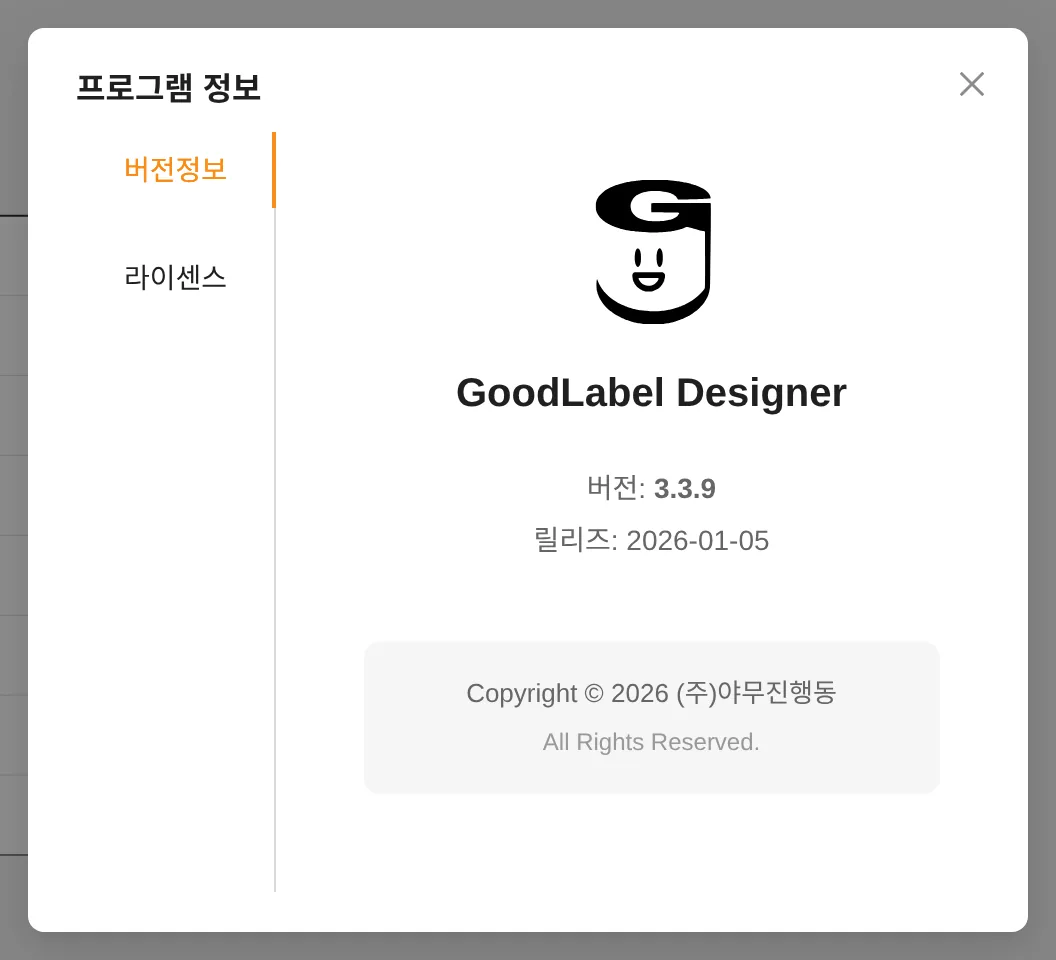
Updates are delivered automatically. When a UI update is ready, an "Interface update" window appears so you can apply it right away, and your work in progress is saved automatically.