When you create a new document, the editor shown below opens. Click a number to see a description of each area.
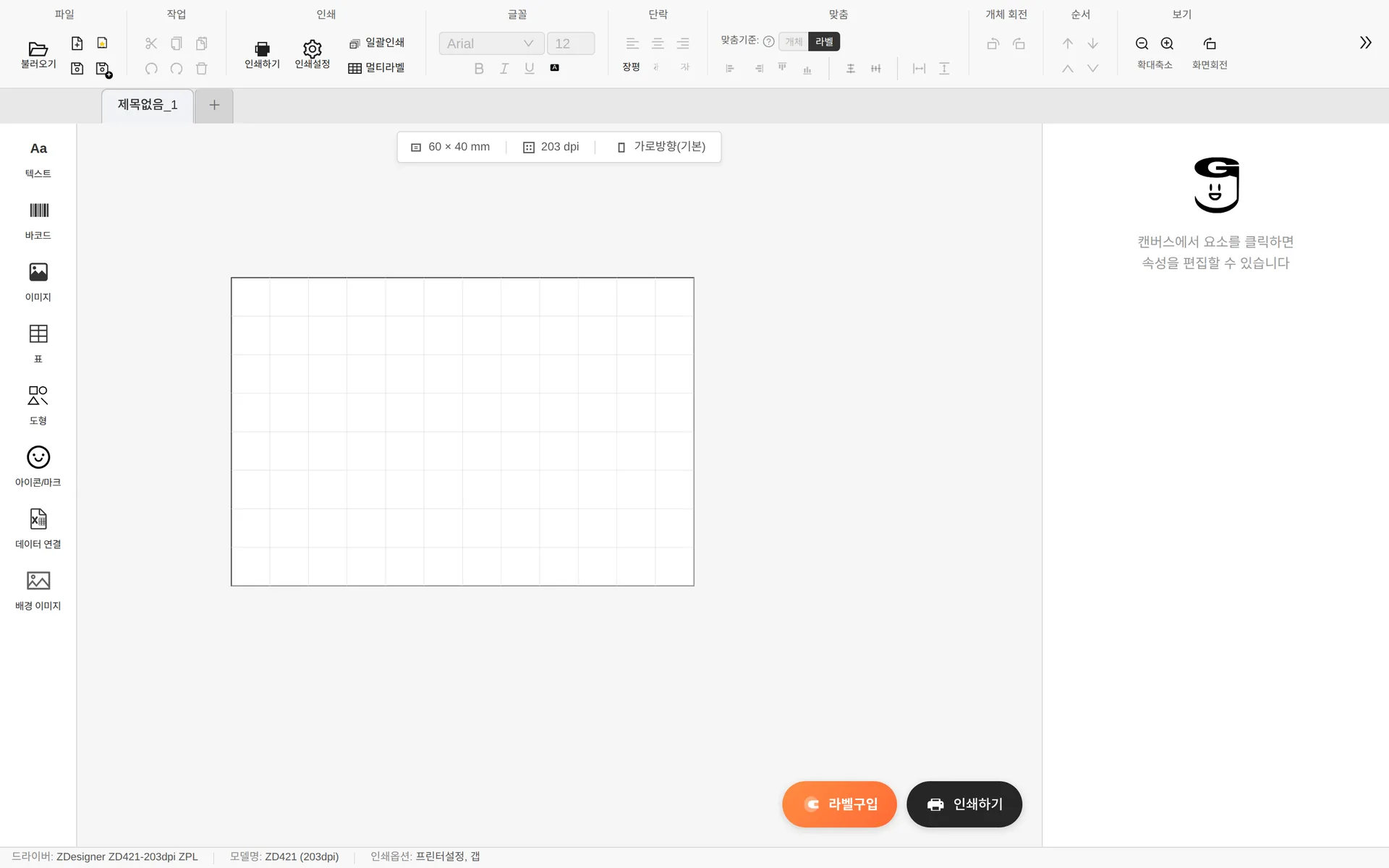
Ribbon toolbar
The ribbon toolbar at the top of the screen is divided into groups by function. When the window gets narrow, groups fold into the ≫ menu on the right.

More (≫) menu
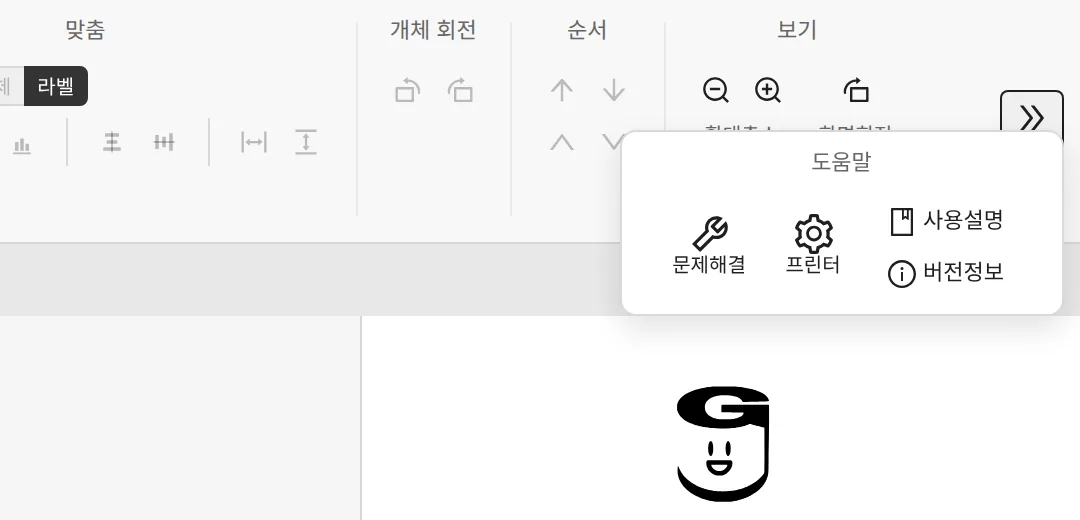
- Troubleshoot — Printer calibration (label sensor calibration), deleting stuck print jobs, and more
- Printer — Change the printer model/resolution (the setup wizard from the first launch)
- User guide — Open this user guide
- About — Program version and open-source licenses
Label info bar
The info bar above the canvas shows the current label's size · resolution · view orientation. Click the size to open the Printer settings window, or click the orientation to rotate the view (landscape ↔ portrait).
Status bar
The bottom of the screen always shows the currently selected driver, printer model (resolution) and print options. This is the first place to check when prints come out wrong.