This feature is for media where the same label is laid out in several cells on one sheet, such as A4 sticker sheets. You edit at the size of one cell, and when you print, the label is placed automatically in the rows × columns grid you set.
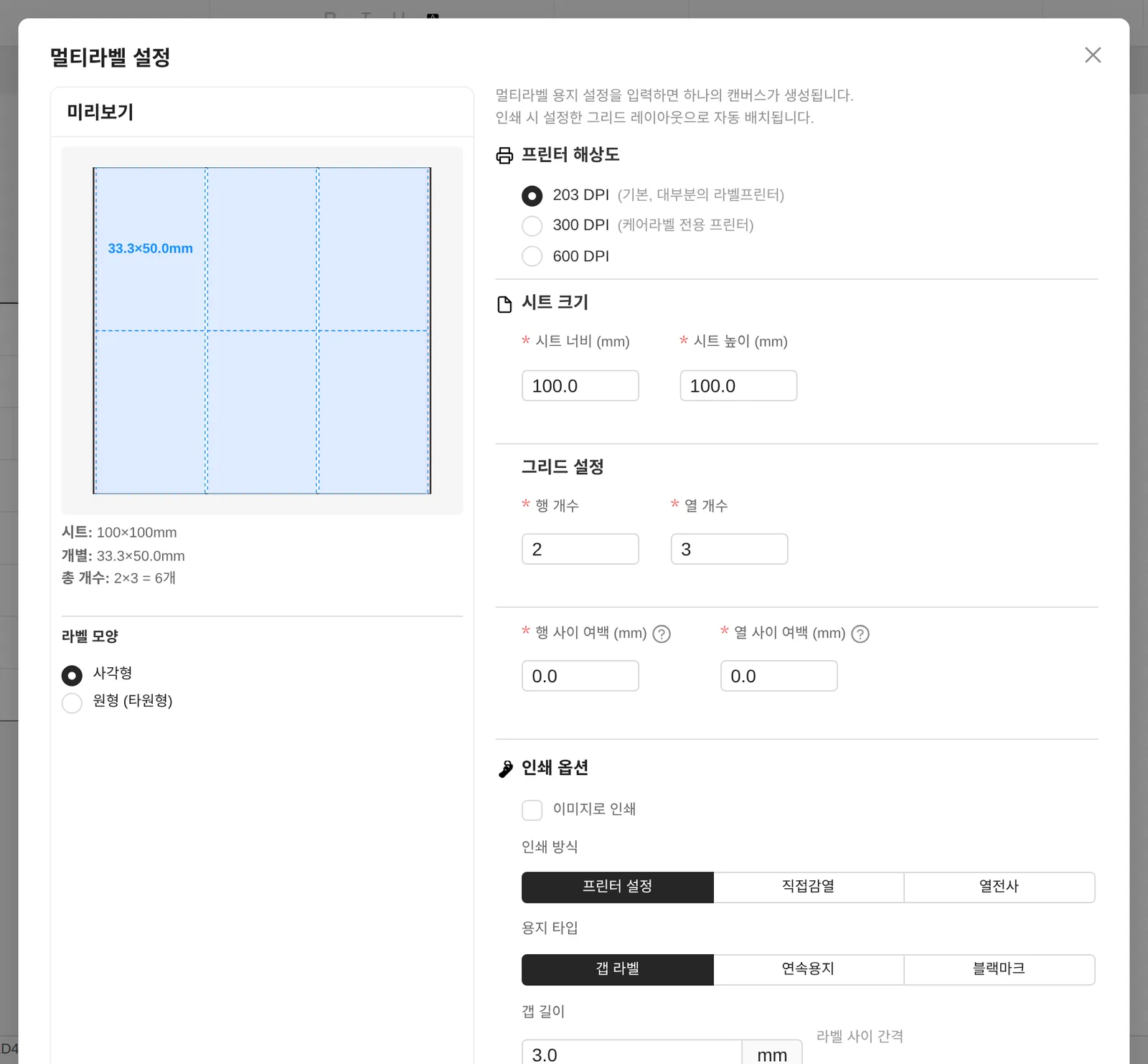
- Click Multi-label in the ribbon's [Print] group.
- Enter the Sheet size (the whole sheet) and the Grid settings (number of rows/columns and the spacing between cells). The size of one cell is calculated automatically and shown in the preview.
- Check the Label shape (rectangle/circle) and resolution, then click Create to open the multi-label canvas in a new tab.
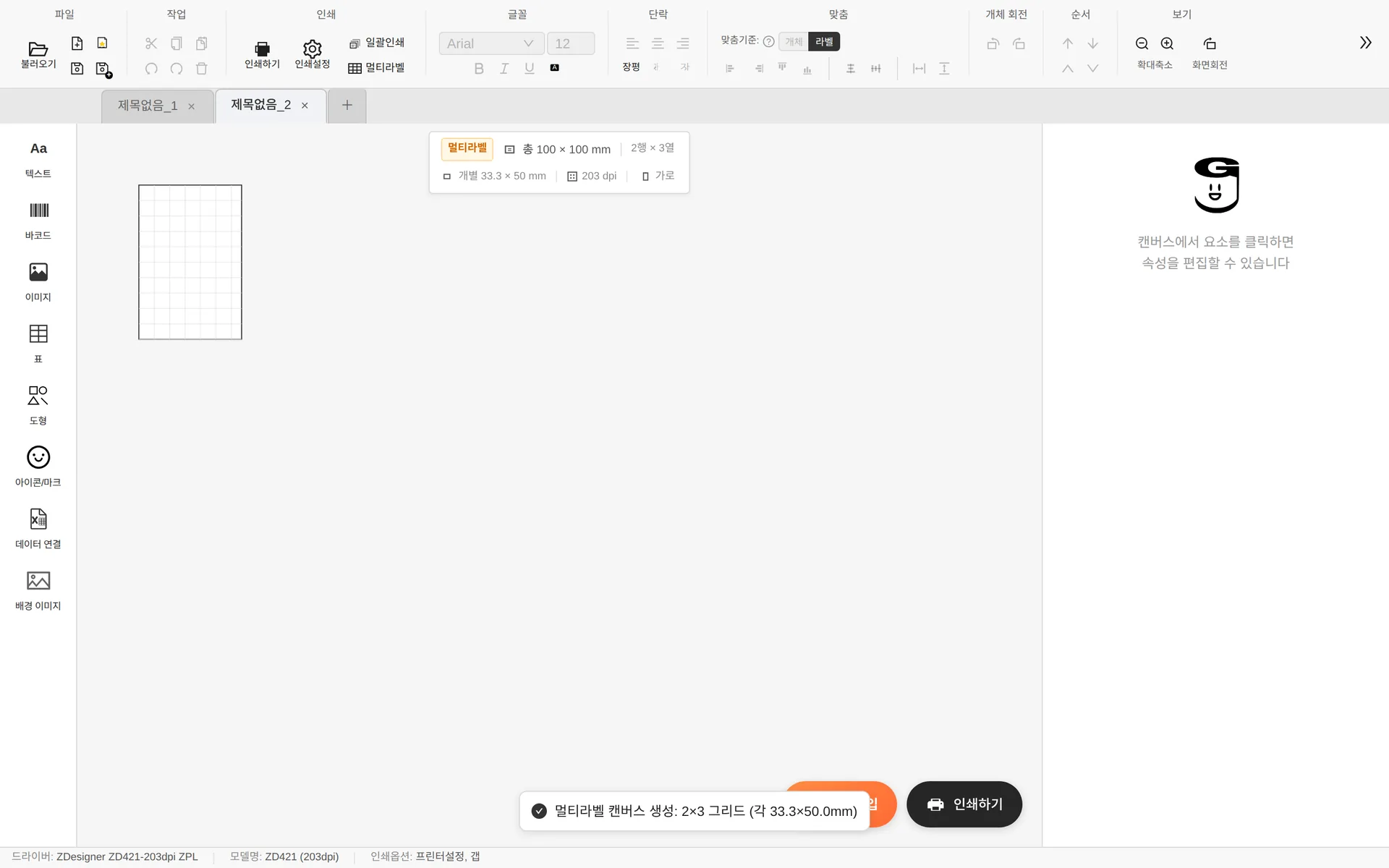
- The label info bar shows a Multi-label badge together with the sheet/individual size and rows × columns.
- To change the settings, click the label info bar (or Printer settings in the ribbon).
- The print button changes to Print multi-label, and printing is done per sheet.
- Multi-label documents are excluded from batch printing.