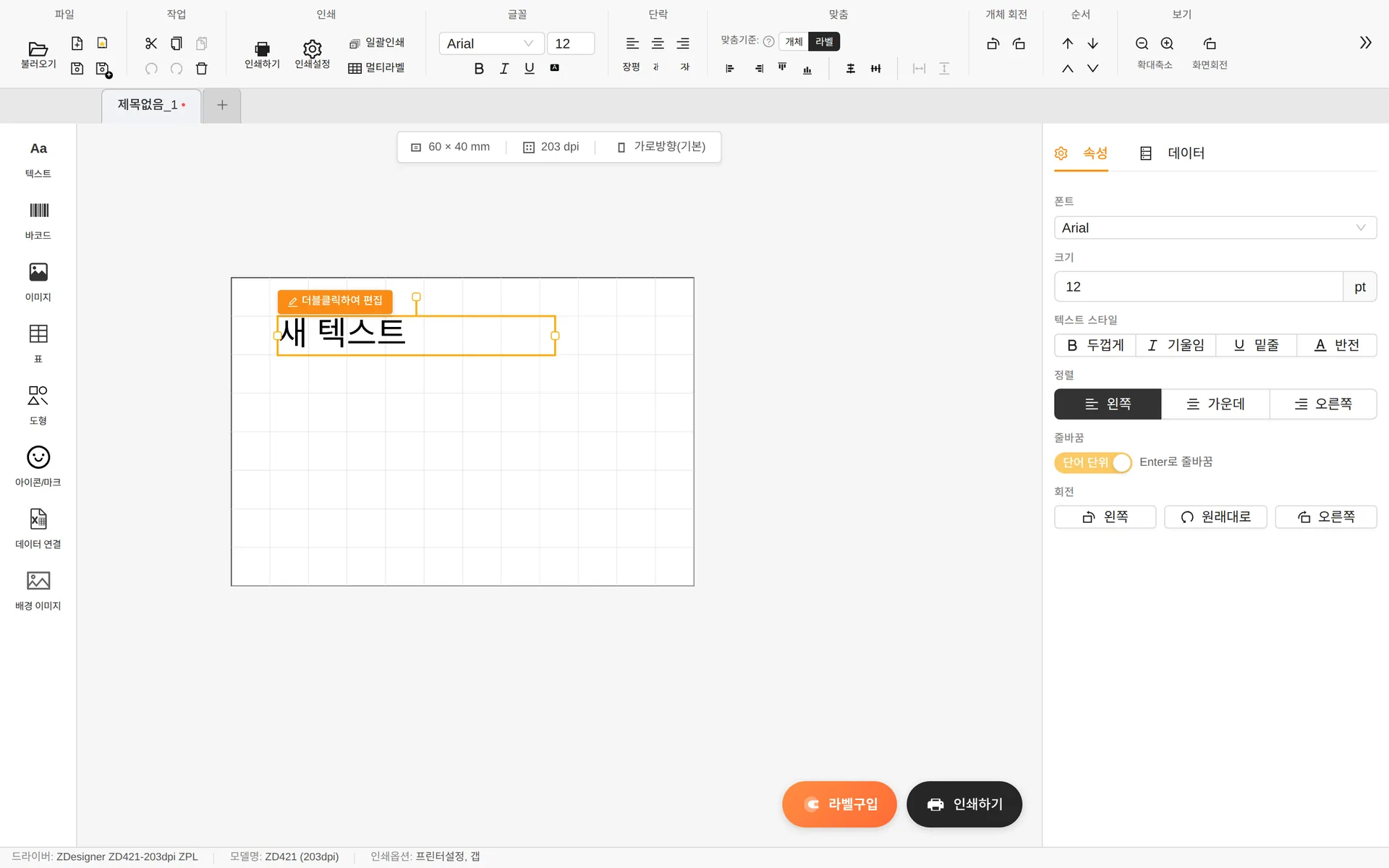
Click Text in the left tool panel to add a new text object to the label and open the properties panel on the right.
Entering content
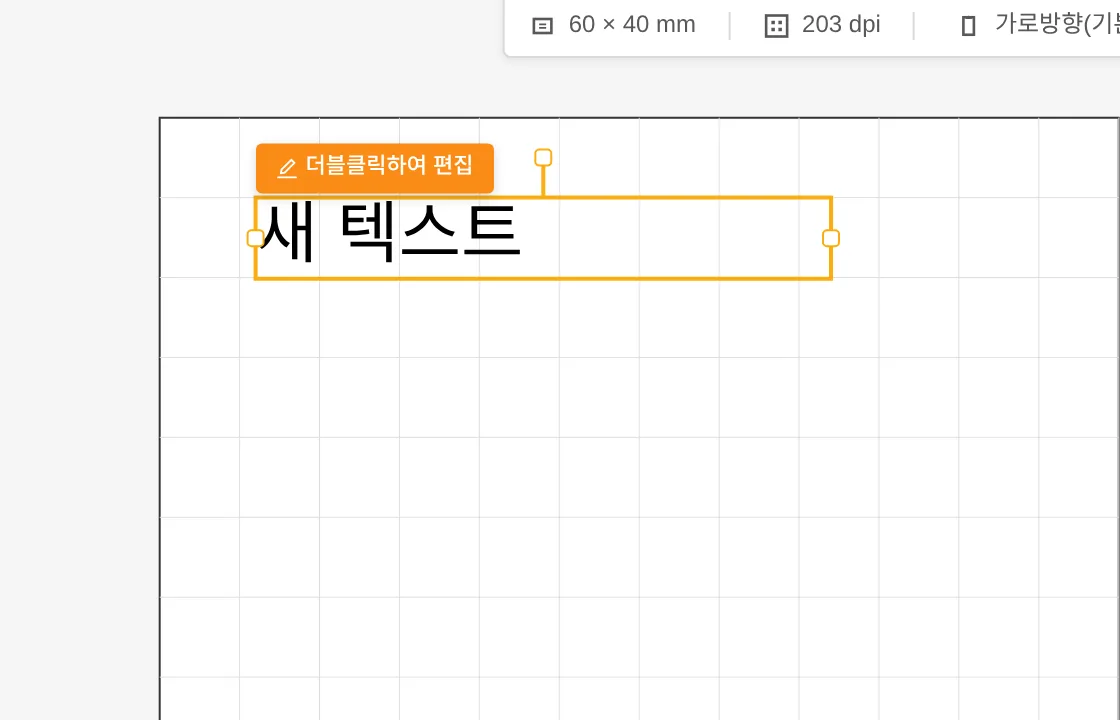
- Double-click a text object to type its content directly on the canvas.
- Enter — new line / ESC — cancel editing / click outside — finish editing
- When you increase the size (pt), the box widens automatically so the text is not cut off.
Styles
- Text style — Bold (Ctrl+B) · Italic (Ctrl+I) · Underline (Ctrl+U) · Invert (white text on a black background)
- Alignment — left · center · right
- Wrap text — Switch automatic wrapping between By word and By character
- Rotate — Rotate 90° left/right, or reset
- Text width — In the ribbon's [Paragraph] group, you can narrow (0.7×) or widen (1.3×) the characters.
The font list shows the fonts installed on your PC, with Korean fonts listed first. To use a new font, install it in Windows and restart the program.
Data tab — filling in content automatically
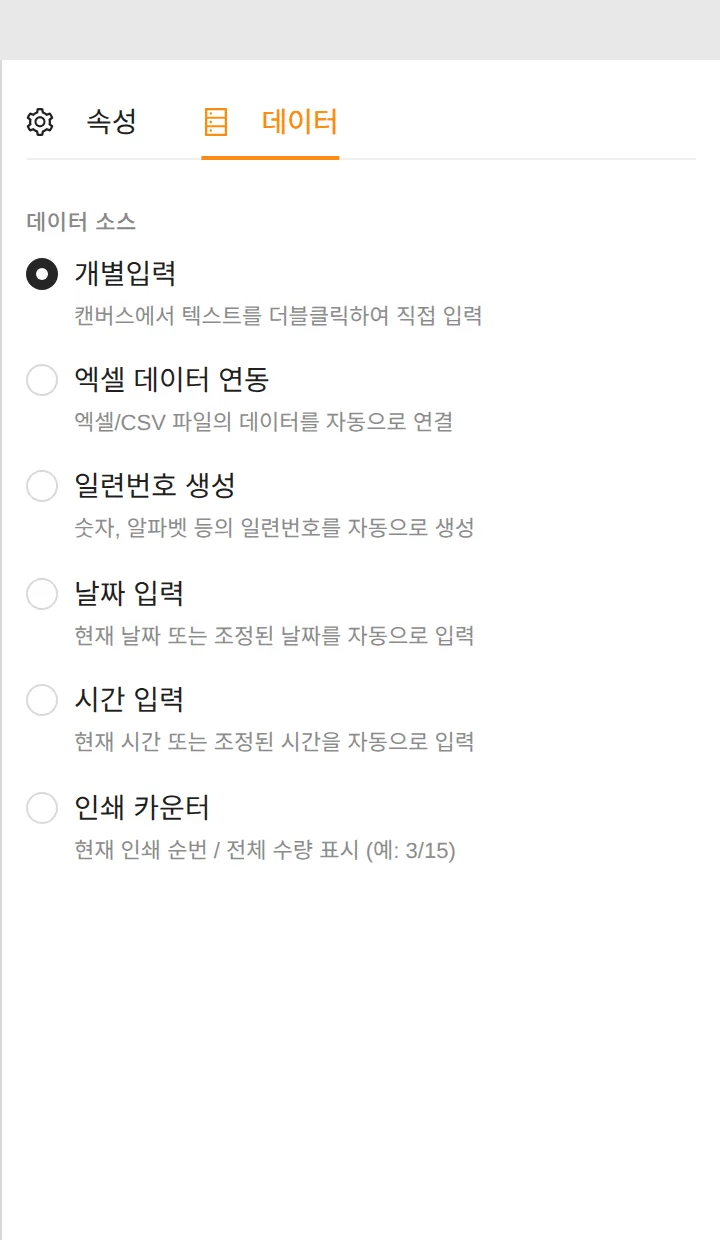
In the [Data] tab of the properties panel, you choose where the text content comes from.
| Data source | Behavior |
|---|---|
| Manual input | Type the content yourself by double-clicking (default) |
| Connect Excel data | Automatically links a column from an Excel/CSV file → see the Data connection chapter |
| Generate serial numbers | A number that increases with each print, such as 0001, 0002… |
| Insert date | Automatically inserts the date at print time (10 formats, ± days offset) |
| Insert time | Automatically inserts the time at print time (9 formats, hour/minute/second offset) |
| Print counter | Shows the current position / total quantity (e.g. 3/15) |
Generate serial numbers
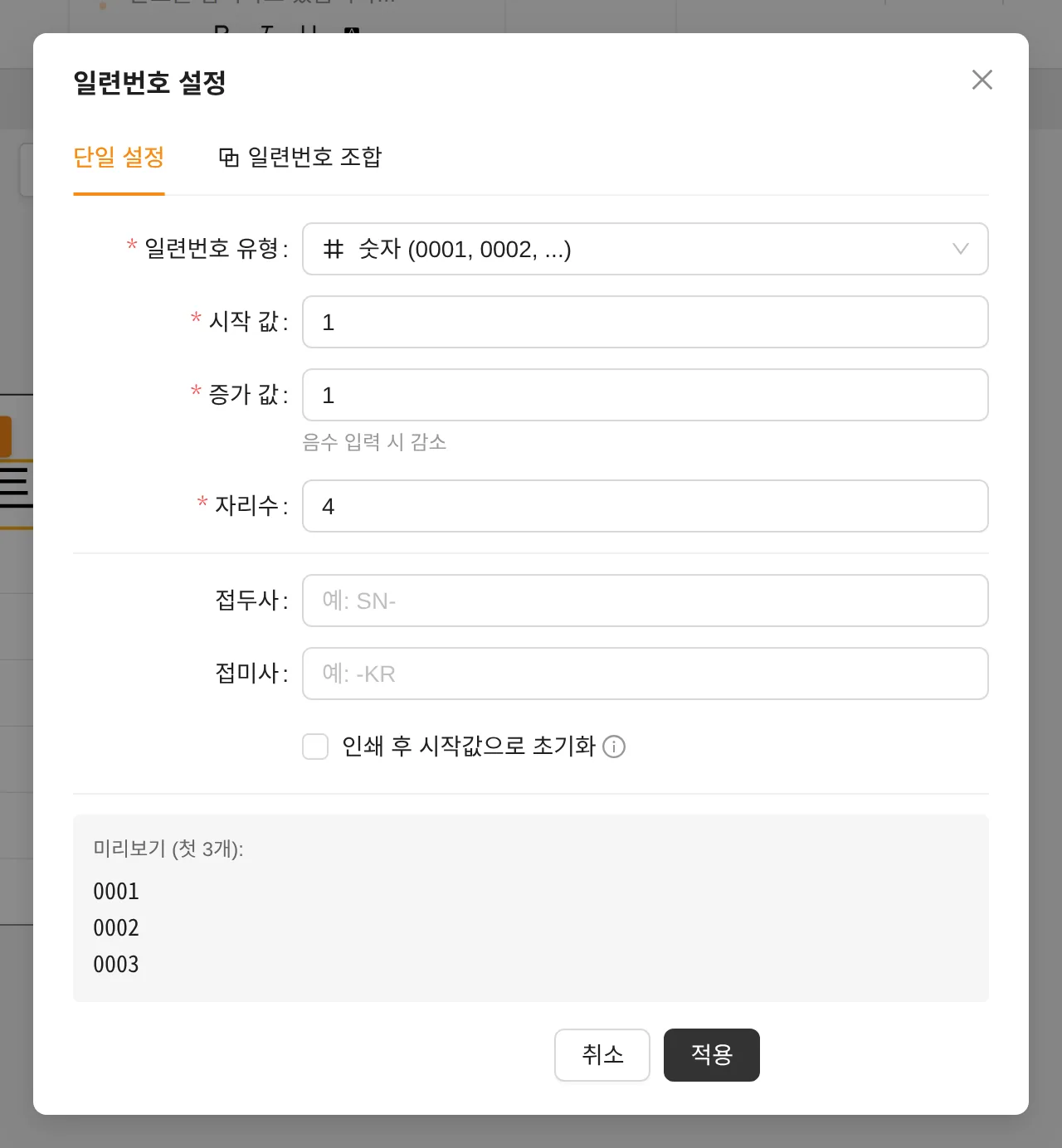
- Serial number type — such as numbers or letters / set the Start value · Increment · Digits (a negative increment counts down)
- Prefix/Suffix — e.g. SN- , -KR
- Reset to start after printing — Starts over from the beginning with every print
- Compose serial number tab — A compound serial number made by joining several rules
Insert date · Insert time
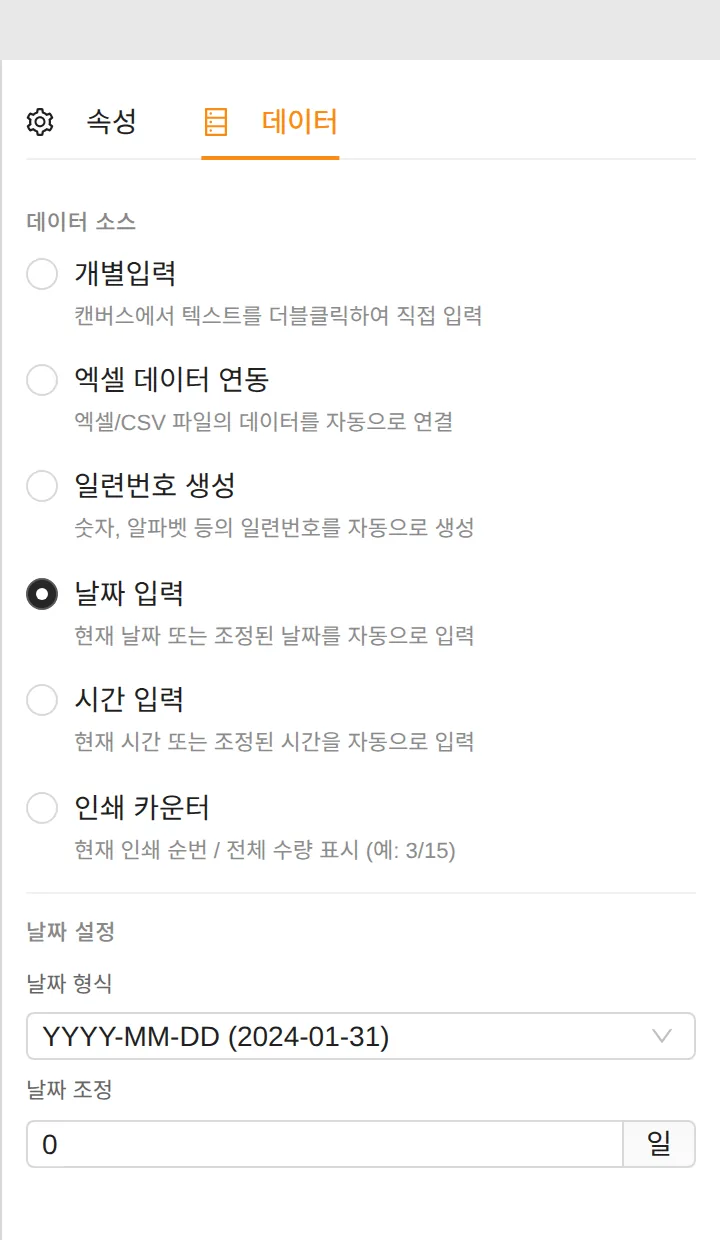
You can choose from 10 date formats, such as YYYYMMDD, YYYY-MM-DD and YYYY년MM월DD일, and 9 time formats, such as HH:mm:ss and A hh시mm분. Enter a number of days in Date offset to calculate a future date automatically, for example an expiration date.
Serial numbers and Excel data connection cannot be used at the same time. To switch, clear the existing setting with the [Apply] button in the notice window.