
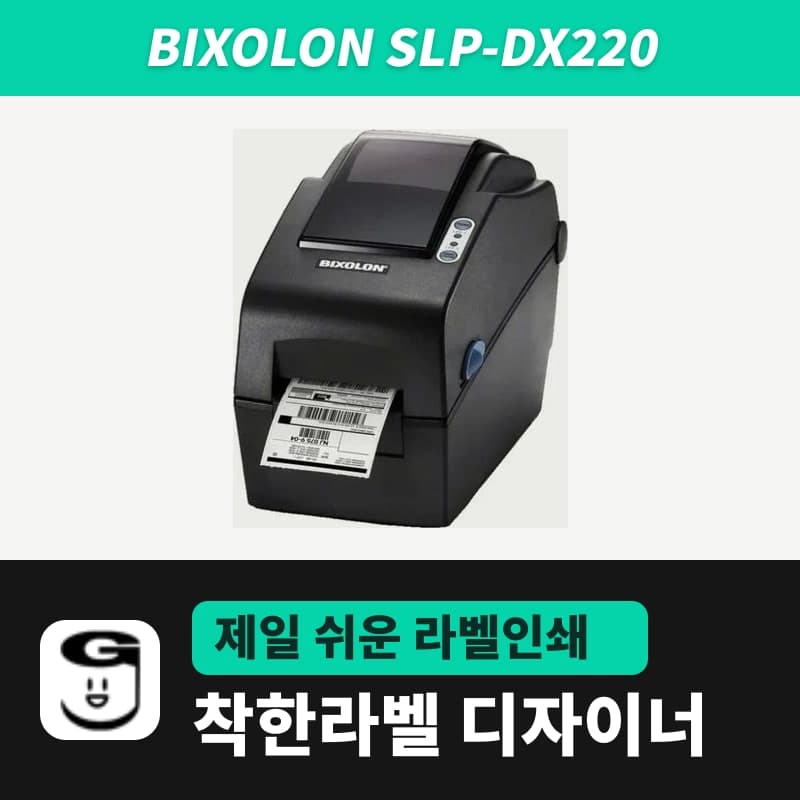
Bixolon · Label printers
Bixolon SLP-DX220 label printer
The SLP-DX220 is a Bixolon 2-inch direct thermal printer, 54mm print width, 203dpi, up to 6ips, rolls 15–60mm wide. Select SLP-DX220 (ZPL, 203dpi) in the GoodLabel Designer model list, and the Troubleshoot window skips the print method step and guides only saving the label type and Detect media.
- Print method
- Direct thermal
- Resolution
- 203dpi (8 dots/mm)
- Max print width
- 54mm (432 dots)
- Max print speed
- 152.4mm/s (6ips)
- Max print length
- 2,000mm
- Media width
- 15–60mm (15–58mm with the peeler option)
Specifications
| Print method | Direct thermal |
|---|---|
| Resolution | 203dpi (8 dots/mm) |
| Max print width | 54mm (432 dots) |
| Max print speed | 152.4mm/s (6ips) |
| Max print length | 2,000mm |
| Media width | 15–60mm (15–58mm with the peeler option) |
| Media roll | Outer diameter up to 130mm, core inner diameter 12.5–38.1mm |
| Media type | Gap, black mark, notch, continuous, fanfold |
| Sensors | Transmissive, reflective (adjustable position), head open |
| Emulation | SLCS, BPL-Z (ZPL II), BPL-E (EPL), BPL-D (DPL, optional) |
| Interfaces | Standard: USB + serial |
| Sold variants | Connection: USB or RS232; expansion: none or cutter |
| Dimensions and weight | 120×230×170mm, 1.36kg |
| GoodLabel Designer model | SLP-DX220 (ZPL, 203dpi) |
The SLP-DX220 fits jobs that print small product barcode and storage labels on rolls up to 60mm wide without a ribbon. The head prints an actual width of 54mm, at 203dpi (8 dots per mm) and a max speed of 152.4mm per second (6ips).
Label sizes for the 54mm print width
GoodLabel Designer calculates the number of dots across a label as mm × 203 ÷ 25.4. 54mm is 432 dots, so among the shared templates, the 50×30 product barcode template (400 dots wide) and the 40×30 storage template (320 dots wide) both fit within the width.
The 60×40 blank label template is 480 dots wide, so the 6mm outside the 54mm width does not print. For a 60mm-wide roll, enter the label size as its actual dimensions, keep text and barcodes away from the left and right edges, and print one test label to check that nothing is cut off.
The media requirements are a width of 15–60mm including the liner (15–58mm with the peeler option), a roll outer diameter of up to 130mm, and a core inner diameter of 12.5–38.1mm. A single label can be up to 2,000mm long.
Media type selection and smart media detection
This printer has smart media detection, which recognizes gap and black mark rolls without separate settings, and uses 3–5 labels per run depending on the media type. It runs on its own at first installation, when the printer notices a change in label length during feeding or printing, after a factory reset, and when the media type received by command differs from the printer's setting.
The Designer sends the media type in Printer settings as a ZPL command before the first label of a print job. Gap labels are ^MNY, black mark is ^MNM, and continuous media is ^MNN, so right after loading a roll, set the media type to match the roll first.
Bixolon steps in the Troubleshoot window
The Troubleshoot window, opened from the ≫ menu at the top right of the Designer, shows a step screen instead of the general auto-detect button when it recognizes a Bixolon model. The SLP-DX series is classified as direct thermal only, so the print method step is skipped and only three steps remain: Label type (Gap labels or Black mark labels) → Save to printer → Detect media.
- Clicking Save to printer sends ^XA^MTD^MNY^JUS^XZ for gap labels, which permanently saves the direct thermal method and the media type on the printer.
- Detect media sends the same save block followed by ~JC, and the printer feeds several labels to measure the length again.
- Continuous media is not an option in this window, so set it only in the media type in Printer settings.
Illustrated descriptions of each Printer settings field are in the Printing chapter of the guide.
Connection and cutter options
Sold variants pair a connection (USB or RS232) with an expansion option (none or cutter). The printer's standard interfaces are USB and serial, so with either one, create a Windows printer with the Bixolon unified driver from the download center, then select that printer name in the Printer field of the Designer.
The auto cutter on cutter-equipped units is turned on and off by command, and its default behavior is changed in the manufacturer's setup utility. The ZPL sent by the Designer contains no cut command, so to cut after every label, first turn on the cutter default setting in the utility.
Compatible with GoodLabel Designer
You can design and print labels for this model with GoodLabel Designer, our free label software. GoodLabel Designer · User Guide
FAQ
- Which entry do I select for the SLP-DX220 in GoodLabel Designer?
- The Bixolon SLP-DX220 entry in the Printer model field. It has only ZPL commands at 203dpi, so the resolution is set to 203 DPI right away, and if the Windows printer name contains SLP-DX220, the model is also detected automatically.
- Do I need the RTC option to print today's date on a label?
- The Designer's Insert date and Insert time elements add the PC's date and time at the moment of printing and send them as part of the image, so dates print even without the RTC option on the printer. Enter a number of days in Date offset to calculate a later date, such as an expiration date.
- LED1 is lit red and LED2 is lit orange, and the printer has stopped.
- The printer could not recognize the gap or black mark, and the media is jammed. Reload the roll, then calibrate in the Troubleshoot window in this order: select the label type, Save to printer, Detect media. If LED1 is red and LED2 is off, the calibration itself failed.
- Can I use fanfold media?
- Cut off the media supply cover on the back of the printer with a knife, feed the media through the rear slot, and adjust the media holder to the media width with the fixing tool. In the Designer, if the fanfold labels are separated by gaps, leave the media type set to Gap labels.
Drivers & manuals
How to buy
- In Korea, this product is sold through our Korean online store. Korean product page →
- Outside Korea, contact us by email. Email: Contact →
- Or buy from an authorized dealer in your country.
Other models in this category
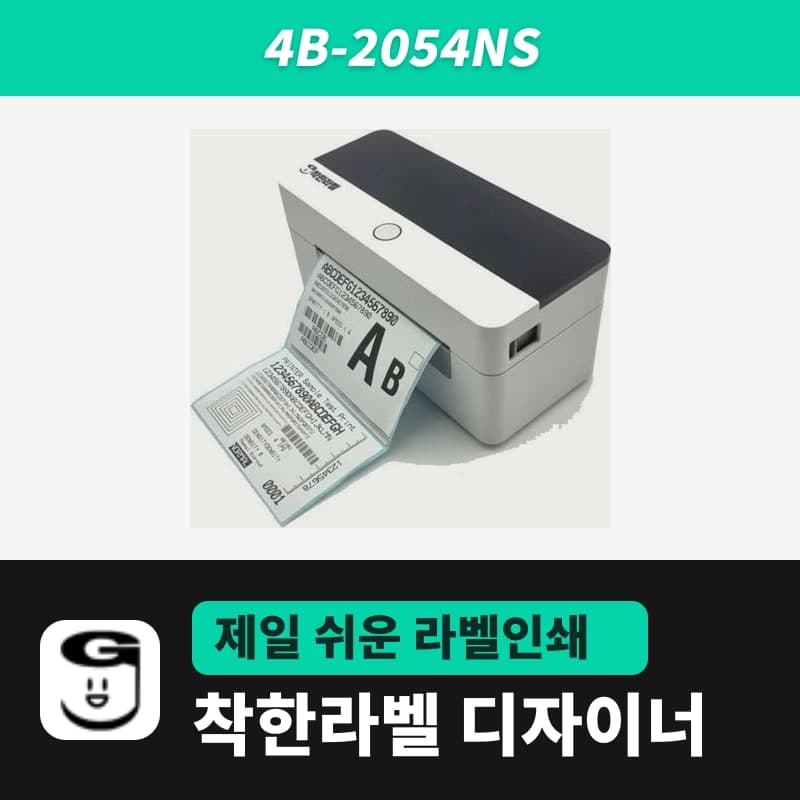 Good LabelGoodLabel 4B-2054NS direct thermal label printerThe GoodLabel 4B-2054NS is a direct thermal only 4-inch printer driven by GoodLabel Designer in TSPL; the Gap length field value goes into the GAP command as is. GoodLabel 4B-2054NS, W-4B-2054NS and Xprinter 4B-2054N in the model list are all TSPL at 203 dpi, so each sends the same commands.
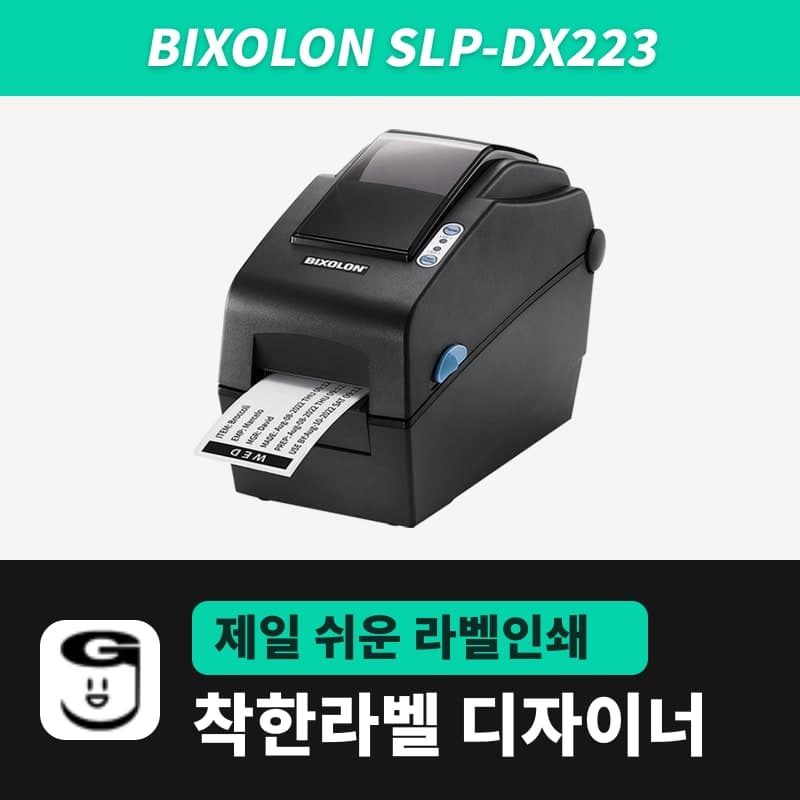 BixolonBixolon SLP-DX223 label printerA 2-inch direct thermal printer for dense text and QR codes on small labels 10–20mm tall, using the SLP-DX220 body with a head of about 11.8 dots per mm (print width 56.9mm, max 4ips). In the Designer model list it appears under its sales name, SLP-DX223, with a single ZPL, 300dpi setting.
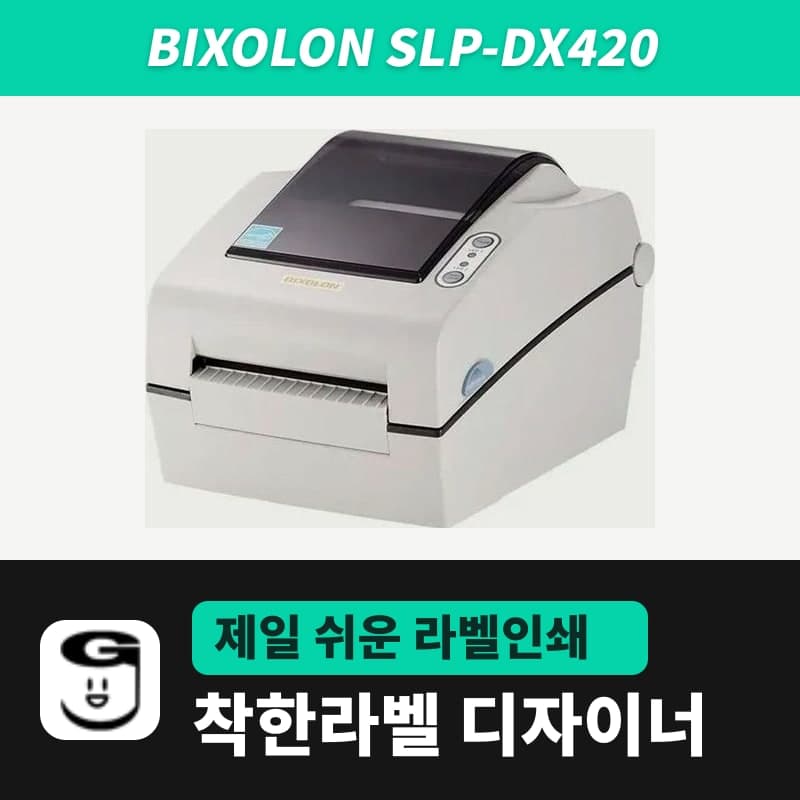 BixolonBixolon SLP-DX420 label printerThe SLP-DX420 is a Bixolon 4-inch direct thermal only printer, 108mm wide at 203dpi and up to 7ips, suited to printing many thermal labels such as 100×150mm shipping labels. In GoodLabel Designer, select SLP-DX420 (ZPL, 203dpi); copies of the same label go as one ^PQ quantity command.
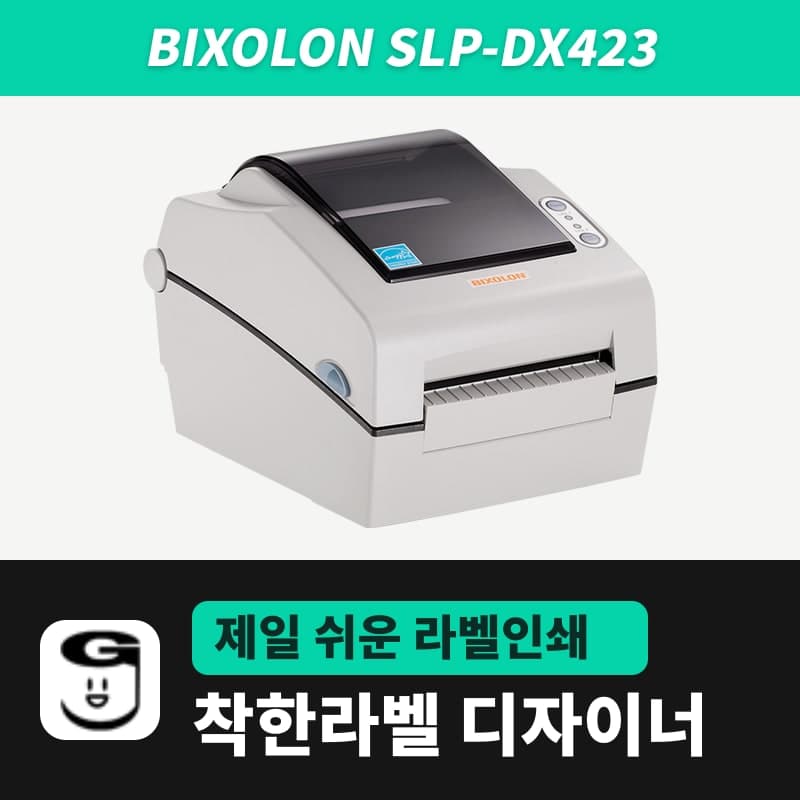 BixolonBixolon SLP-DX423 label printerFor the SLP-DX423, you must select the SLP-DX423 (ZPL, 300dpi) entry in GoodLabel Designer; if you send to the 203dpi SLP-DX420 entry, labels come out shrunk to about 68% of their size. The printer is a Bixolon 4-inch direct thermal only model with a 105.7mm print width and a max speed of 5ips.
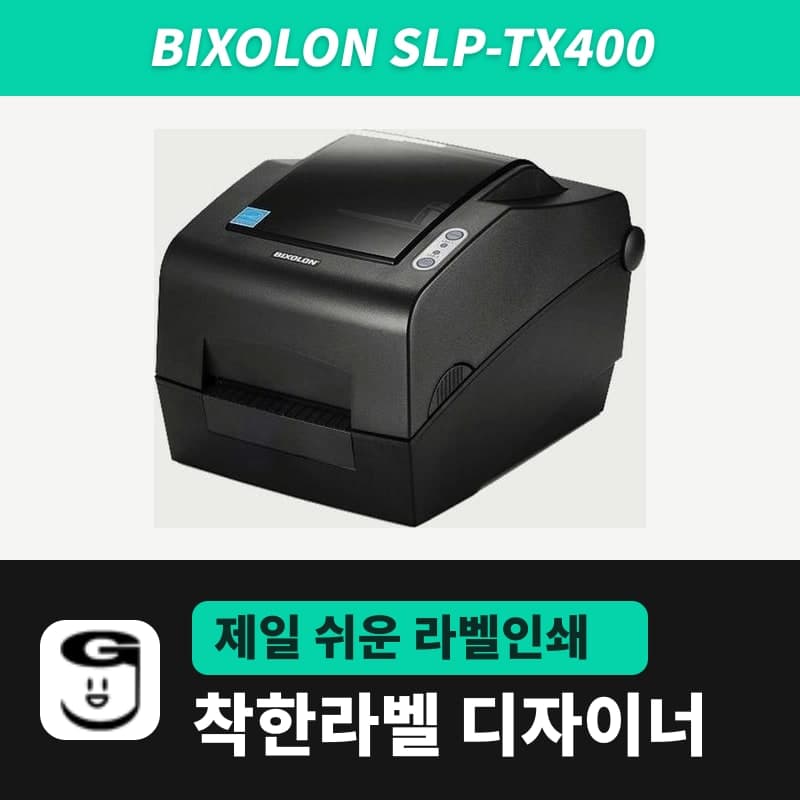 BixolonBixolon SLP-TX400 label printerIn the GoodLabel Designer Troubleshoot window, the print method step (thermal transfer or direct thermal) appears only when the Printer model field shows SLP-TX400. It is a Bixolon 4-inch thermal transfer and direct thermal printer (203dpi, 108mm, max 7ips); Designer entry: SLP-TX400 (ZPL, 203dpi).
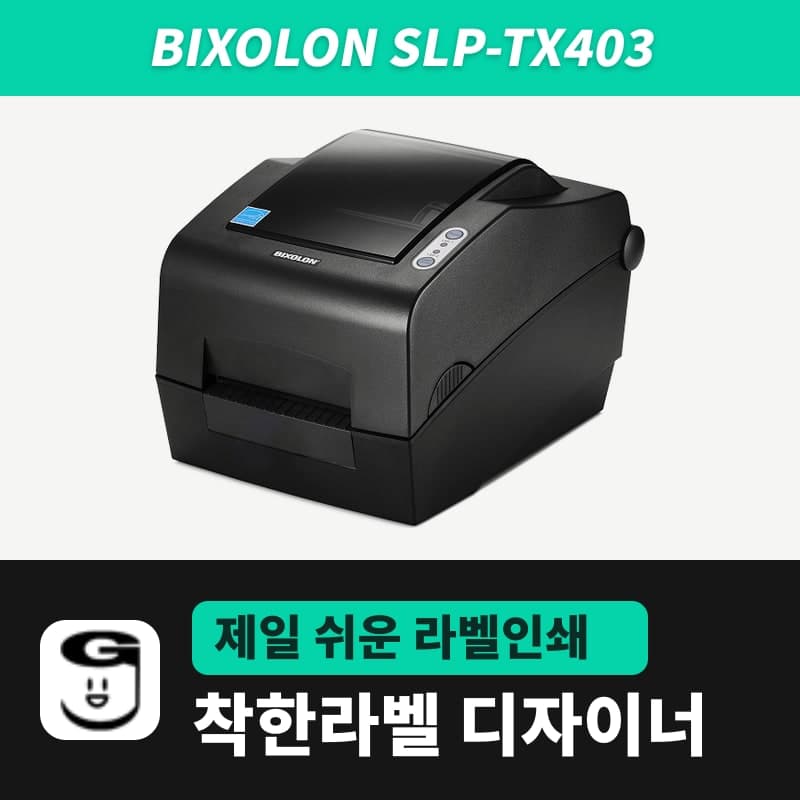 BixolonBixolon SLP-TX403 label printerThe SLP-TX403 is a Bixolon model with a 300dpi head on the same 4-inch thermal transfer and direct thermal body as the SLP-TX400, with a dot size of about 0.085mm, a max of 5ips and a 105.7mm print width. In GoodLabel Designer, select the SLP-TX403 (ZPL, 300dpi) entry.