
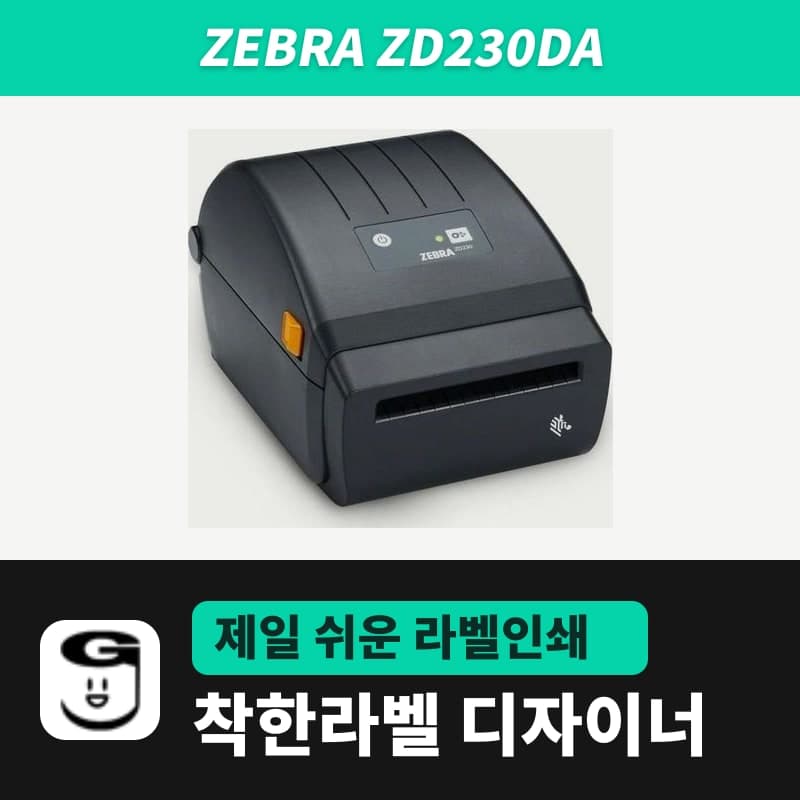
Zebra · Label printers
Zebra ZD230DA label printer
The ZD230DA is the newer Zebra direct thermal only model, with a fixed gap sensor and a black mark sensor that moves only from the media center to the left. In GoodLabel Designer, select the ZD230 model to set Direct thermal and the media type; for black mark rolls, Detect black mark sends ~JC.
- Print method
- Direct thermal
- Resolution
- 203 dpi (8 dots/mm, dot size 0.13 mm); 300 dpi is a manufacturer option
- Print speed
- 102 mm/s or 152 mm/s (203 dpi) selectable
- Max print width
- 104 mm (203 dpi)
- Sensors
- Black mark sensor movable from center to left, gap sensor fixed off center, head-open sensor
- Media width
- 25.4–112 mm (TA/DA spec sheet 2024-06), direct thermal max 108 mm (2024 Korean direct thermal user guide)
Specifications
| Print method | Direct thermal |
|---|---|
| Resolution | 203 dpi (8 dots/mm, dot size 0.13 mm); 300 dpi is a manufacturer option |
| Print speed | 102 mm/s or 152 mm/s (203 dpi) selectable |
| Max print width | 104 mm (203 dpi) |
| Sensors | Black mark sensor movable from center to left, gap sensor fixed off center, head-open sensor |
| Media width | 25.4–112 mm (TA/DA spec sheet 2024-06), direct thermal max 108 mm (2024 Korean direct thermal user guide) |
| Label length | 25.4–990 mm (same in the TA/DA spec sheet and the Korean direct thermal user guide) |
| Media thickness | 0.06–0.1905 mm (same in the TA/DA spec sheet and the Korean direct thermal user guide) |
| Media roll | Outer diameter up to 127 mm, core 12.7 mm / 25.4 mm (38.1 mm with adapter) |
| Media types | Roll and fanfold, die-cut and continuous labels, tags, direct thermal receipt paper |
| Command language | ZPL II, EPL2, other printer languages (automatic detection and switching) |
| Interfaces | USB 2.0 (USB-to-serial cable sold separately) |
| Sold variants | ZD230DA (direct thermal only, USB), ZD230TA (thermal transfer, USB) |
| GoodLabel Designer model | ZD230 (ZPL, 203 dpi) |
| Dimensions and weight | 220 × 180 × 150 mm, 1.2 kg |
| Operating temperature | 5–40°C |
On the newer ZD230DA, the gap sensor is fixed at a point off center, and the black mark sensor moves only from the center of the media to the left. So when choosing a black mark roll, check which side of the media the marks on the back are printed on before looking at the label size.
Sensor position when loading a black mark roll
On rolls with black marks printed on the back, the marks must sit on the left half of the media for the sensor to reach them. On rolls with marks only at the right edge, the sensor cannot move there and cannot read the marks.
- Open the cover and place the alignment arrow of the movable sensor at the exact middle of the mark's width. The whole sensor window must be covered by the mark, and keep it as far from the edges as possible, allowing for the media shifting about 1 mm left and right during printing.
- Click Black mark among the three media type buttons in the Designer's Printer settings, and ^MNM is placed before the first label of the print job, and "Detect black mark" appears below the row of buttons.
- Click this button once after loading the roll, and the ~JC command is sent so the unit measures the mark spacing again. You must first select the printer in the Printer settings window, and the command is sent only from a Windows PC.
Media type for gap labels and receipt paper
For standard rolls with gaps between labels, set the media type to Gap labels. The Designer then sends ^MNY, and whatever number you enter in the Gap length field, 3 mm or 5 mm, is not included in the ZPL command, so the gap is picked up by the unit's auto detection.
Receipt paper works too. For continuous direct thermal receipt paper, select Continuous media. The label height is sent as ^LL together with ^MNN and sets the length printed at a time, so enter the receipt length you want in mm in the height field.
Why you enter ZD230 in the model field
The Designer model list has no entry named ZD230DA, only the single line ZD230 (ZPL, 203 dpi). When you select ZD230, 203 DPI is set right away without resolution buttons.
If the Windows printer name has letters following ZD230, such as "ZD230DA", automatic model recognition does not work. In that case, search for ZD230 in the model field of the Printer settings window and select it once.
| Designer field | Item to select | Command sent |
|---|---|---|
| Printer model | ZD230 | Sent RAW as ZPL |
| Print method | Direct thermal | ^MTD |
| Media type | Gap labels / Continuous media / Black mark | ^MNY / ^MNN / ^MNM |
| Density | 0–30 (default 21) | ~SD |
| Label width and height | Actual label in mm | ^PW / ^LL |
The TA/DA spec sheet lists a 300 dpi head as an option, but the Designer list has no 300 DPI button, so the settings on this page are for the 203 dpi unit.
Compatible with GoodLabel Designer
You can design and print labels for this model with GoodLabel Designer, our free label software. GoodLabel Designer · User Guide
FAQ
- The ZD230DA switches between several command languages automatically. Does that matter for printing from the Designer?
- The unit detects ZPL II, EPL2 and other printer languages and switches between them, so it also accepts the ZPL that GoodLabel Designer sends with the ZD230 model without any setting changes.
- Can I connect with a USB-to-serial cable and print from the Designer?
- Serial printing in GoodLabel Designer is not available in the current release, so when printing from the Designer, connect with a USB 2.0 cable and select the printer registered in Windows.
- Can it print labels 30 mm wide and 20 mm high?
- The ZD230DA's minimum label length is 25.4 mm, so a label that is 20 mm in the feed direction is shorter than the spec. A 30 mm width is wider than the 25.4 mm minimum media width, so choose a size with a height of 25.4 mm or more.
Drivers & manuals
How to buy
- In Korea, this product is sold through our Korean online store. Korean product page →
- Outside Korea, contact us by email. Email: Contact →
- Or buy from an authorized dealer in your country.
Other models in this category
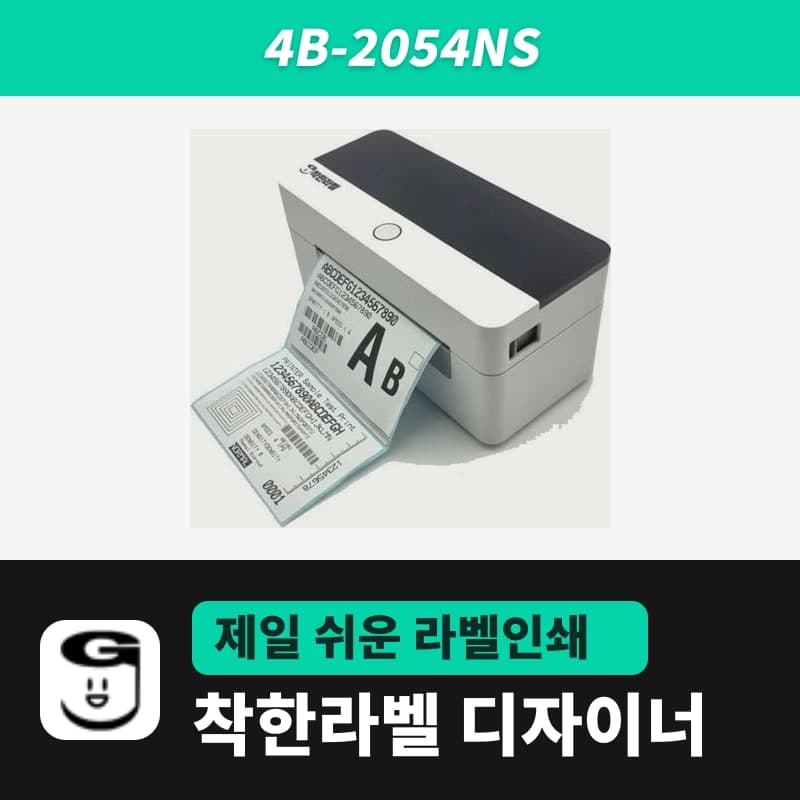 Good LabelGoodLabel 4B-2054NS direct thermal label printerThe GoodLabel 4B-2054NS is a direct thermal only 4-inch printer driven by GoodLabel Designer in TSPL; the Gap length field value goes into the GAP command as is. GoodLabel 4B-2054NS, W-4B-2054NS and Xprinter 4B-2054N in the model list are all TSPL at 203 dpi, so each sends the same commands.
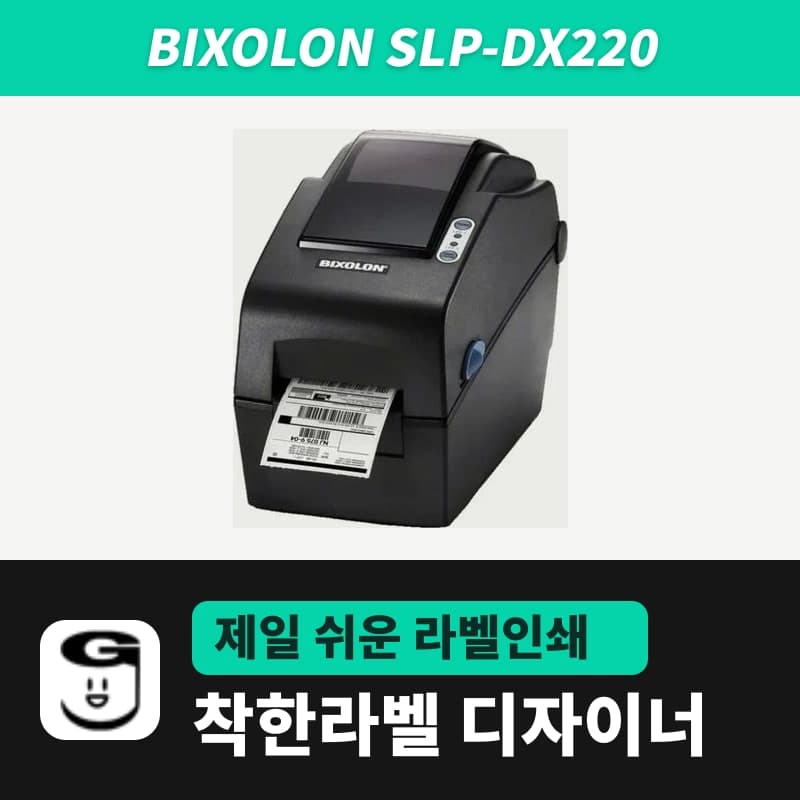 BixolonBixolon SLP-DX220 label printerThe SLP-DX220 is a Bixolon 2-inch direct thermal printer, 54mm print width, 203dpi, up to 6ips, rolls 15–60mm wide. Select SLP-DX220 (ZPL, 203dpi) in the GoodLabel Designer model list, and the Troubleshoot window skips the print method step and guides only saving the label type and Detect media.
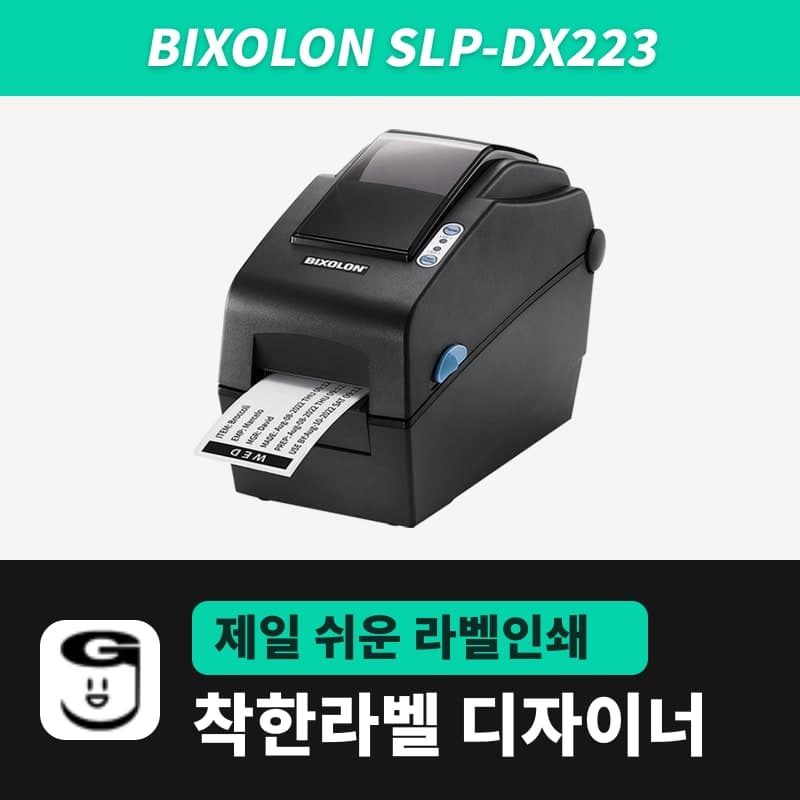 BixolonBixolon SLP-DX223 label printerA 2-inch direct thermal printer for dense text and QR codes on small labels 10–20mm tall, using the SLP-DX220 body with a head of about 11.8 dots per mm (print width 56.9mm, max 4ips). In the Designer model list it appears under its sales name, SLP-DX223, with a single ZPL, 300dpi setting.
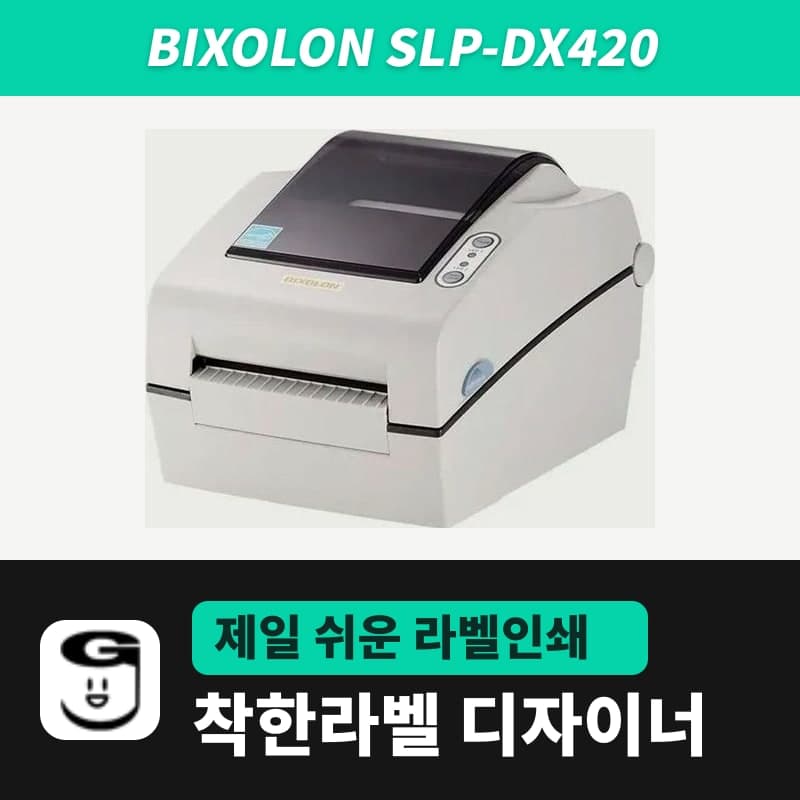 BixolonBixolon SLP-DX420 label printerThe SLP-DX420 is a Bixolon 4-inch direct thermal only printer, 108mm wide at 203dpi and up to 7ips, suited to printing many thermal labels such as 100×150mm shipping labels. In GoodLabel Designer, select SLP-DX420 (ZPL, 203dpi); copies of the same label go as one ^PQ quantity command.
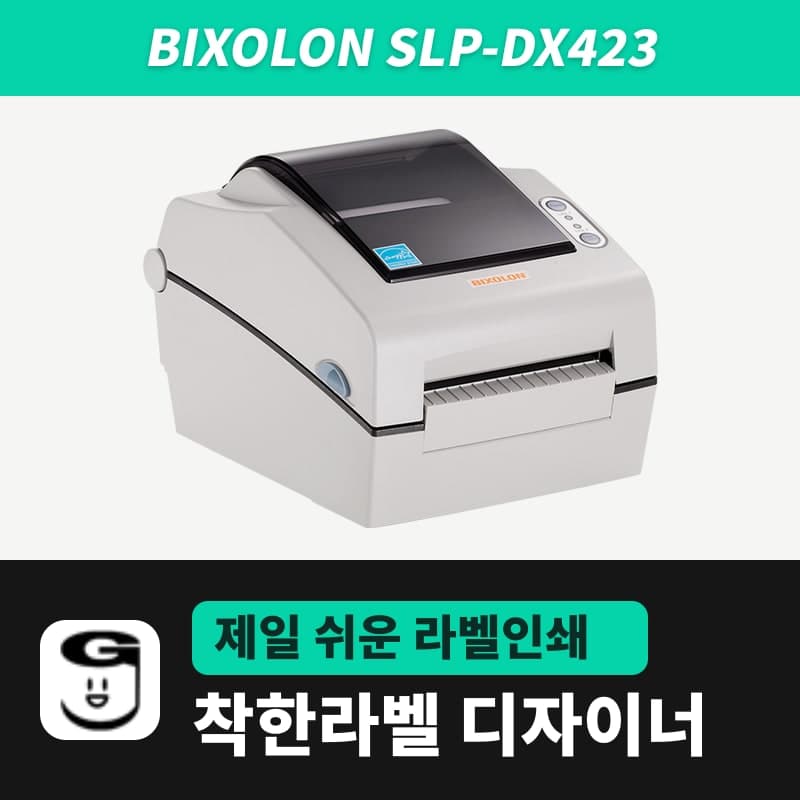 BixolonBixolon SLP-DX423 label printerFor the SLP-DX423, you must select the SLP-DX423 (ZPL, 300dpi) entry in GoodLabel Designer; if you send to the 203dpi SLP-DX420 entry, labels come out shrunk to about 68% of their size. The printer is a Bixolon 4-inch direct thermal only model with a 105.7mm print width and a max speed of 5ips.
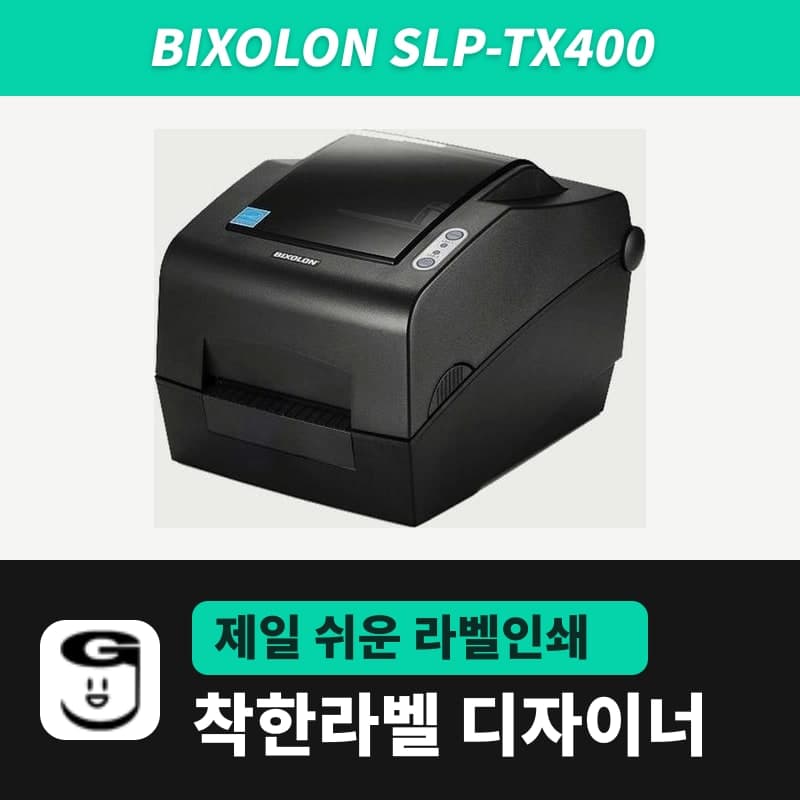 BixolonBixolon SLP-TX400 label printerIn the GoodLabel Designer Troubleshoot window, the print method step (thermal transfer or direct thermal) appears only when the Printer model field shows SLP-TX400. It is a Bixolon 4-inch thermal transfer and direct thermal printer (203dpi, 108mm, max 7ips); Designer entry: SLP-TX400 (ZPL, 203dpi).