
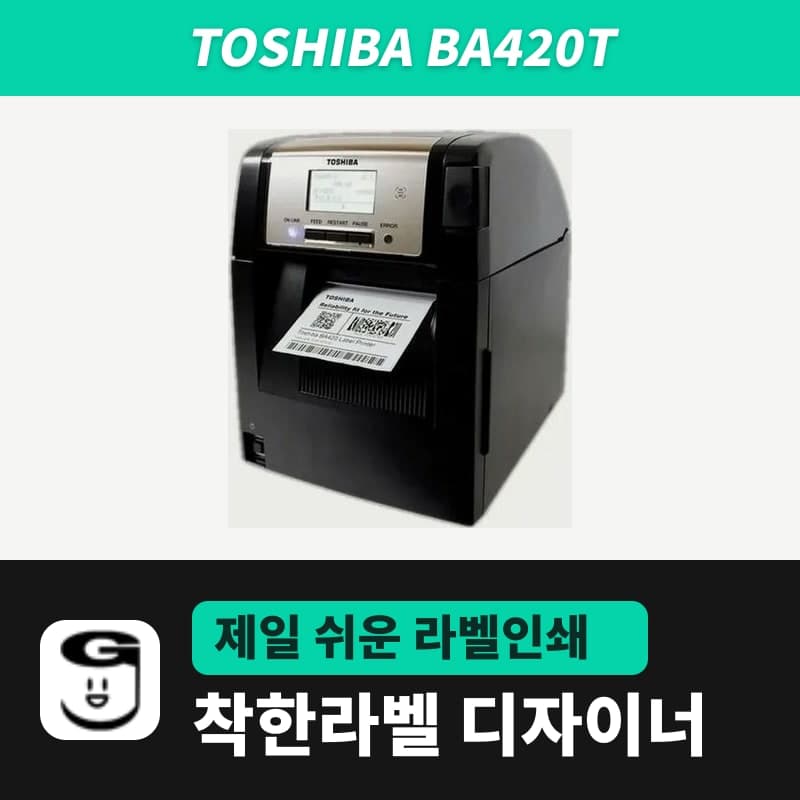
Toshiba · Label printers
Toshiba BA420T label printer
The Toshiba BA420T is a plastic-body 4-inch printer whose plug-in head swaps between 203dpi (GS12) and 300dpi (TS12); it takes 60-110mm wide, 450m ribbons. It is not listed in GoodLabel Designer, so choose a Toshiba entry with the same DPI button, such as BV420D; it uses TPCL via the Toshiba driver.
- Models
- BA420T-GS12 (203dpi) / BA420T-TS12 (300dpi)
- Print method
- Thermal transfer and direct thermal
- Print speed
- 50.8, 101.6, 152.4, 203.2mm/s selectable (choosing 2ips in thermal transfer gives 3ips)
- Max print width
- GS12 104mm / TS12 105.7mm
- Print length
- Up to 58.9 inches (about 1,496mm) (label height in GoodLabel Designer goes up to 1000mm)
- Label width
- Thermal transfer 22-105mm, direct thermal 25-118mm (width including liner: thermal transfer 25-114mm, direct thermal 25-118mm)
Specifications
| Models | BA420T-GS12 (203dpi) / BA420T-TS12 (300dpi) |
|---|---|
| Print method | Thermal transfer and direct thermal |
| Print speed | 50.8, 101.6, 152.4, 203.2mm/s selectable (choosing 2ips in thermal transfer gives 3ips) |
| Max print width | GS12 104mm / TS12 105.7mm |
| Print length | Up to 58.9 inches (about 1,496mm) (label height in GoodLabel Designer goes up to 1000mm) |
| Label width | Thermal transfer 22-105mm, direct thermal 25-118mm (width including liner: thermal transfer 25-114mm, direct thermal 25-118mm) |
| Media roll | Outer diameter up to 152.4mm, core 38mm and 76.2mm, roll and fanfold |
| Ribbon | Wax, wax-resin, resin; up to 450m; width 60-110mm; ink side out (CSO) |
| Factory defaults | Feed gap sensor, thermal transfer, media pitch 76.2mm |
| Printer language | TPCL (ZPL II, SBPL, DPL emulation) |
| Interfaces | USB 2.0, wired LAN, Bluetooth, NFC, USB host standard |
| GoodLabel Designer model | Not in the list; use a Toshiba (TPCL) entry with the same DPI, such as BV420D; driver printing |
The Toshiba BA420T is a 4-inch thermal transfer and direct thermal printer with a 12kg plastic body. Its head plugs in, so 203dpi (GS12) and 300dpi (TS12) heads can be swapped. The name BA420T is not in the GoodLabel Designer v3.3.22 model list, so choose another Toshiba entry with the same resolution and print through the Windows driver.
How Toshiba printers print through the driver in the designer
The languages for which designer v3.3.22 builds and sends commands directly are three: ZPL, TSPL and EZPL. TPCL, the command language of the 21 Toshiba entries, is always handled by Windows driver printing. The designer draws the label as an image at the chosen resolution (DPI/25.4 dots per mm), then passes it to the Toshiba driver with the label width and height in mm as the paper size. So the fields shown on screen also differ from Zebra, TSC and Godex entries in the 4 places below.
| Designer screen | ZPL, TSPL, EZPL entries | Toshiba (TPCL) entries |
|---|---|---|
| Print window density and speed | Range fields for each command language | No fields; a button the screen labels "Printer settings" and a dithering note |
| Printer settings › Print options | Print as image, Print method, Media type | Only Print rotated 180° is shown |
| Advanced settings Label gap (GAP) | Gap length field under Print options | The field is shown but not sent in driver printing |
| Left/right margin, Vertical offset, Print rotated 180° | Applied | Applied (reflected when the image is made) |
Five settings are set in the Toshiba driver properties: direct thermal or thermal transfer, sensor, gap between labels, speed and density. On the English screens described in the Toshiba driver manual (27th edition, 2024), these are Print Method, Sensor and Label Gap on the Stock tab, Print Speed on the same tab, Print Density Adjustment on the Options tab, and Dithering on the Graphics tab. The driver is the Toshiba printer universal driver (2023.3), which the Toshiba button in the designer's Printer settings window opens.
Choosing an entry to substitute for the unlisted BA420T
For Toshiba entries, two pieces of information affect the print result: the command language is TPCL, so it goes to driver printing, and the DPI chosen with the resolution button becomes the dot spacing of the image. The model name itself is not passed to the driver, so any Toshiba entry with a DPI button matching the head gives the same result.
- In the printer field, choose the BA420T queue, then enter BV420 in the printer model search and choose the BV420D entry. This entry has both 203 and 300 DPI buttons.
- Click 203 DPI for a GS12 (203dpi) printer and 300 DPI for a TS12 (300dpi) printer. If you click "Finish setup" in the Printer settings window without choosing a list entry, the warning "Select a printer model." appears and the settings are not saved.
- If you later change the head to another resolution, just click the DPI button again in Printer settings. Barcode widths and module sizes are recalculated for the new resolution.
The same principle applies to other Toshiba models not in the list. For the BV420T, B-FV4 family models with different names, and newly released models, choose a Toshiba entry that has the head's DPI as a button.
First FEED errors and PAPER JAM causes
On a BA420T connected for the first time, first enter Sensor and Print Method on the Stock tab of the Toshiba driver and the label size for the actual roll. If you press FEED with a roll loaded that differs from the printer's initial conditions (gap sensor, thermal transfer, pitch 76.2mm), an error occurs; send the conditions, then clear it with the RESTART key. PAPER JAM on the LCD has the six causes below.
| Cause | Fix |
|---|---|
| Media caught in the path or not feeding smoothly | Remove the jammed media, clean the platen, reload, then RESTART |
| A sensor that does not match the roll is selected | Turn the power off and on, set the driver Sensor to match the roll, and print again |
| The black mark sensor is not aligned with the mark center | Move the sensor and RESTART |
| The loaded roll differs from the programmed size | Match the designer label size to the roll and print again |
| Upper and lower sensor positions are misaligned | Align the upper sensor with the lower sensor position |
| CALIBRATE is set to an ON ALL option for a roll with both black marks and gaps | Change CALIBRATE to an ON REFLECTIVE option |
BA420T roll and ribbon requirements
Label width is 22-105mm for thermal transfer and 25-118mm for direct thermal by the Toshiba BA400 spec sheet (2021), and width including liner is 25-114mm for thermal transfer and 25-118mm for direct thermal by the BA420T user manual. Rolls can be up to 152.4mm in outer diameter, with 38mm and 76.2mm cores. The maximum length per label is 58.9 inches (about 1,496mm), but the designer Height field stops at 1000mm.
Ribbons are rolls with the ink side out (CSO), 60-110mm wide, up to 450m. Of GoodLabel wax ribbon 300M, the 60, 70, 80, 90, 100 and 110mm widths fall within this range, and the 40 and 50mm widths are outside the BA420T ribbon range.
Compatible with GoodLabel Designer
You can design and print labels for this model with GoodLabel Designer, our free label software. GoodLabel Designer · User Guide
FAQ
- When I choose a Toshiba entry, the Print window has no density or speed fields.
- TPCL entries go to driver printing, so a button appears instead of the density and speed fields; the screen labels it "Printer settings". Use that button to open the Toshiba driver properties and change Print Density Adjustment on the Options tab and Print Speed on the Stock tab.
- I chose the BV420D entry. Are BV420D commands sent to the BA420T?
- No. The designer only turns the label into an image and passes it to the Toshiba driver of the BA420T queue, and the only information it uses from the model entry is whether it prints through the driver and the DPI.
- I changed Label gap (GAP) in the designer's Advanced settings, but nothing changes on the BA420T.
- That field is used only for printers that receive commands directly, and it is not sent for entries that print through a driver, such as Toshiba. Enter the gap between labels in Label Gap on the Stock tab of the Toshiba driver.
Drivers & manuals
How to buy
- In Korea, this product is sold through our Korean online store. Korean product page →
- Outside Korea, contact us by email. Email: Contact →
- Or buy from an authorized dealer in your country.
Other models in this category
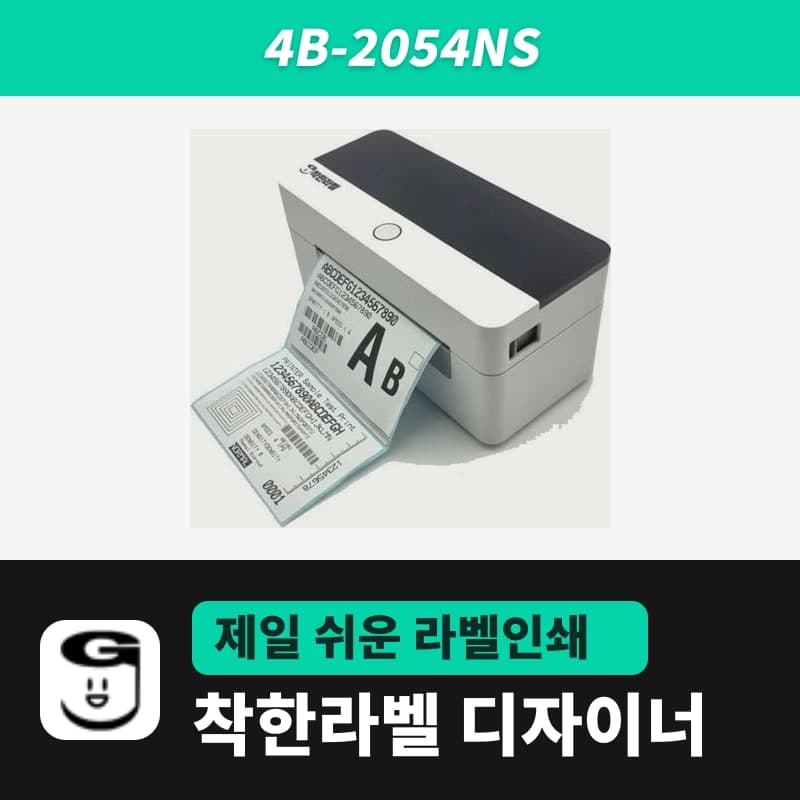 Good LabelGoodLabel 4B-2054NS direct thermal label printerThe GoodLabel 4B-2054NS is a direct thermal only 4-inch printer driven by GoodLabel Designer in TSPL; the Gap length field value goes into the GAP command as is. GoodLabel 4B-2054NS, W-4B-2054NS and Xprinter 4B-2054N in the model list are all TSPL at 203 dpi, so each sends the same commands.
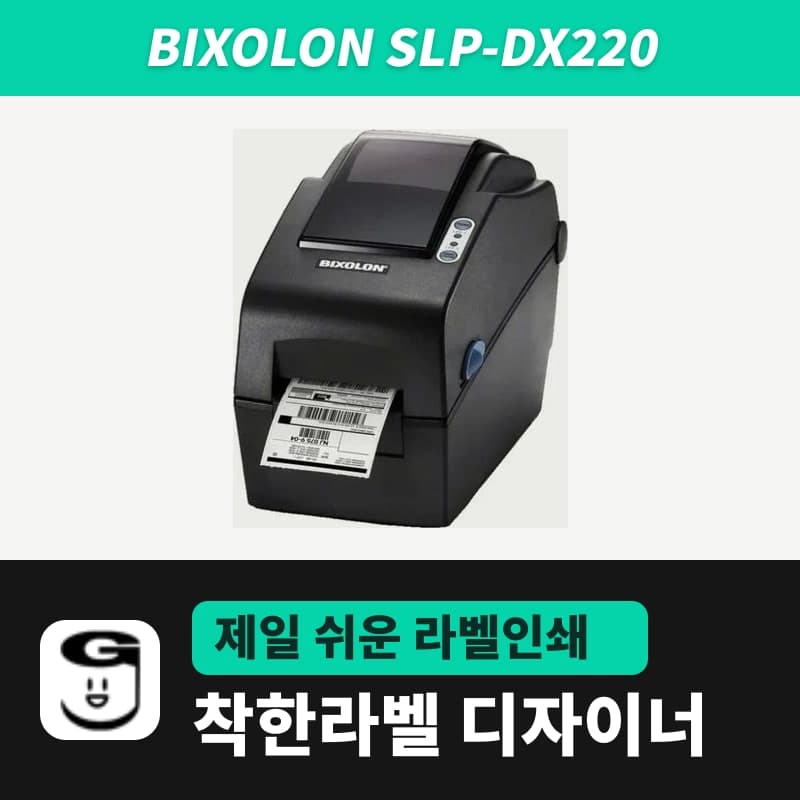 BixolonBixolon SLP-DX220 label printerThe SLP-DX220 is a Bixolon 2-inch direct thermal printer, 54mm print width, 203dpi, up to 6ips, rolls 15–60mm wide. Select SLP-DX220 (ZPL, 203dpi) in the GoodLabel Designer model list, and the Troubleshoot window skips the print method step and guides only saving the label type and Detect media.
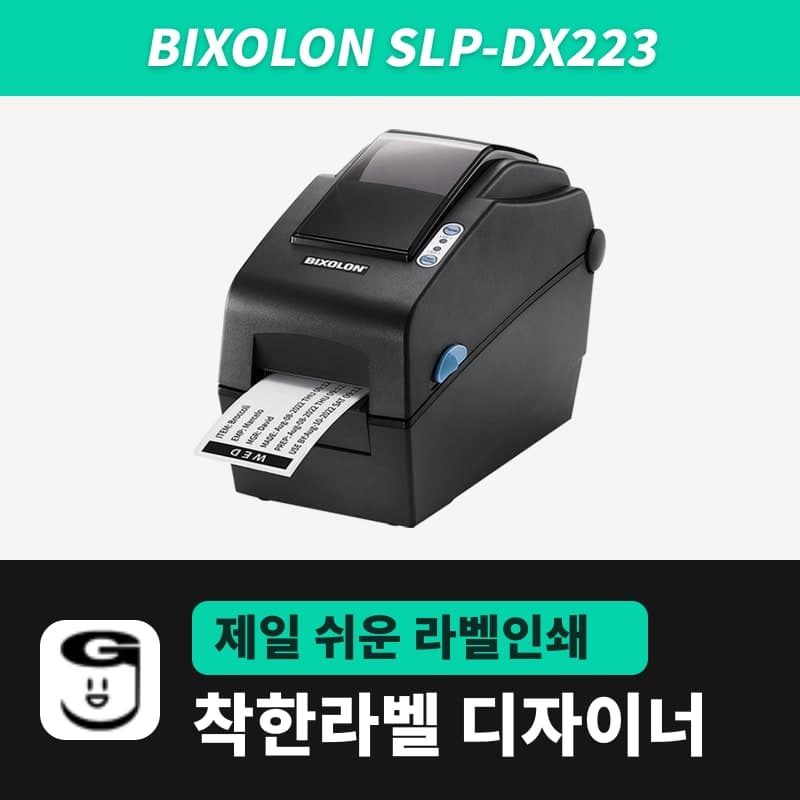 BixolonBixolon SLP-DX223 label printerA 2-inch direct thermal printer for dense text and QR codes on small labels 10–20mm tall, using the SLP-DX220 body with a head of about 11.8 dots per mm (print width 56.9mm, max 4ips). In the Designer model list it appears under its sales name, SLP-DX223, with a single ZPL, 300dpi setting.
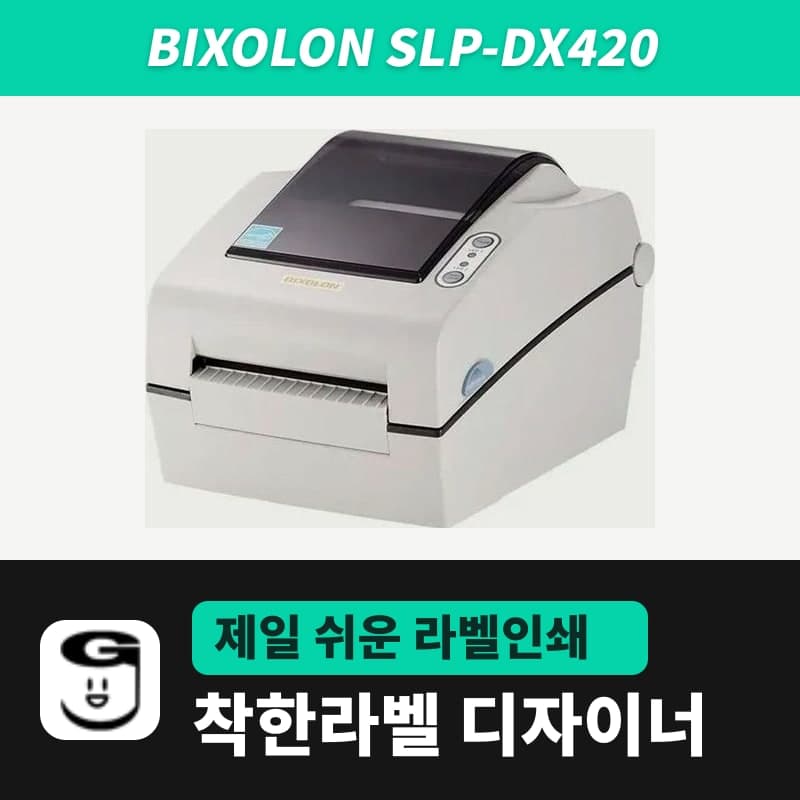 BixolonBixolon SLP-DX420 label printerThe SLP-DX420 is a Bixolon 4-inch direct thermal only printer, 108mm wide at 203dpi and up to 7ips, suited to printing many thermal labels such as 100×150mm shipping labels. In GoodLabel Designer, select SLP-DX420 (ZPL, 203dpi); copies of the same label go as one ^PQ quantity command.
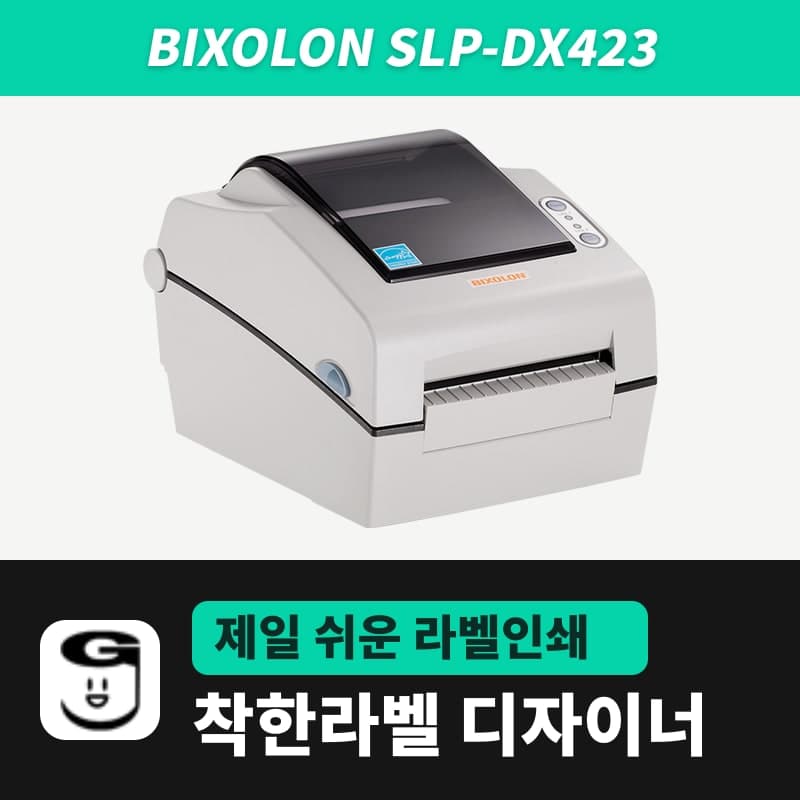 BixolonBixolon SLP-DX423 label printerFor the SLP-DX423, you must select the SLP-DX423 (ZPL, 300dpi) entry in GoodLabel Designer; if you send to the 203dpi SLP-DX420 entry, labels come out shrunk to about 68% of their size. The printer is a Bixolon 4-inch direct thermal only model with a 105.7mm print width and a max speed of 5ips.
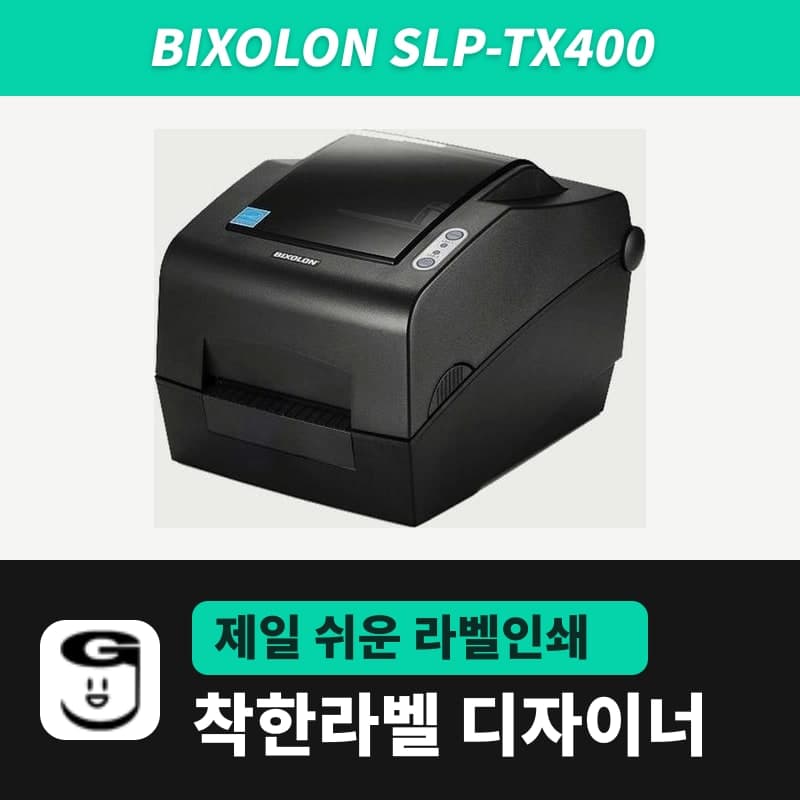 BixolonBixolon SLP-TX400 label printerIn the GoodLabel Designer Troubleshoot window, the print method step (thermal transfer or direct thermal) appears only when the Printer model field shows SLP-TX400. It is a Bixolon 4-inch thermal transfer and direct thermal printer (203dpi, 108mm, max 7ips); Designer entry: SLP-TX400 (ZPL, 203dpi).