
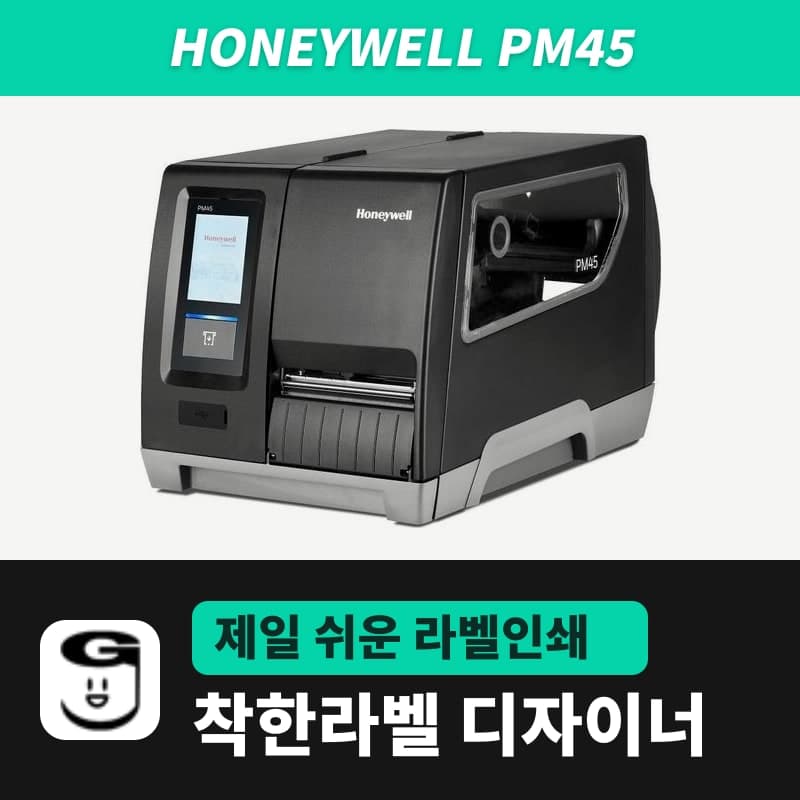
Honeywell · Label printers
Honeywell PM45 label printer
The PM45 is Honeywell's mid-range industrial 4-inch printer, printing up to 350mm per second at 203dpi, as the PM45A in 203dpi and 300dpi variants. GoodLabel Designer prints to it as the ZPL entry PM45; before the first label, check its status with Print button calibration and the icon LED colors.
- Resolution
- Printer 203 · 300 · 406 · 600dpi; sold variants 203dpi · 300dpi
- Print speed
- 203dpi 50–350mm/s (2–14ips), 300dpi 50–300mm/s (2–12ips)
- Max print width
- 108mm (203dpi), 105.7mm (300dpi)
- Max label length
- 4.8m (203dpi), 2.2m (300dpi)
- Media width and thickness
- 19–114mm, 3–10.4mil, roll or fanfold
- Media sensing
- Gap, notch, black mark, continuous, media low/out, Label Taken, ribbon low/out, head open
Specifications
| Resolution | Printer 203 · 300 · 406 · 600dpi; sold variants 203dpi · 300dpi |
|---|---|
| Print speed | 203dpi 50–350mm/s (2–14ips), 300dpi 50–300mm/s (2–12ips) |
| Max print width | 108mm (203dpi), 105.7mm (300dpi) |
| Max label length | 4.8m (203dpi), 2.2m (300dpi) |
| Media width and thickness | 19–114mm, 3–10.4mil, roll or fanfold |
| Media sensing | Gap, notch, black mark, continuous, media low/out, Label Taken, ribbon low/out, head open |
| Media roll | Max outer diameter 213mm (PM45), cores 38–76mm |
| Ribbon | Wax · wax/resin · resin, max roll diameter 80mm · 450m, core 25mm, ink side in and out |
| Command languages | Fingerprint, Direct Protocol, IPL (203 · 300dpi), ZSim2 (ZPL-II), DPL, PDF, C# |
| Interfaces | Standard: Ethernet 10/100Mbps, 2 USB 2.0 Host and Device, RS-232 |
| Display | Touch display or icon LEDs (depends on model) |
| GoodLabel Designer model | PM45 (ZPL, 203 · 300 · 600 DPI) |
| Dimensions and weight | 483×295×284mm, 13.2kg |
The PM45A is the Honeywell PM45, which reaches 350mm per second (14ips) at 203dpi, sold as separate 203dpi and 300dpi variants. The printer itself is also made in 406 and 600dpi, but the resolution buttons of the GoodLabel Designer PM45 entry are 203, 300 and 600 DPI.
Designer setup by sold resolution
| Sold variant | Print speed | Max print width | Printer max label length | Designer button |
|---|---|---|---|---|
| PM45 203dpi | 50–350mm/s (2–14ips) | 108mm | 4.8m | PM45 · 203 DPI |
| PM45 300dpi | 50–300mm/s (2–12ips) | 105.7mm | 2.2m | PM45 · 300 DPI |
The speeds in the table are the printer's limits; the Density and Speed fields in the Designer Print window use the common ZPL ranges. The range of each field and the commands sent follow the command list on the PX4ie page.
The compact PM45c also has its own entry in the Designer list. Both entries are ZPL with 203, 300 and 600 DPI buttons, so whether the Windows printer name is picked up as PM45 or PM45c, the same commands are sent.
Printer language and media calibration
The PM45 command language list includes ZSim2, which interprets ZPL-II, and it also supports Fingerprint, DP, IPL, DPL, PDF printing and running C# apps. For the Designer's ZPL to be processed, the printer command language must be on the ZSim side; the reason for that setting and the Designer command order are covered on the PX4ie page.
After loading the roll and ribbon, hold down the Print button in the ready state to run smart calibration. If you press the Print button while the PM45 is powering on, it enters calibration mode, but with the printhead raised it enters default settings restore, so check the printhead lever position first.
After calibration, how to print a test label depends on the display type. On a PM45 with the icon LED display, hold down the Print button after the last 2 LEDs (Printhead Hot, Maintenance) light at power-on and release it when printing starts; on touch display models, select Tools, Test Labels in the Main Menu.
When an icon LED turns red
A PM45 with the icon LED display shows why it stopped by icon color. If you sent a print from the Designer and not a single label comes out, check the 6 red icons below first.
| Icon | Meaning when red |
|---|---|
| Media | Media problem such as no media, jam or incorrect loading |
| Printer Configuration | Printer configuration problem |
| Ribbon | Ribbon problem such as no ribbon, not fed or incorrect loading |
| Printhead Hot | Printhead overheated |
| Printhead Lifted | Printhead is raised |
| General Error | Printer problem not covered by the other icons |
Of the 4 white icons, Wi-Fi, Connectivity and Bluetooth show the wireless signal, data transfer and whether Bluetooth is in use, and a white Pause means the printer is paused. An orange Maintenance icon means the PM45 has reached its lifetime distance setting and is due for service. If you use only direct thermal label rolls and the Ribbon icon is off, the printer is set not to use a ribbon, which is normal.
Compatible with GoodLabel Designer
You can design and print labels for this model with GoodLabel Designer, our free label software. GoodLabel Designer · User Guide
FAQ
- Is the PM45A the same model as PM45 in the Designer list?
- The PM45A is the Honeywell PM45, and in the Designer you choose the ZPL entry PM45. Press the 203 DPI or 300 DPI resolution button to match the variant you bought.
- I pressed the Print button while turning on the PM45 and the settings were reset.
- If you press the Print button while the PM45 is powering on, it enters calibration mode when the printhead is down and restores default settings when the printhead is up. To calibrate only, hold down the Print button in the ready state with the printhead lowered.
- I sent a print from the Designer and the Ribbon icon turned red.
- A red Ribbon icon means the ribbon is missing, not fed or loaded incorrectly. If you loaded only direct thermal labels without a ribbon, also check the Print method field in Designer Printer settings: Thermal transfer sends ^MTT and Direct thermal sends ^MTD. On a printer set not to use a ribbon, the Ribbon icon is off.
Drivers & manuals
How to buy
- In Korea, this product is sold through our Korean online store. Korean product page →
- Outside Korea, contact us by email. Email: Contact →
- Or buy from an authorized dealer in your country.
Other models in this category
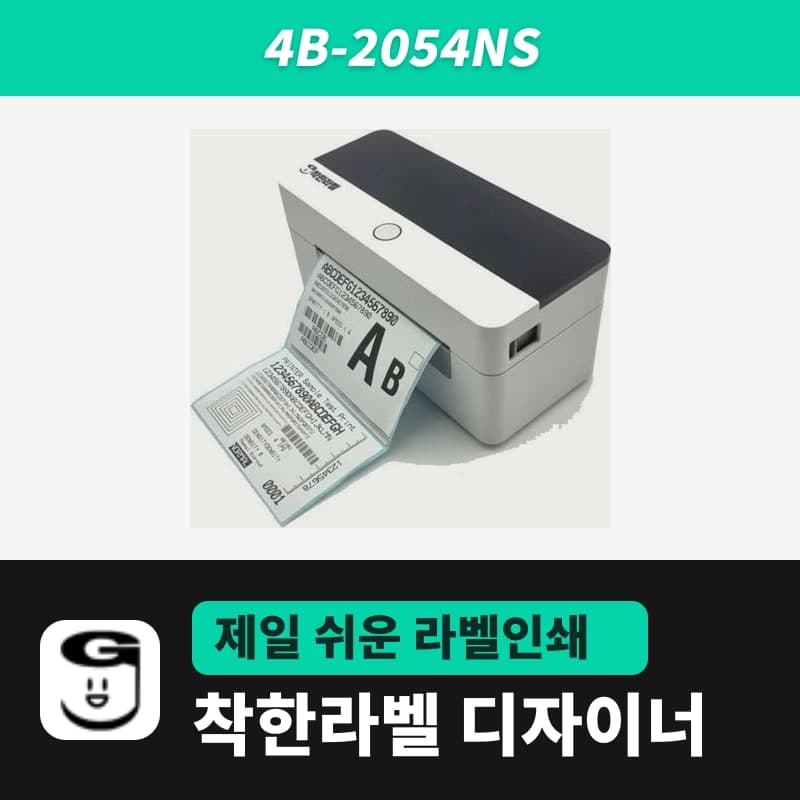 Good LabelGoodLabel 4B-2054NS direct thermal label printerThe GoodLabel 4B-2054NS is a direct thermal only 4-inch printer driven by GoodLabel Designer in TSPL; the Gap length field value goes into the GAP command as is. GoodLabel 4B-2054NS, W-4B-2054NS and Xprinter 4B-2054N in the model list are all TSPL at 203 dpi, so each sends the same commands.
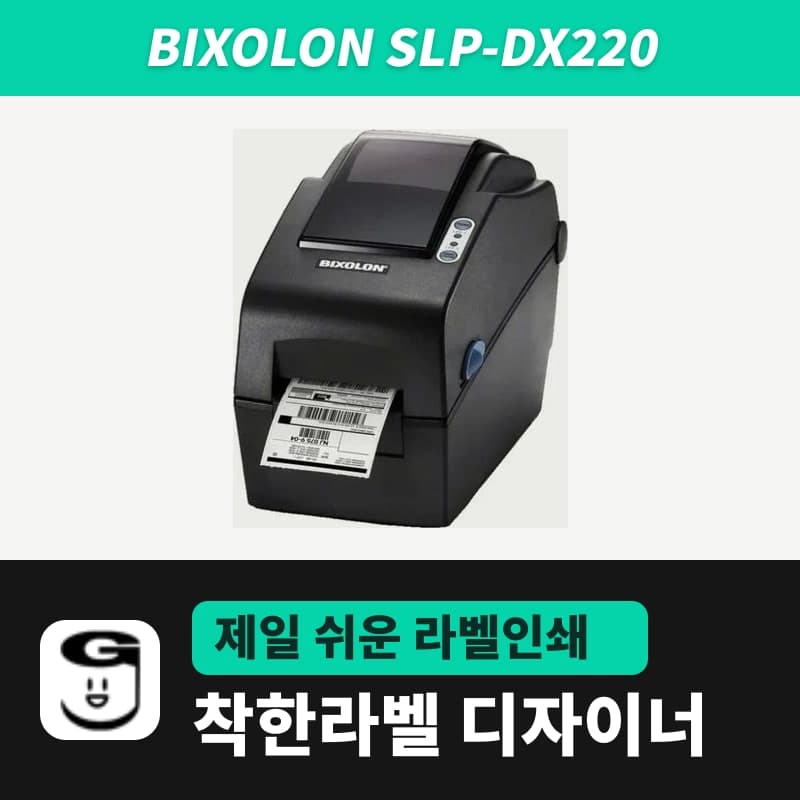 BixolonBixolon SLP-DX220 label printerThe SLP-DX220 is a Bixolon 2-inch direct thermal printer, 54mm print width, 203dpi, up to 6ips, rolls 15–60mm wide. Select SLP-DX220 (ZPL, 203dpi) in the GoodLabel Designer model list, and the Troubleshoot window skips the print method step and guides only saving the label type and Detect media.
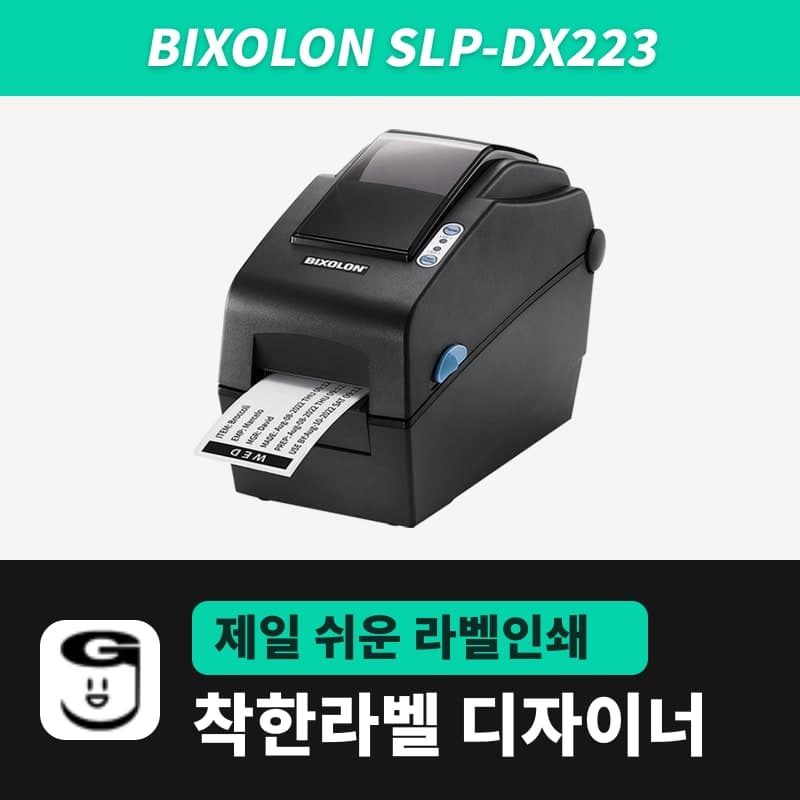 BixolonBixolon SLP-DX223 label printerA 2-inch direct thermal printer for dense text and QR codes on small labels 10–20mm tall, using the SLP-DX220 body with a head of about 11.8 dots per mm (print width 56.9mm, max 4ips). In the Designer model list it appears under its sales name, SLP-DX223, with a single ZPL, 300dpi setting.
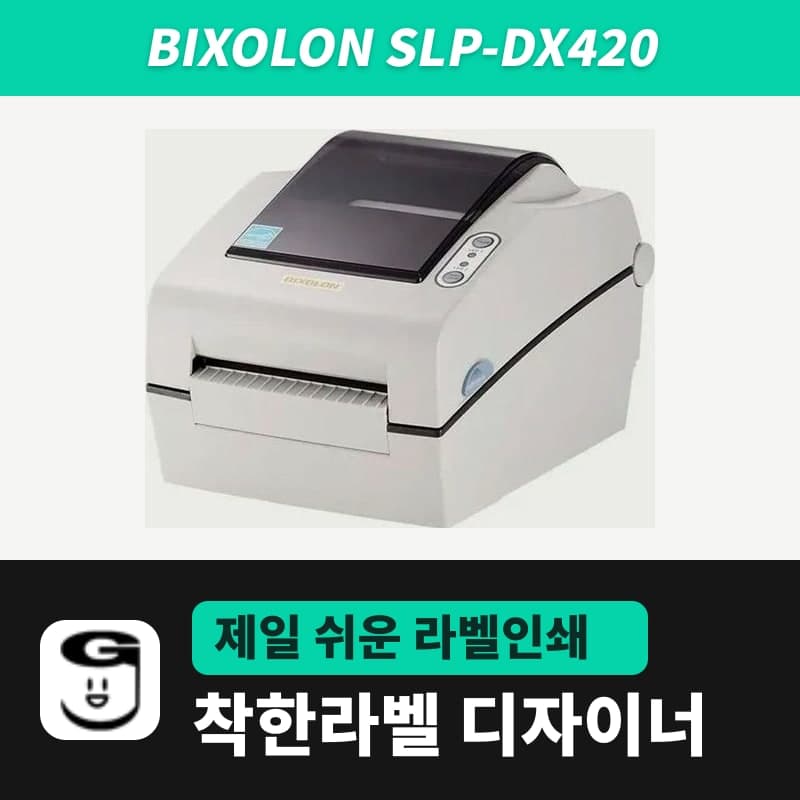 BixolonBixolon SLP-DX420 label printerThe SLP-DX420 is a Bixolon 4-inch direct thermal only printer, 108mm wide at 203dpi and up to 7ips, suited to printing many thermal labels such as 100×150mm shipping labels. In GoodLabel Designer, select SLP-DX420 (ZPL, 203dpi); copies of the same label go as one ^PQ quantity command.
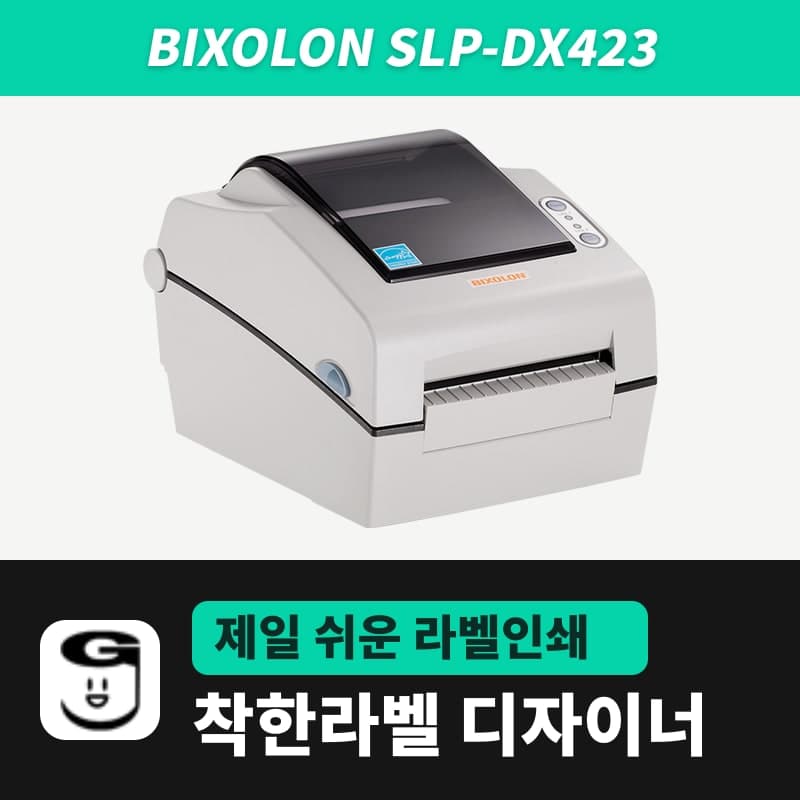 BixolonBixolon SLP-DX423 label printerFor the SLP-DX423, you must select the SLP-DX423 (ZPL, 300dpi) entry in GoodLabel Designer; if you send to the 203dpi SLP-DX420 entry, labels come out shrunk to about 68% of their size. The printer is a Bixolon 4-inch direct thermal only model with a 105.7mm print width and a max speed of 5ips.
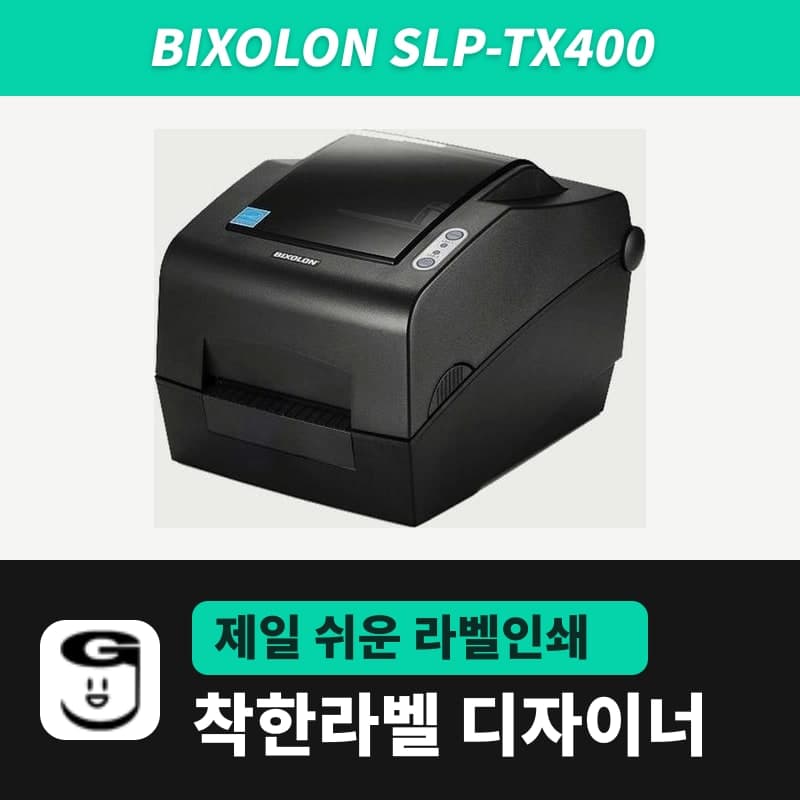 BixolonBixolon SLP-TX400 label printerIn the GoodLabel Designer Troubleshoot window, the print method step (thermal transfer or direct thermal) appears only when the Printer model field shows SLP-TX400. It is a Bixolon 4-inch thermal transfer and direct thermal printer (203dpi, 108mm, max 7ips); Designer entry: SLP-TX400 (ZPL, 203dpi).