
TSC · Label printers
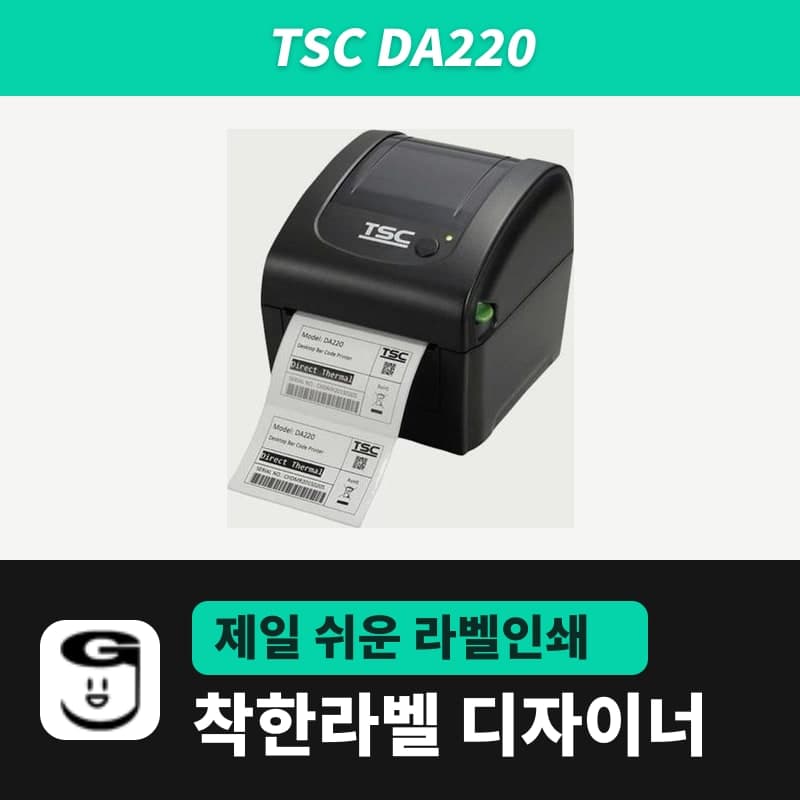
TSC DA220 label printer
The TSC DA220 is a TSPL printer that prints on direct thermal media only, without a ribbon, so in GoodLabel Designer select the model DA220 (203 dpi) and set the print method to Direct thermal. Choose the media type for 19–114 mm media, a gap of 2 mm or more and a black mark 16 mm or wider.
- Print method
- Direct thermal
- Resolution
- 203 dpi (8 dots/mm)
- Max print speed
- 152.4 mm/s (6 ips), 2–3 ips in peel-off mode
- Max print width and length
- 108 mm, 25,400 mm
- Media width and thickness
- 19–114 mm, 0.055–0.19 mm
- Media types
- Continuous, die-cut, black mark, fan-fold, notched, receipt paper (wound printed side out)
Specifications
| Print method | Direct thermal |
|---|---|
| Resolution | 203 dpi (8 dots/mm) |
| Max print speed | 152.4 mm/s (6 ips), 2–3 ips in peel-off mode |
| Max print width and length | 108 mm, 25,400 mm |
| Media width and thickness | 19–114 mm, 0.055–0.19 mm |
| Media types | Continuous, die-cut, black mark, fan-fold, notched, receipt paper (wound printed side out) |
| Label length | 10–25,400 mm (peel-off 25.4–152.4 mm, cutter 25.4 mm or more) |
| Gap and black mark | Gap 2 mm or more, black mark height 2 mm and width 16 mm or more |
| Media roll | 127 mm outer diameter, 1-inch core (1.5-inch with optional adapter) |
| Sensors | Transmissive gap, reflective black mark, head open |
| Printer language | TSPL-EZD (EPL, ZPL, ZPL II, DPL compatible) |
| Interfaces | USB 2.0, USB host, RS-232, Ethernet |
| GoodLabel Designer model | DA220 (TSPL, 203 dpi) |
| Controls | Power switch, one FEED button, one three-color LED |
| Operating environment | 5–40°C, 25–85% humidity (non-condensing) |
| Dimensions and weight | 172×165×195 mm, 1.5 kg |
The TSC DA220 is a direct-thermal-only printer with no ribbon compartment, so in GoodLabel Designer set the print method in Printer settings to either Direct thermal or Printer settings. If you choose Direct thermal, the SET RIBBON OFF command is added to every label; if you leave it at Printer settings, no print method command is sent and the DA220 prints according to its own settings.
The DA220 in the Designer model list
The Designer's TSC model list has separate entries for the DA200, DA210 and DA220 (203 dpi) and the DA300, DA310 and DA320 (300 dpi), and all six models print with TSPL commands. If the printer name registered in Windows contains DA220, the model field and 203 DPI are filled in together the moment you select the printer. If the model is not found from the name, type DA220 in the model search field and select it from the list.
In the Printer settings dialog, searching for DA220 on the Driver installation guide screen shows a TSC driver download link that leads to the TSC printer unified driver (2024.3) page in the download center. The driver is used to register the printer in Windows; the print data goes to the DA220 as TSPL without passing through the driver settings. If you check "Print as image" in the print options, printing switches from this path to Windows driver printing, and media and darkness also follow the driver settings.
Media the DA220 accepts and media type settings
| Roll type | DA220 condition | Designer media type and command sent |
|---|---|---|
| Gap (die-cut) labels | Gap between labels of 2 mm or more | Choose Gap labels and enter the measured gap in the Gap length field (default 3 mm); that value in mm is carried in the GAP command |
| Black mark media | Mark on the back 2 mm high and 16 mm wide or larger | Choose Black mark, and the BLINE command is sent with a mark height of 3 mm |
| Continuous and receipt paper | Roll with no gaps | Choose Continuous media, and the GAP command is sent with a gap of 0; each piece comes out at the document height |
| Fan-fold media | Fed through the external rear slot | Gap labels if the media has gaps, Continuous media if not |
Every roll must be wound with the printed side out. The printer accepts widths of 19–114 mm and the head prints 108 mm, so labels up to 100 mm wide fit within the head width. The standard core inner diameter is 1 inch (25.4 mm); a 1.5-inch (38 mm) core is mounted with the optional adapter.
The 16 mm black mark width is a wider requirement than the 8 mm of TSC thermal transfer models such as the TE210, so when you move black mark media over from another printer, measure the mark width first.
Choosing labels without a ribbon
The DA220 prints only on heat-sensitive direct thermal media. All the 30–100 mm widths of GoodLabel thermal roll labels fall within the DA220 media width range, and the 50×30, 60×40, 70×40, 80×40 and 100×150 layouts in the Designer's shared templates also print as-is on direct thermal labels of the same size. Thermal transfer labels, which need a ribbon to print, cannot be printed on this printer and require a separate model that also supports thermal transfer.
Designer settings after installing the peel-off or cutter option
The commands the Designer sends to the DA220 contain no peel-off or cutter operation. Changing the post-print action to PEEL is saved on the printer side in TSC Diagnostic Tool, and in the Designer you only match the label size to the option's conditions.
- While using the peel-off module, keep the label height within 1–6 inches (25.4–152.4 mm).
- Finish sensor calibration before loading media into the peel-off module to prevent paper jams.
- Label length in cutter mode starts at 1 inch (25.4 mm), so do not use shorter label sizes.
Continuous feeding, paper jams and faint printing
If labels keep feeding instead of stopping after one label, the DA220 settings are off, so initialize the printer and recalibrate the gap/black mark sensor. The Detect media button in the Designer's Troubleshoot window also sends the AUTODETECT command to the DA220 to recalibrate the sensor.
A paper jam has three causes. If the sensor sensitivity is insufficient, calibrate the sensor; if the label size differs from the actual roll, correct the width and height in mm in the Designer's Printer settings to match the roll exactly; and if a label is stuck near the sensor, remove it.
Faint or missing print appears when the latches on both sides of the top cover are not fully locked, when a power supply without 24V output is connected, when the media is loaded incorrectly, when dust or adhesive has built up on the head, when the density is wrong, or when head elements are damaged. Raise the density in the Designer's Print window within 0–15 (default 11), and check for damaged head elements by looking for missing dots in the self-test printout.
A flashing red LED indicates print errors such as head open, out of labels, paper jam or memory error, and printer setting errors. If labels have run out, load a new roll and press the FEED button to continue printing; if it is a setting error, initialize the printer. If the red light is on steadily rather than flashing, the head is open or there is a cutter error.
The locations of the Printer settings items are in the Printing chapter of the guide, and the DA220 media loading illustrations are in the TSC DA220 user guide in the download center.
Compatible with GoodLabel Designer
You can design and print labels for this model with GoodLabel Designer, our free label software. GoodLabel Designer · User Guide
FAQ
- Does the 300 dpi DA320 work the same way in the Designer?
- The DA320 has its own entry in the Designer model list as a 300 dpi TSPL model, so selecting DA320 as the model sets the resolution to 300. The DA320 differs from the DA220 with a 105.7 mm print width and a max speed of 102 mm/s.
- What happens if I set the print method to Thermal transfer?
- When you choose Thermal transfer, the Designer adds the SET RIBBON ON command. The DA220 has no place to mount a ribbon, so set it to Direct thermal (SET RIBBON OFF) or to Printer settings, which sends no command.
- What do I change in the Designer for black mark media?
- Set the media type in Printer settings to Black mark, and the BLINE 3 mm,0 mm command is sent. The DA220 reads marks 2 mm high and 16 mm wide or larger; if the marks on your media are narrower, switch to a different roll.
- I installed the peel-off module, but the Designer has no peel-off field.
- The Designer does not send peel-off operation. Change the post-print action to PEEL in TSC Diagnostic Tool and save it to the printer. In the Designer, keep the label height within 25.4–152.4 mm.
Drivers & manuals
How to buy
- In Korea, this product is sold through our Korean online store. Korean product page →
- Outside Korea, contact us by email. Email: Contact →
- Or buy from an authorized dealer in your country.
Other models in this category
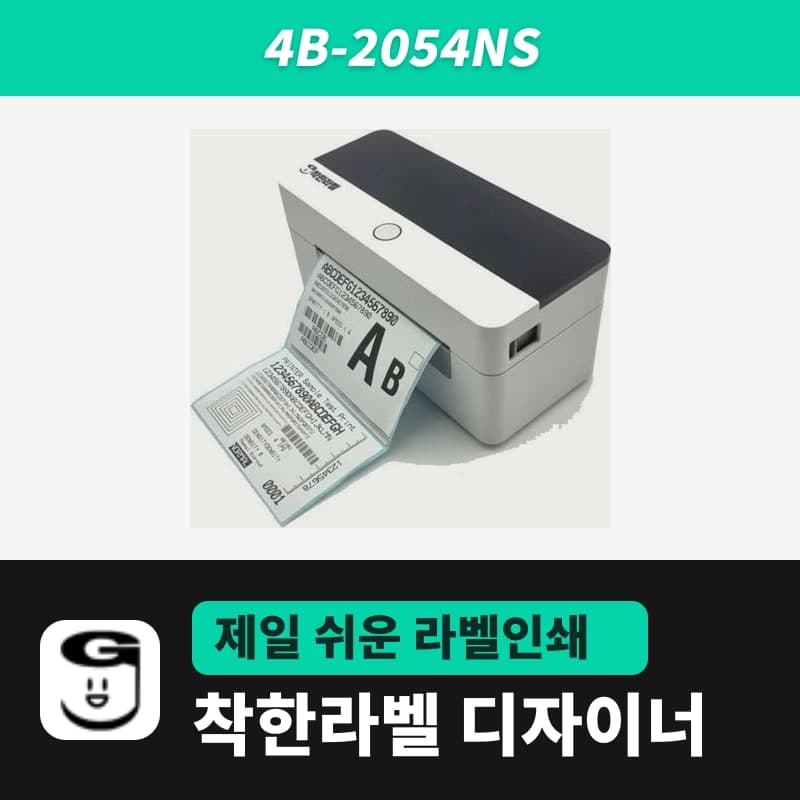 Good LabelGoodLabel 4B-2054NS direct thermal label printerThe GoodLabel 4B-2054NS is a direct thermal only 4-inch printer driven by GoodLabel Designer in TSPL; the Gap length field value goes into the GAP command as is. GoodLabel 4B-2054NS, W-4B-2054NS and Xprinter 4B-2054N in the model list are all TSPL at 203 dpi, so each sends the same commands.
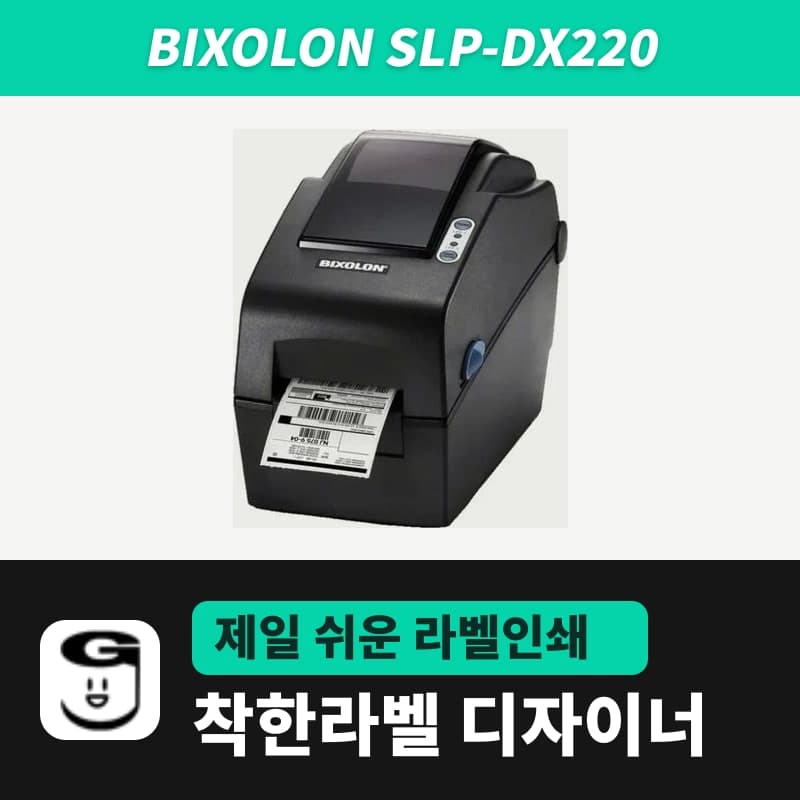 BixolonBixolon SLP-DX220 label printerThe SLP-DX220 is a Bixolon 2-inch direct thermal printer, 54mm print width, 203dpi, up to 6ips, rolls 15–60mm wide. Select SLP-DX220 (ZPL, 203dpi) in the GoodLabel Designer model list, and the Troubleshoot window skips the print method step and guides only saving the label type and Detect media.
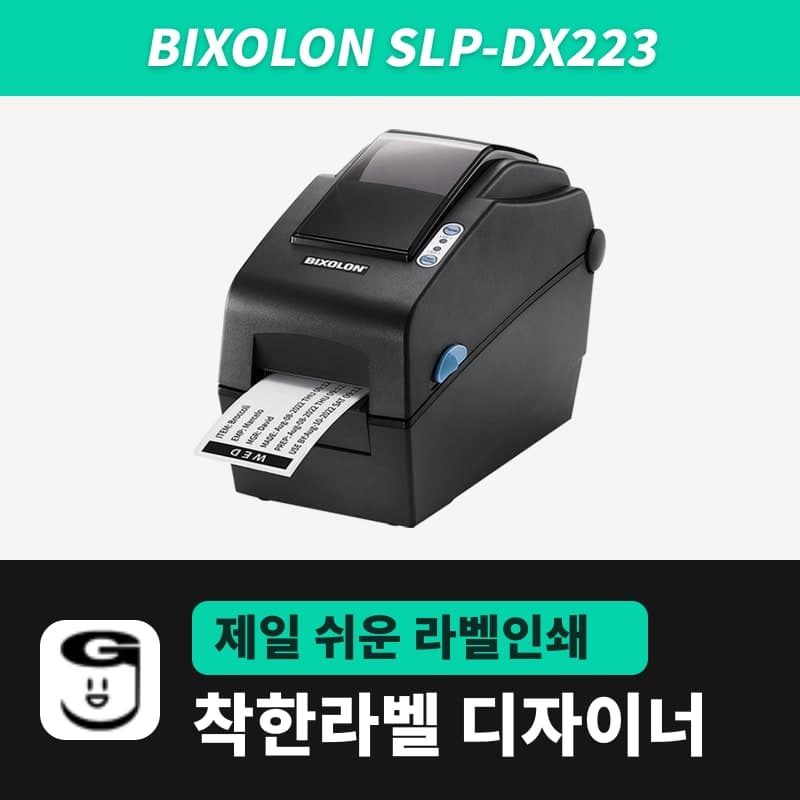 BixolonBixolon SLP-DX223 label printerA 2-inch direct thermal printer for dense text and QR codes on small labels 10–20mm tall, using the SLP-DX220 body with a head of about 11.8 dots per mm (print width 56.9mm, max 4ips). In the Designer model list it appears under its sales name, SLP-DX223, with a single ZPL, 300dpi setting.
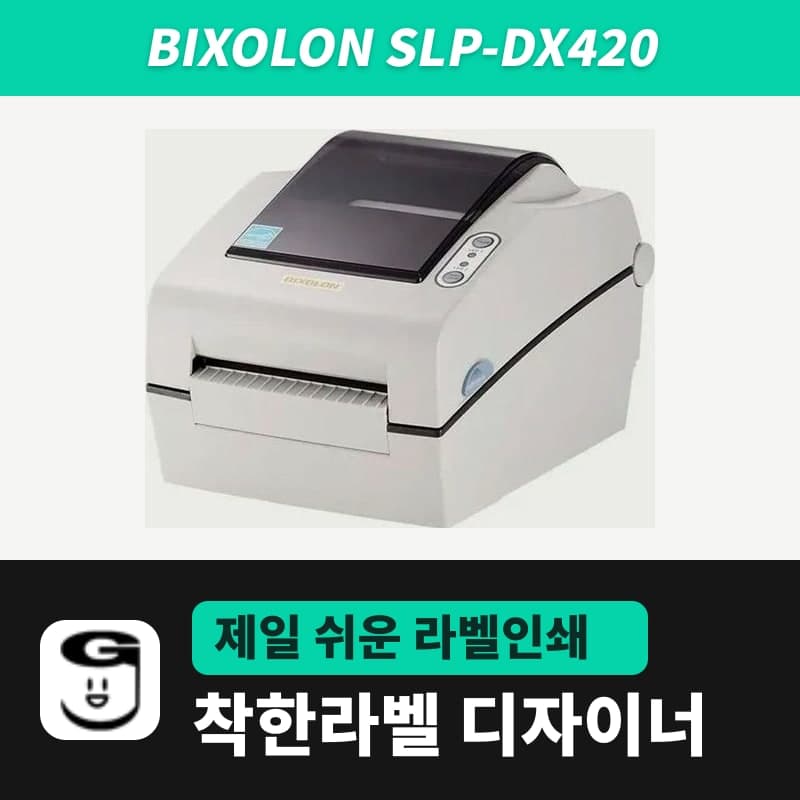 BixolonBixolon SLP-DX420 label printerThe SLP-DX420 is a Bixolon 4-inch direct thermal only printer, 108mm wide at 203dpi and up to 7ips, suited to printing many thermal labels such as 100×150mm shipping labels. In GoodLabel Designer, select SLP-DX420 (ZPL, 203dpi); copies of the same label go as one ^PQ quantity command.
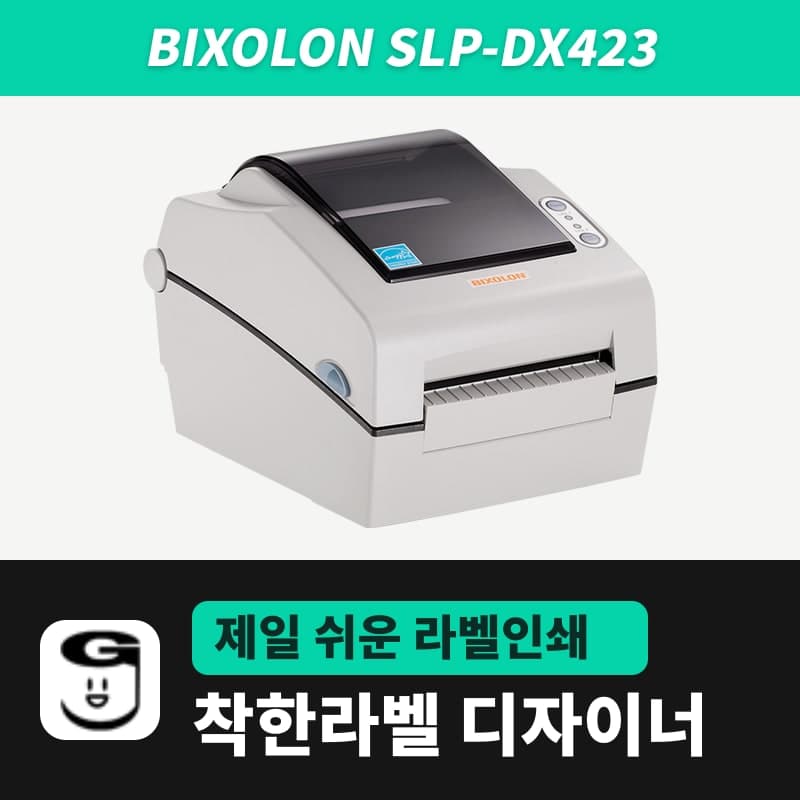 BixolonBixolon SLP-DX423 label printerFor the SLP-DX423, you must select the SLP-DX423 (ZPL, 300dpi) entry in GoodLabel Designer; if you send to the 203dpi SLP-DX420 entry, labels come out shrunk to about 68% of their size. The printer is a Bixolon 4-inch direct thermal only model with a 105.7mm print width and a max speed of 5ips.
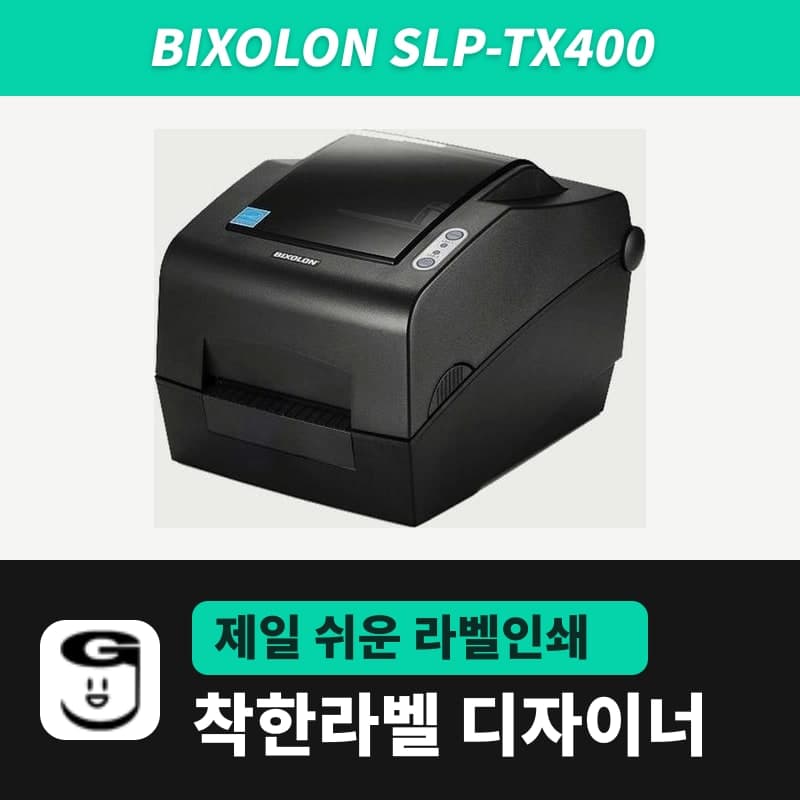 BixolonBixolon SLP-TX400 label printerIn the GoodLabel Designer Troubleshoot window, the print method step (thermal transfer or direct thermal) appears only when the Printer model field shows SLP-TX400. It is a Bixolon 4-inch thermal transfer and direct thermal printer (203dpi, 108mm, max 7ips); Designer entry: SLP-TX400 (ZPL, 203dpi).