
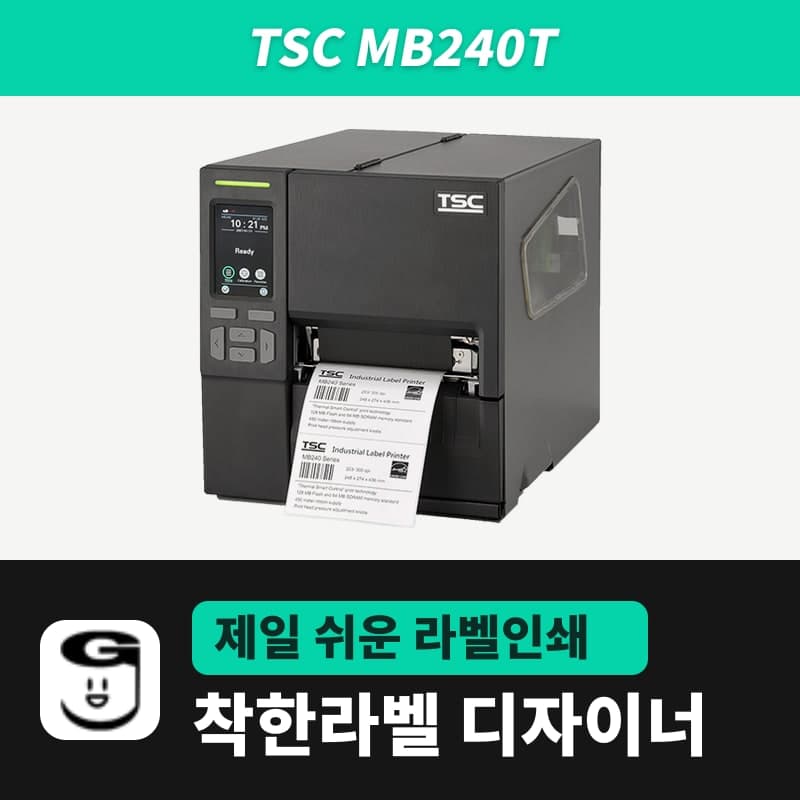
TSC · Label printers
TSC MB240T label printer
The MB240T is a TSC 203 dpi light industrial printer with a die-cast mechanism in a 248×274×436 mm, 9.2 kg body. GoodLabel Designer has no MB series entry, so select MH240, a TSPL 203 dpi entry; the panel speed scale of 1–10 is the same as the Designer's Speed field.
- Resolution
- 203 dpi (8 dots/mm)
- Print method
- Thermal transfer and direct thermal
- Max print speed
- 304.8 mm/s (12 ips, 2023 user manual) · 254 mm/s (10 ips, 2019 datasheet)
- Panel speed and density settings (TSPL)
- Speed 1–10 (factory 5), density 0–15 (factory 8)
- Max print width
- 107 mm (2023 user manual) · 108 mm (2019 datasheet)
- Label length
- 5–25,400 mm
Specifications
| Resolution | 203 dpi (8 dots/mm) |
|---|---|
| Print method | Thermal transfer and direct thermal |
| Max print speed | 304.8 mm/s (12 ips, 2023 user manual) · 254 mm/s (10 ips, 2019 datasheet) |
| Panel speed and density settings (TSPL) | Speed 1–10 (factory 5), density 0–15 (factory 8) |
| Max print width | 107 mm (2023 user manual) · 108 mm (2019 datasheet) |
| Label length | 5–25,400 mm |
| Media width and thickness | 20–120 mm, 0.06–0.28 mm |
| Media roll | 203.2 mm outer diameter, 25.4–76.2 mm core |
| Media types | Continuous, die-cut, black mark, fan-fold, notched (wound outside) |
| Sensors | Transmissive gap and reflective black mark (both adjustable position), ribbon encoder, ribbon end, head open |
| Ribbon | 450 m, outer diameter 81.3 mm or less, 1-inch core, ink side out or in, width 40–110 mm |
| Printer language | TSPL-EZD (EPL, ZPL, ZPL II, DPL compatible) |
| Interfaces | RS-232, USB 2.0, Ethernet 10/100 Mbps, USB host |
| Display and buttons | 3.5-inch color touch LCD, 6 buttons |
| Model to select in GoodLabel Designer | MH240 (TSPL, 203 dpi) — no MB series in the list |
| Dimensions and weight | 248×274×436 mm, 9.2 kg |
The TSC MB240T is a 203 dpi light industrial 4-inch printer with a die-cast aluminum print mechanism in a 248×274×436 mm, 9.2 kg body. The TSC datasheet presents this model alongside the MH240 series, and the GoodLabel Designer v3.3.22 list also has that MH240 entry (TSPL, 203 dpi) instead of the MB series, so select it to print. The principle and steps for choosing a model that is not in the list are described in detail on the MH241 page, and the 300 dpi sibling MB340T corresponds to the MH340 entry.
The same 1–10 scale as the Designer's Speed field
The panel's TSPL speed range at 203 dpi is 1–10, with a factory setting of 5. The Speed field in the Print window is also 1–10, so you can set any speed available on the panel directly in the Designer. The Print window starts at a speed of 3, so if you need the speed of 5 you used on the panel, raise it to 5 in the Print window.
The density scale is 0–15 on both, but the defaults differ: 8 on the printer and 11 in the Print window. DENSITY and SPEED commands sent from the PC override the panel settings, so while printing with GoodLabel Designer, the two fields Density and Speed in the Print window are what count.
Conditions to check when choosing labels and ribbons
| Item | Accepted range | What to check |
|---|---|---|
| Media width | 20–120 mm | The print width is 107 mm (2023 user manual) / 108 mm (2019 datasheet), so even a 120 mm roll prints only within that width |
| Media thickness | 0.06–0.28 mm | Thick media such as tags up to 0.28 mm |
| Core inner diameter and roll outer diameter | 25.4–76.2 mm, 203.2 mm outer diameter | Rolls on 1-inch cores load without a separate kit |
| Media types | Continuous, die-cut, black mark, fan-fold, notched (wound outside) | Choose the Designer media type from Gap labels, Continuous media and Black mark |
| Ribbon | 450 m, outer diameter 81.3 mm or less, 1-inch core, ink side out or in | When using only direct thermal labels, remove the ribbon and set the print method to Direct thermal |
| Ribbon width | 40–110 mm | Even though media up to 120 mm wide is accepted, ribbon width is limited to 110 mm |
On the MB240T, both the gap sensor and the black mark sensor can be moved left and right; the ▽ mark inside the mechanism shows the gap sensor position and the ↓ mark shows the black mark sensor position. Section 6.4 of the manual says to calibrate the sensor first after changing media, so click Detect media in the Designer's Troubleshoot window first, then do a test print.
Where to look by symptom
| Symptom | Cause on the printer side | What to do in the Designer |
|---|---|---|
| Labels are skipped | Entered label size differs from the actual size, sensor sensitivity, dust-covered media sensor | Check the label size and gap length in Printer settings → Detect media (AUTODETECT) in the Troubleshoot window; remove dust with a blower |
| Left or right edge of the label is missing | Wrong label size setting | Match the width in Printer settings to the actual label |
| Position is off on small labels | Sensor sensitivity, label size and gap size settings, panel Shift Y, driver vertical offset | Match the label size and gap length and run Detect media; adjust any remaining difference with Vertical offset in Advanced settings |
| Only blank labels come out | Media or ribbon loaded incorrectly, unsuitable media or ribbon, ribbon ink side direction, density | For a thermal transfer ribbon, set the print method to Thermal transfer and do a test print with density raised above 11 |
| Stops with the red indicator on steadily | Head open, cutter error | Close the head or check the cutter, then print again |
| Red indicator flashing | Errors during printing such as out of media, media jam, out of ribbon or memory error | Remove the cause; for a new roll, run Detect media first |
Find Vertical offset in Advanced settings and the Troubleshoot window in the illustrations in the Printing chapter of the guide. If you don't have the files for Windows registration, download the TSC unified driver.
Compatible with GoodLabel Designer
You can design and print labels for this model with GoodLabel Designer, our free label software. GoodLabel Designer · User Guide
FAQ
- Is there anything to check on the MB240T when switching to a black mark roll?
- The black mark sensor (the ↓ mark inside the mechanism) also has an adjustable position, so align it with where the marks pass. In the Designer's Printer settings, set the media type to Black mark and click Detect black mark, then turn the power off and on as instructed to print with the new setting.
- Which entry do I select for the 300 dpi MB340T?
- The MB340T is a 12 dots/mm model, so select MH340, a 300 DPI entry. If you leave it on a 203 DPI entry, an image drawn at 8 dots per mm is printed at 12-dot spacing and shrinks to a little over two-thirds of its original size.
- How much prints when I load a 120 mm wide roll?
- The MB240T takes media up to 120 mm wide, but the print width is 107 mm (2023 user manual). Enter the actual roll width as the Designer label width, but keep the content to print within 107 mm.
Drivers & manuals
How to buy
- In Korea, this product is sold through our Korean online store. Korean product page →
- Outside Korea, contact us by email. Email: Contact →
- Or buy from an authorized dealer in your country.
Other models in this category
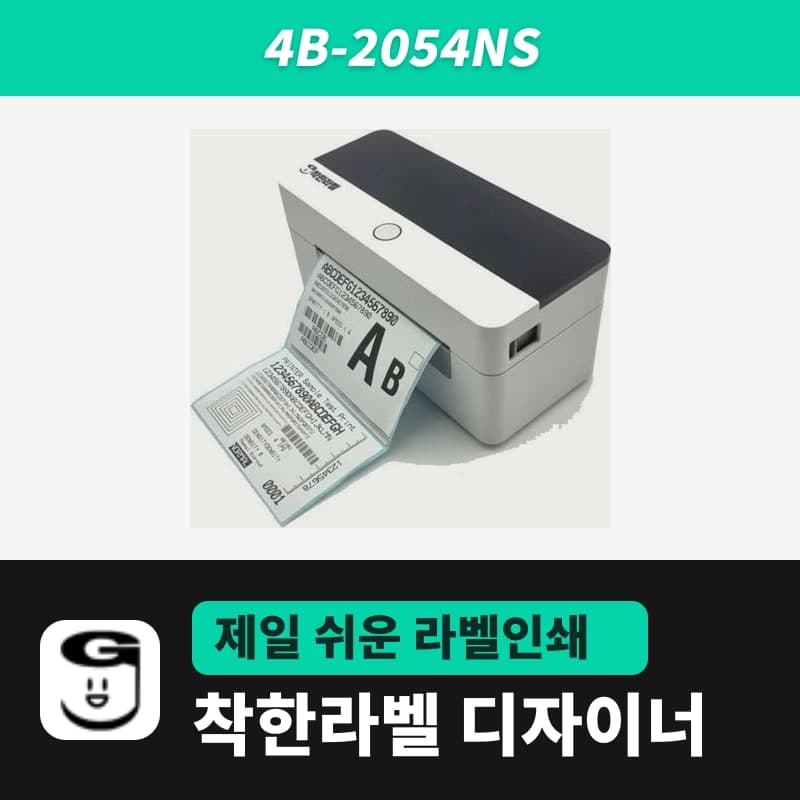 Good LabelGoodLabel 4B-2054NS direct thermal label printerThe GoodLabel 4B-2054NS is a direct thermal only 4-inch printer driven by GoodLabel Designer in TSPL; the Gap length field value goes into the GAP command as is. GoodLabel 4B-2054NS, W-4B-2054NS and Xprinter 4B-2054N in the model list are all TSPL at 203 dpi, so each sends the same commands.
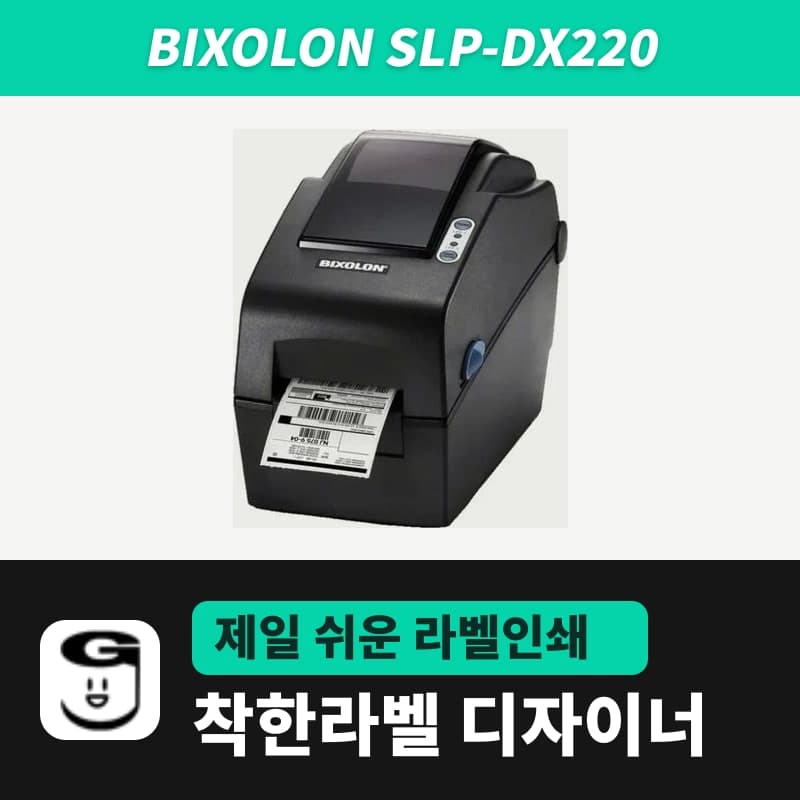 BixolonBixolon SLP-DX220 label printerThe SLP-DX220 is a Bixolon 2-inch direct thermal printer, 54mm print width, 203dpi, up to 6ips, rolls 15–60mm wide. Select SLP-DX220 (ZPL, 203dpi) in the GoodLabel Designer model list, and the Troubleshoot window skips the print method step and guides only saving the label type and Detect media.
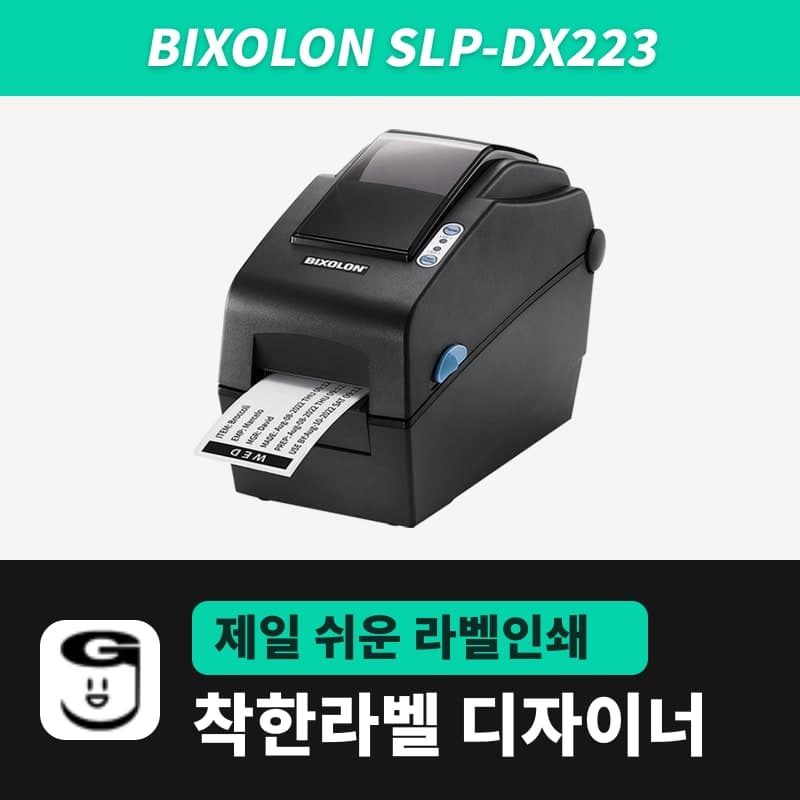 BixolonBixolon SLP-DX223 label printerA 2-inch direct thermal printer for dense text and QR codes on small labels 10–20mm tall, using the SLP-DX220 body with a head of about 11.8 dots per mm (print width 56.9mm, max 4ips). In the Designer model list it appears under its sales name, SLP-DX223, with a single ZPL, 300dpi setting.
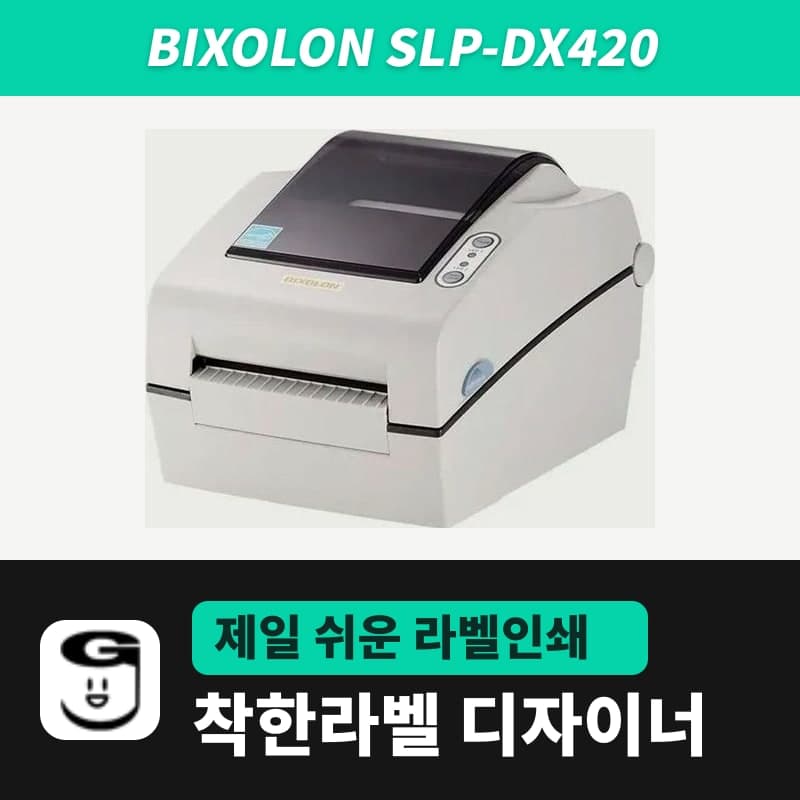 BixolonBixolon SLP-DX420 label printerThe SLP-DX420 is a Bixolon 4-inch direct thermal only printer, 108mm wide at 203dpi and up to 7ips, suited to printing many thermal labels such as 100×150mm shipping labels. In GoodLabel Designer, select SLP-DX420 (ZPL, 203dpi); copies of the same label go as one ^PQ quantity command.
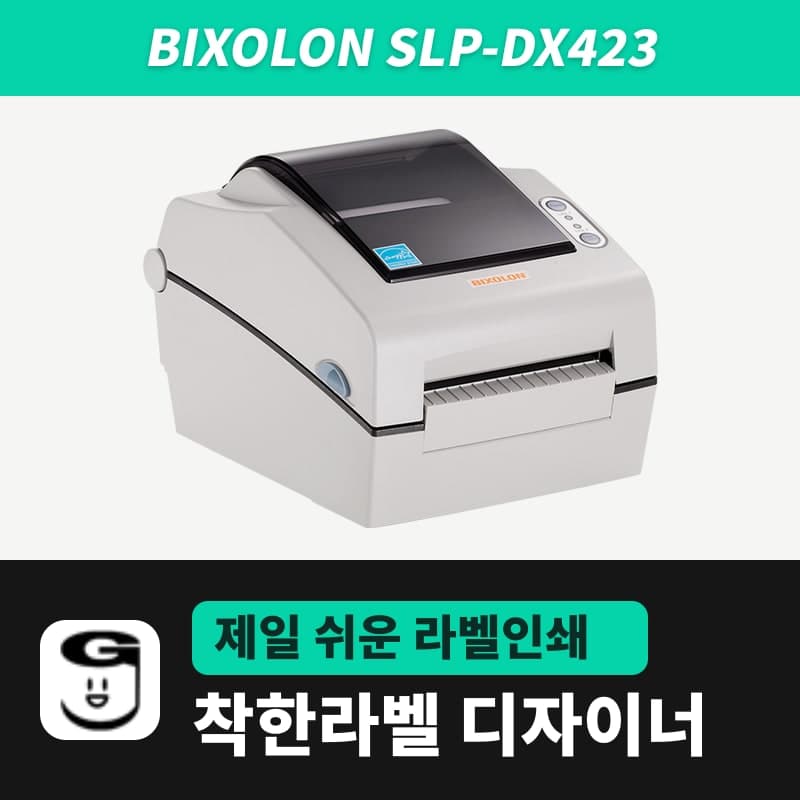 BixolonBixolon SLP-DX423 label printerFor the SLP-DX423, you must select the SLP-DX423 (ZPL, 300dpi) entry in GoodLabel Designer; if you send to the 203dpi SLP-DX420 entry, labels come out shrunk to about 68% of their size. The printer is a Bixolon 4-inch direct thermal only model with a 105.7mm print width and a max speed of 5ips.
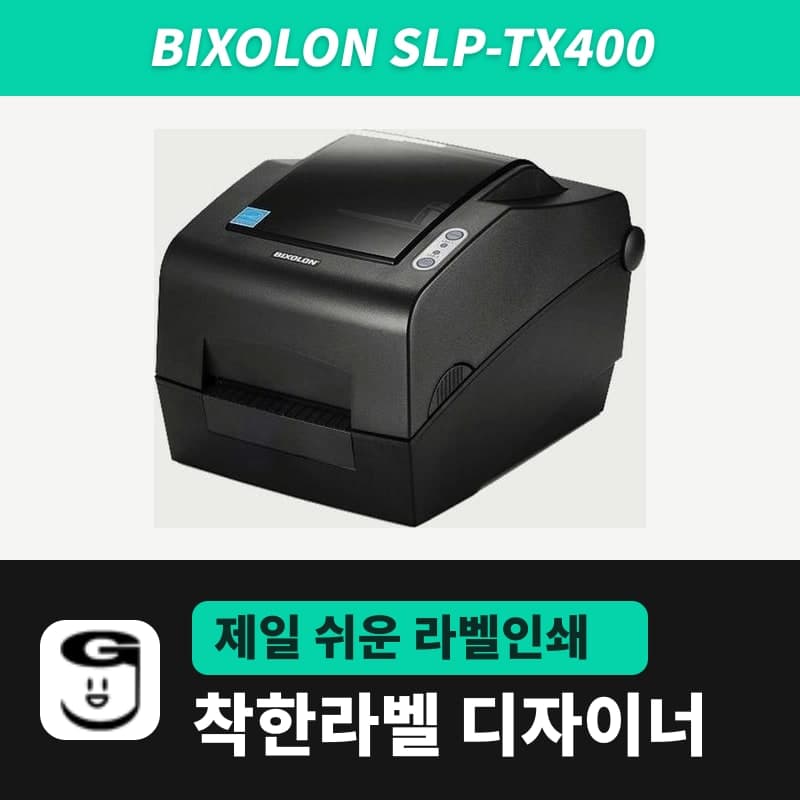 BixolonBixolon SLP-TX400 label printerIn the GoodLabel Designer Troubleshoot window, the print method step (thermal transfer or direct thermal) appears only when the Printer model field shows SLP-TX400. It is a Bixolon 4-inch thermal transfer and direct thermal printer (203dpi, 108mm, max 7ips); Designer entry: SLP-TX400 (ZPL, 203dpi).