
TSC · Label printers
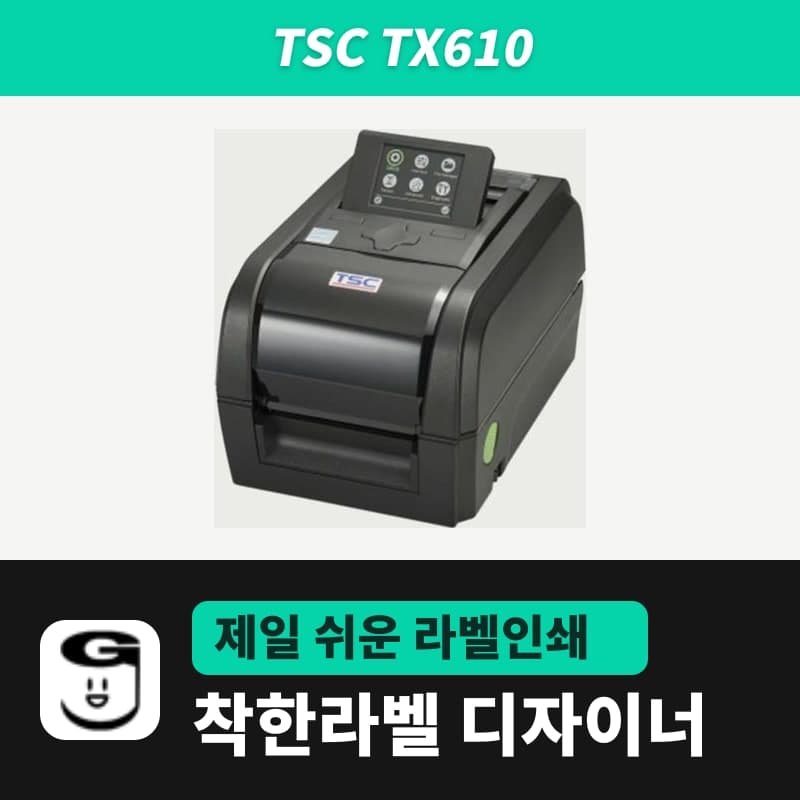
TSC TX610 label printer
GoodLabel Designer draws labels for the TSC TX610 (TSPL, 600 dpi) as bitmaps at about 23.6 dots per mm, so one 50×30 mm label is about 105 KB. Copies of the same label are sent once and the printer repeats them, and sensor calibration can also be done from the standard 3.5-inch LCD menu.
- Print method
- Thermal transfer and direct thermal
- Resolution
- 600 dpi (24 dots/mm)
- Max print speed
- 102 mm/s (4 ips)
- Max print width
- 106 mm
- Label length
- 3–2,540 mm
- Media width and thickness
- 19–112 mm, 0.055–0.254 mm
Specifications
| Print method | Thermal transfer and direct thermal |
|---|---|
| Resolution | 600 dpi (24 dots/mm) |
| Max print speed | 102 mm/s (4 ips) |
| Max print width | 106 mm |
| Label length | 3–2,540 mm |
| Media width and thickness | 19–112 mm, 0.055–0.254 mm |
| Media roll | 127 mm outer diameter, 25.4–38.1 mm core inner diameter, wound printed side out |
| Ribbon | 300 m, 1-inch core, outer diameter 67 mm or less, ink side out, width 40–110 mm |
| Sensors | Transmissive gap, reflective black mark (adjustable position), ribbon end, ribbon encoder, head open |
| Controls | 3.5-inch color TFT (320×240), 6 buttons (4 arrows, MENU, FEED/PAUSE/SELECT), real-time clock standard |
| Printer language | TSPL-EZD (EPL, ZPL, ZPL II, DPL compatible) |
| Interfaces | USB 2.0, RS-232, USB host, Ethernet 10/100 Mbps |
| Power | External adapter, output DC 24V 5.41A 130W |
| GoodLabel Designer model | TX610 (TSPL, 600 dpi) |
| Dimensions and weight | 226×200×332 mm, 4.08 kg |
| Operating environment | 5–40°C, 25–85% humidity (non-condensing) |
When GoodLabel Designer sends one 50×30 mm label to the TSC TX610, the bitmap alone is about 105 KB, more than eight times what it sends to a 203 dpi model. This is because it is a 600 dpi model that draws about 23.6 dots per mm, and the transfer time for multi-copy and serial number jobs also grows with this size.
On the printer side, a 3.5-inch color LCD and 6 buttons come standard only on this model in the TX series, so sensor calibration and configuration printouts are done from the menus under MENU without a PC. The ribbon end sensor and real-time clock are also standard, the print width is 106 mm, and a single label can be up to 2,540 mm long.
Data size of one 600 dpi label
The TX610 in the Designer model list is registered with the TSPL command language and a single resolution of 600 dpi, so it sends a monochrome bitmap in the BITMAP command. For the shared 50×30 mm product barcode layout, that is 1,182 dots wide and 709 dots high, 148 bytes per line; for a 203 dpi model, the same layout is only about 12 KB.
| Print job | How the Designer sends it to the TX610 |
|---|---|
| Multiple copies of the same label | One bitmap and a single line of PRINT 1,(copies); the printer repeats the remaining copies. |
| Labels whose content changes per label, such as serial numbers or data rows | A newly drawn bitmap is sent separately for each label. |
Labels that change per label are passed in batches of 50 at a time with a 2-second pause between batches, so if you run thousands of serial numbers, the transfer takes longer in proportion to the number of labels.
How LCD menus relate to Designer commands
- After changing rolls, press the MENU button and in Auto Calibration under the Sensor item, choose the loaded media from Gap, Black Mark and Continuous. To do it from the PC, click Detect media in the Designer's Troubleshoot window to send a single AUTODETECT line to the TX610.
- Density (default 8) and Speed changed in the LCD's TSPL menu are overridden the moment you print from the Designer. This is because the Designer sends DENSITY and SPEED lines with every job; adjust darkness with Density (0–15, default 11) in the Designer's Print window.
- The print direction is also fixed regardless of the panel's Direction setting, because the Designer includes DIRECTION 1 every time. If you need to flip the direction, use "Print rotated 180°" in the print options.
- The TSPL lines the Designer sends (SIZE, GAP, DIRECTION, DENSITY, SPEED, BITMAP, PRINT) do not include Print mode, so the mode selected on the LCD is used as-is. The default, Batch Mode, pushes the printed label out to the tear bar position.
- If small QR codes or thin text print broken, first print a configuration sheet with a head test pattern using Print Config. in the Diagnostic menu and check for missing dots.
TX610 roll and ribbon conditions
Labels from 3 mm long are accepted, and the Designer's label height limit of 1000 mm falls within the TX610's 2,540 mm. The conditions of 19–112 mm media width, 0.055–0.254 mm thickness, printed side wound out, and 1–1.5 inch cores with a 127 mm outer diameter are common to the TX series.
The ribbon roll spec is the same as its sibling models, so follow the ribbon paragraph on the TX210 page. When printing on thermal roll labels without a ribbon, set the print method to Direct thermal. If the name registered with the TSC unified driver used for Windows registration contains TX610, the model and 600 DPI are filled in together.
Compatible with GoodLabel Designer
You can design and print labels for this model with GoodLabel Designer, our free label software. GoodLabel Designer · User Guide
FAQ
- If the Windows printer name does not include TX610, do I need to choose the resolution separately?
- When it is not recognized automatically by name, search for TX610 in the printer model field of the Printer settings window and select it. The TX610 entry has only 600 dpi, so selecting the model also sets the resolution to 600 DPI.
- A 600 dpi document looks unusually small on the editing screen.
- This is because the zoom is set to 30% when you change the resolution to 600 in the Printer settings panel or open a 600 dpi file with Open (203 dpi 100%, 300 dpi 60%). If you open it by double-clicking or from Recent files, the zoom from when it was saved is restored, and the actual label size stays the same either way.
- What do I change in the Designer if I install a peeler module or cutter on the TX610?
- The peeler module and full-cut cutter are dealer options. The Designer's commands have no Print mode, so after installation, choose Peeler Mode or Cutter Mode in Print mode in the TSPL menu on the TX610 LCD.
Drivers & manuals
How to buy
- In Korea, this product is sold through our Korean online store. Korean product page →
- Outside Korea, contact us by email. Email: Contact →
- Or buy from an authorized dealer in your country.
Other models in this category
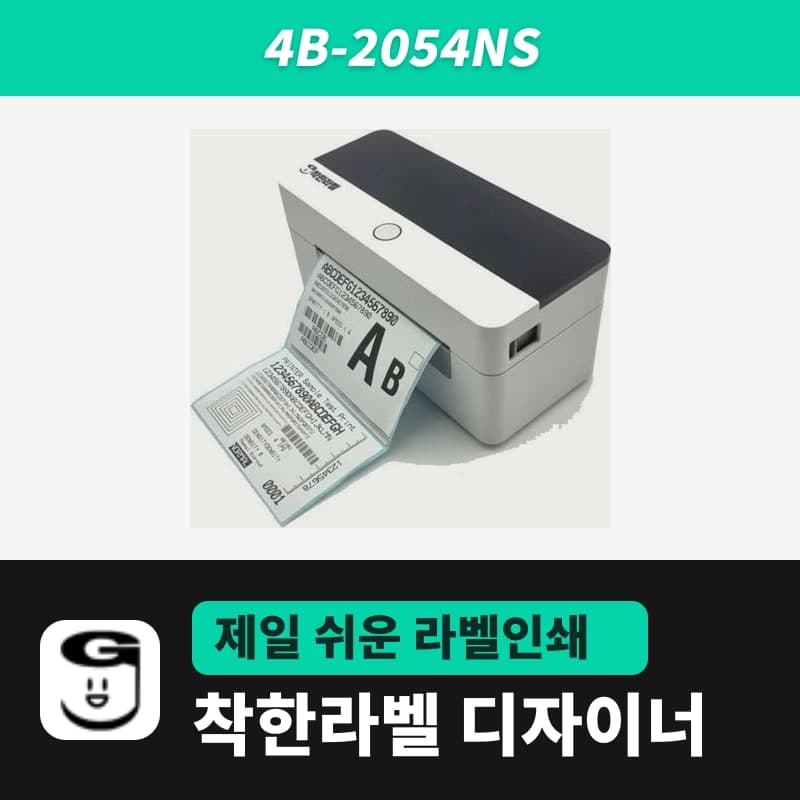 Good LabelGoodLabel 4B-2054NS direct thermal label printerThe GoodLabel 4B-2054NS is a direct thermal only 4-inch printer driven by GoodLabel Designer in TSPL; the Gap length field value goes into the GAP command as is. GoodLabel 4B-2054NS, W-4B-2054NS and Xprinter 4B-2054N in the model list are all TSPL at 203 dpi, so each sends the same commands.
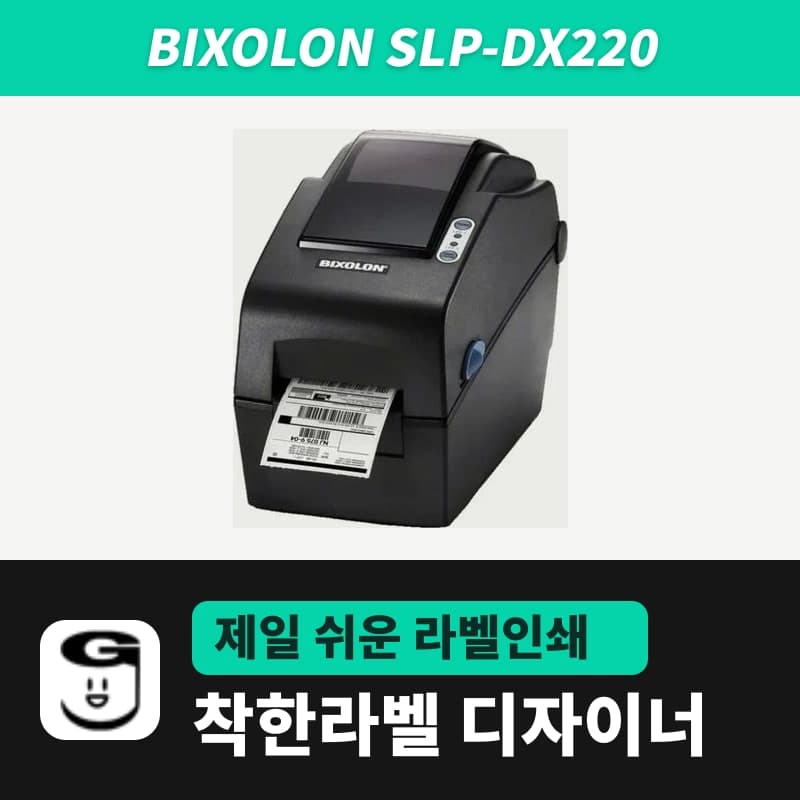 BixolonBixolon SLP-DX220 label printerThe SLP-DX220 is a Bixolon 2-inch direct thermal printer, 54mm print width, 203dpi, up to 6ips, rolls 15–60mm wide. Select SLP-DX220 (ZPL, 203dpi) in the GoodLabel Designer model list, and the Troubleshoot window skips the print method step and guides only saving the label type and Detect media.
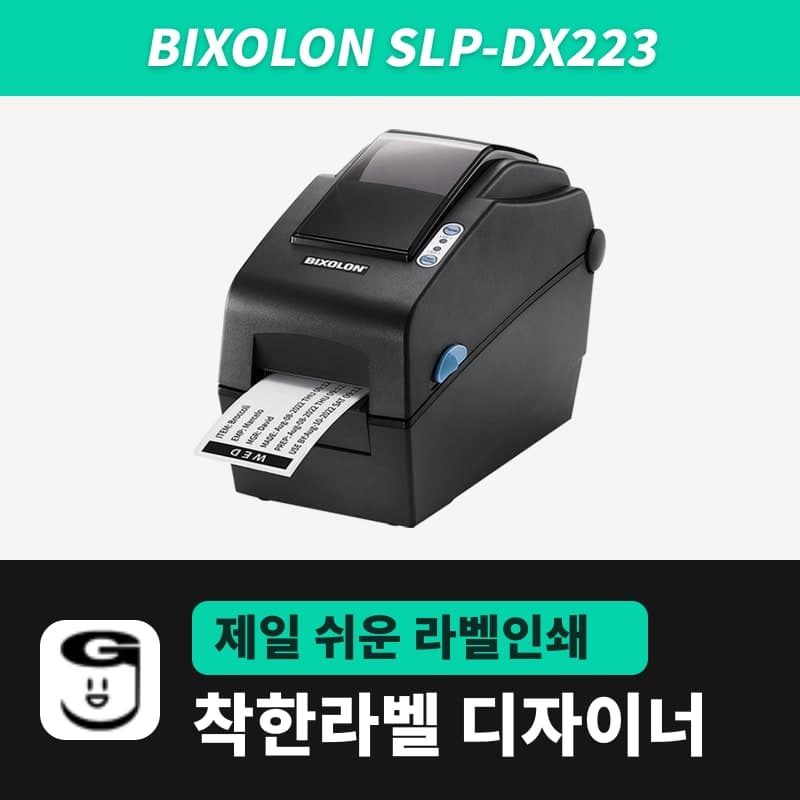 BixolonBixolon SLP-DX223 label printerA 2-inch direct thermal printer for dense text and QR codes on small labels 10–20mm tall, using the SLP-DX220 body with a head of about 11.8 dots per mm (print width 56.9mm, max 4ips). In the Designer model list it appears under its sales name, SLP-DX223, with a single ZPL, 300dpi setting.
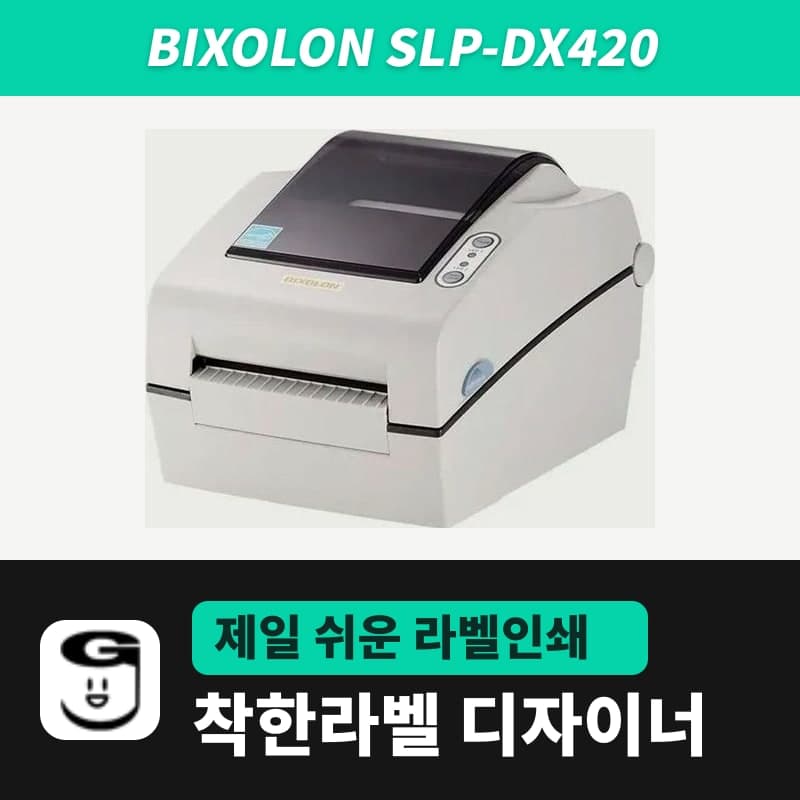 BixolonBixolon SLP-DX420 label printerThe SLP-DX420 is a Bixolon 4-inch direct thermal only printer, 108mm wide at 203dpi and up to 7ips, suited to printing many thermal labels such as 100×150mm shipping labels. In GoodLabel Designer, select SLP-DX420 (ZPL, 203dpi); copies of the same label go as one ^PQ quantity command.
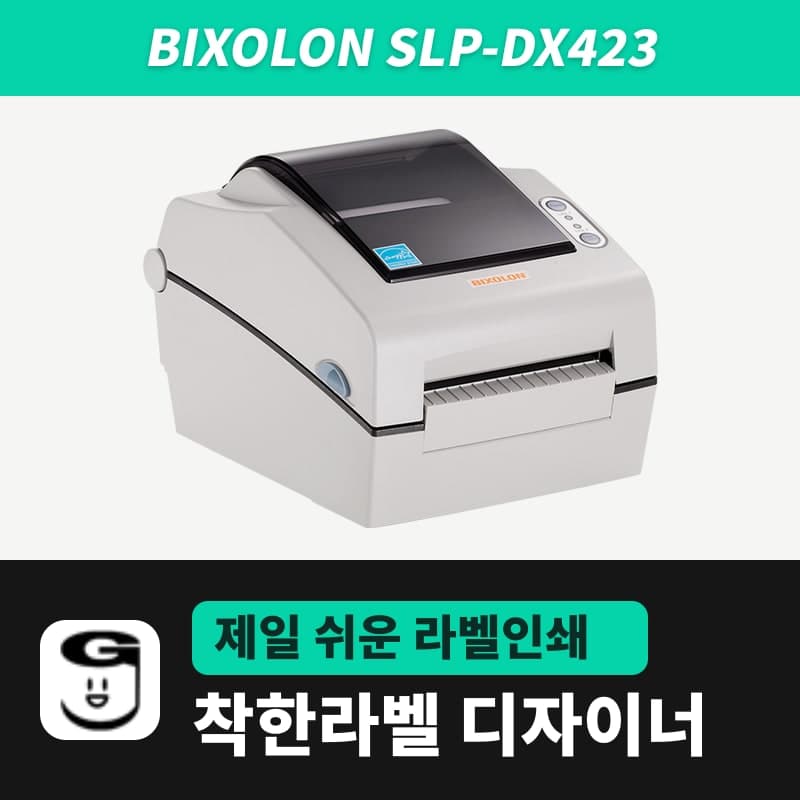 BixolonBixolon SLP-DX423 label printerFor the SLP-DX423, you must select the SLP-DX423 (ZPL, 300dpi) entry in GoodLabel Designer; if you send to the 203dpi SLP-DX420 entry, labels come out shrunk to about 68% of their size. The printer is a Bixolon 4-inch direct thermal only model with a 105.7mm print width and a max speed of 5ips.
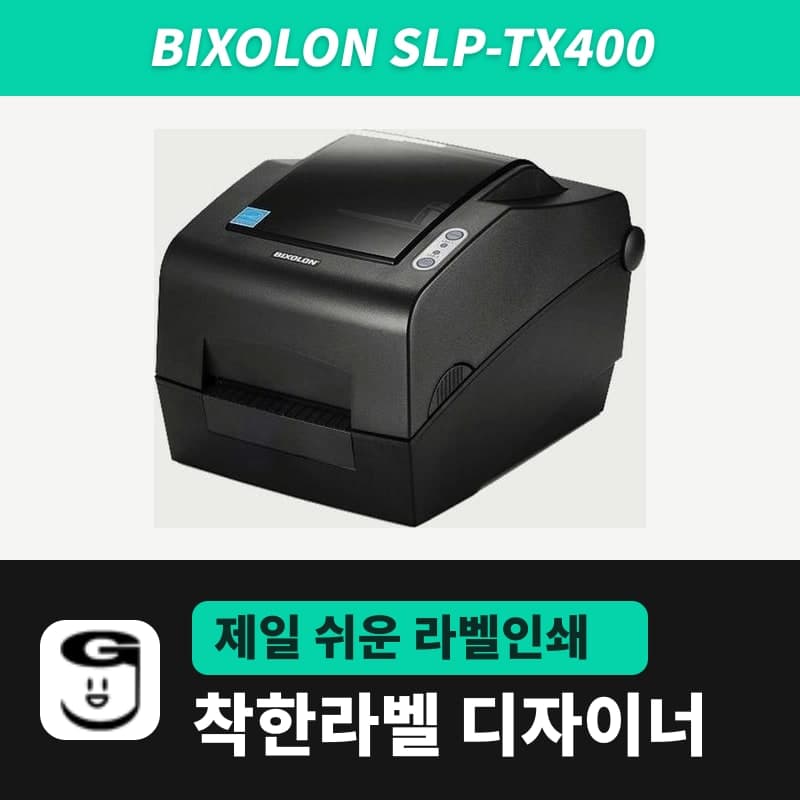 BixolonBixolon SLP-TX400 label printerIn the GoodLabel Designer Troubleshoot window, the print method step (thermal transfer or direct thermal) appears only when the Printer model field shows SLP-TX400. It is a Bixolon 4-inch thermal transfer and direct thermal printer (203dpi, 108mm, max 7ips); Designer entry: SLP-TX400 (ZPL, 203dpi).